Hub: Order Export
Introduction
It is possible to export orders data via the Export CSV button on Orders page in Hub. This option is available only for orders created in the 30 days. You can press the Export CSV button and the full list of orders will be exported. Alternatively, you can select the needed orders using the checkboxes on the left side of the card and then press the Export CSV button.
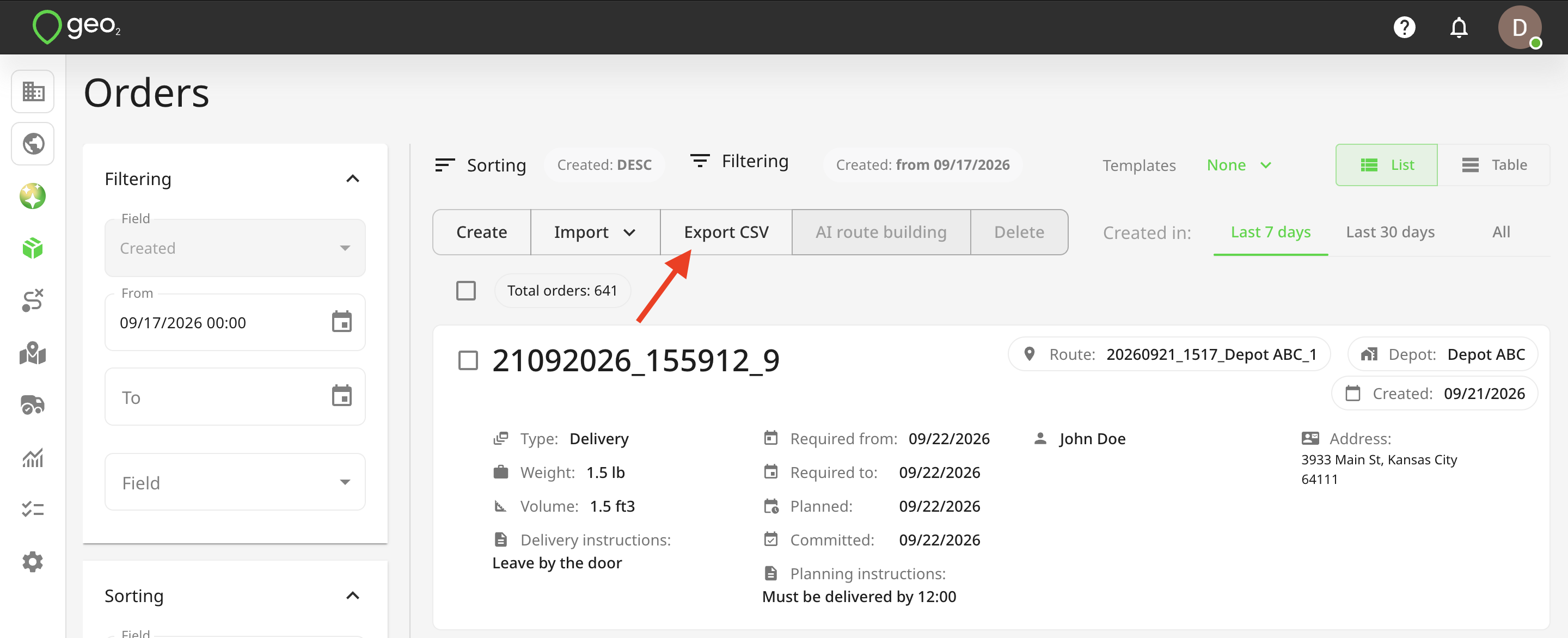
Once the Export CSV button is pressed, the order data will be exported in a CSV file.
Spreadsheet Interface
The spreadsheet interface column headings guide you on the type of data expected in each column.
| Column Heading | Data Type | Details |
|---|---|---|
| Order key | String | Order identifier unique within the environment, for example, an order number 1, 2, 3, 4, etc. |
| Order type | Pre-defined string option | Type of order - delivery or collection. |
| Weight | Numerical | Number to specify the total order weight in the weight units specified in Settings → Environment → Hub: Display Preferences Settings. For example, 50. |
| Volume | Numerical | Number to specify the total order volume in the volume units specified in Settings → Environment → Hub: Display Preferences Settings. For example, 5. |
| Planned packages | Numerical | Number of expected packages as part of an order. For example, 2. |
| Depot | String unique identifier | Optional start and end points for routes. The depot key already exists in Settings → Environment → Hub: Depots Settings. |
| Channel | String unique identifier | Tag that lets you classify delivery methods. The channel key already exists in Settings → Environment → Hub: Channels Settings. |
| Area | String unique identifier | Tag that lets you identify depots and routes by user-defined geographical regions. The area key already exists in Settings → Environment -> Hub: Areas Settings. |
| Route | String unique identifier | Route identifier unique within the environment. It can be today's date, a route number 1, 2, 3, 4, etc. These data will be displayed only if the order is assigned to the route. |
| Trip | Numerical | Number you can use to indicate, for example, the order of routes for the same vehicle on the day, with the first route of the day being 1, a subsequent one being 2, etc. These data will be displayed only if the order is assigned to the route. |
| Stop number | Numerical | Number to indicate the position of the order in the route, for example, 1, 2, 3, 4, etc. These data will be displayed only if the order is assigned to the route. |
| Route user | String unique identifier | Full name of the user responsible for the route, for example, Driver Jack Doe. These data will be displayed only if the order is assigned to the route. |
| Route vehicle | String unique identifier | Vehicle key of the vehicle assigned to the route, for example, Van 1. The vehicle key already exists in Settings → Environment -> Hub: Vehicles Settings. These data will be displayed only if the order is assigned to the route. |
| Time at stop | String | Amount of time in minutes a driver will spend at a stop. For example, 10. These data will be displayed only if the order is assigned to the route. |
| Required from | Date/time - format yyyy-MM-dd HH:mm, the 24-hour time portion HH:mm is optional | Date/time to indicate from when an order is required to be delivered/collected. |
| Required to | Date/time - format yyyy-MM-dd HH:mm, the 24-hour time portion HH:mm is optional | Date/time to indicate till when an order is required to be delivered/collected. |
| Committed date | Date/time - format yyyy-MM-dd HH:mm, the 24-hour time portion HH:mm is optional | Date/time to indicate a delivery/collection deadline that has been agreed with the recipient. |
| Planned date | Date/time - format yyyy-MM-dd HH:mm, the 24-hour time portion HH:mm is optional | Date/time to indicate when the order is planned for inclusion in a route. |
| Order instructions | String | Optional notes for drivers that are shown in the mobile app. For example, "Leave with reception". |
| Planning instructions | String | Optional notes for transport planners that are shown in the stop card in the Route plan page and not shown in the mobile app. For example, "Must be delivered by 11:00". |
| Recipient code | String | Recipient identifier such as customer code. If you deliver to the same recipient repeatedly, you can assign them a code and filter orders by code, for checking statistics, etc. It will also be displayed in the mobile app for drivers. |
| Contact name | String | Recipient contact name. For example, Jane Doe. |
| String | Recipient email address. It is provided in the format recipient@domainname.domainsuffix. For example, janedoe@gmail.com. For example, janedoe@gmail.com. | |
| Phone | String | Recipient phone number. It is started with "+" and has from 5 to 16 digits. No spaces, no brackets, or other special symbols. For example, +441172345678. |
| Mobile phone | String | Recipient mobile phone number. It is started with "+" and has from 5 to 16 digits. No spaces, no brackets, or other special symbols. For example, +441172345678. |
| Company name | String | Recipient address - company name. For example, Balloon One. |
| Address line 1 | String | Recipient address - address line 1. For example, 71 Cherry Court. |
| Address line 2 | String | Recipient address - address line 2. |
| Address line 3 | String | Recipient address - address line 3. |
| City | String | Recipient address - city. For example, Southampton. |
| Postal code | String | Recipient address - postal code. For example, SO53 5PD. |
| Region | String | Recipient address - region |
| State | String | Recipient address - state |
| Country | String | Recipient address - country. It is provided as the two-letter ISO country code, for example, GB for the United Kingdom. |