Hub: Orders
Orders are records of deliveries/collections to be handled by a driver, typically as part of a route, a group of orders.
Orders Page
To list orders in the environment, select Orders from the menu in Hub. By default, orders created in the last 7 days are listed. You can select the other two tabs to show orders created in the last 30 days or list all orders in the environment. Full filtering and sorting criteria are only available for the 7-day and 30-day tabs.
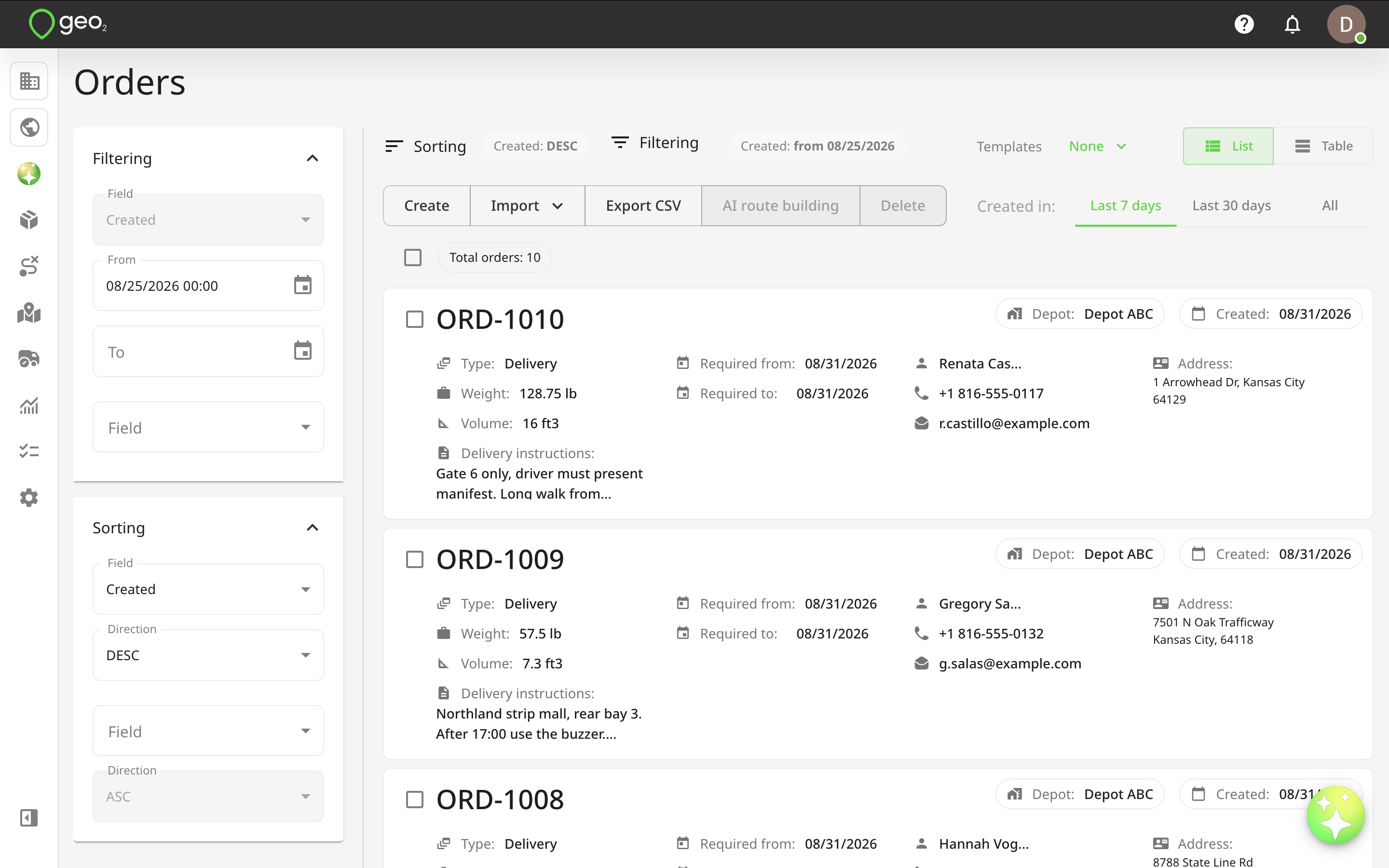
Filters
To narrow down the list of orders, you can use the Filters on Orders page in Hub. The following filters are available:
| Filter | Operation | Details |
|---|---|---|
| Created | From/To | Order creation date |
| Key | Contains | Order key |
| Route | Contains | Key of route to which the order is assigned |
| Route assignment | Select | Choose order: - Assigned to a route - Without a route |
| Depot | Select | Key of depot to which the order is assigned |
| Type | Select | Order type: - Delivery - Collection |
| Channel | Select | Order channel |
| Area | Select | Order area |
| Weight | From/To | Order weight |
| Volume | From/To | Order volume |
| Required from | From/To | Order required from date/time |
| Required to | From/To | Order required to date/time |
| Committed | From/To | Order committed date/time |
| Planned | From/To | Order planned date/time |
| POD status | Select | Status of POD linked to the order: - Success - Failed - Without POD |
| Order instructions | Contains | Order driver instructions |
| Planning instructions | Contains | Order planner instructions |
| Recipient code | Contains | |
| Recipient contact name | Contains | |
| Contains | Recipient email | |
| Phone | Start with | Recipient phone |
| Mobile phone | Start with | Recipient mobile phone |
| Company name | Contains | Recipient company name |
| Address line 1, 2, 3 | Contains | Recipient address - lines 1, 2, 3 |
| City | Contains | Recipient address - city |
| Postal code | Contains | Recipient address - postal code |
| Region | Contains | Recipient address - region |
| State | Contains | Recipient address - state |
| Country | Is | Recipient address - country |
POD Status
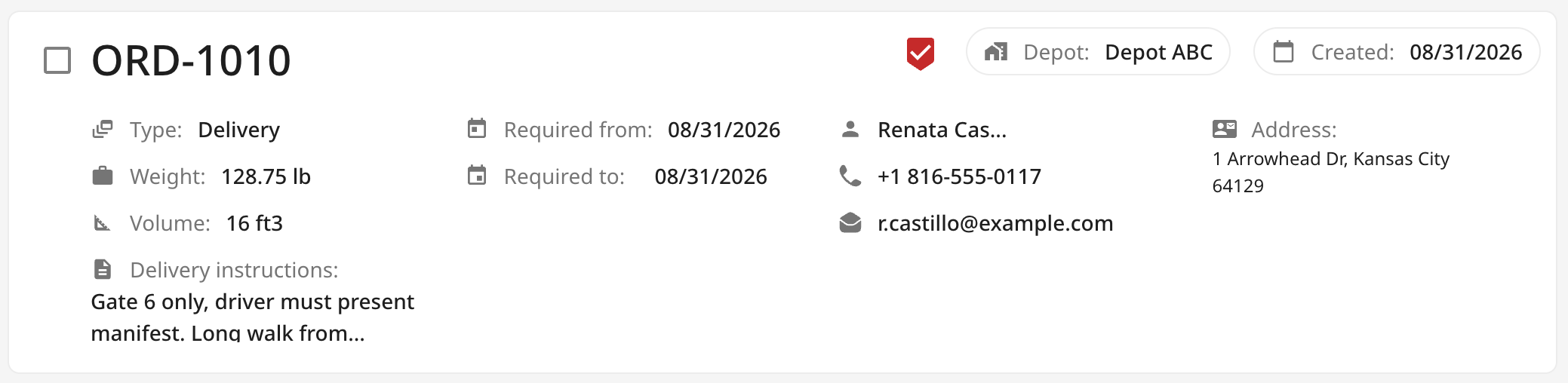
Where a POD has been recorded for the order, it is indicated with a status icon in the top row of each order card in Hub. A failed POD is red:
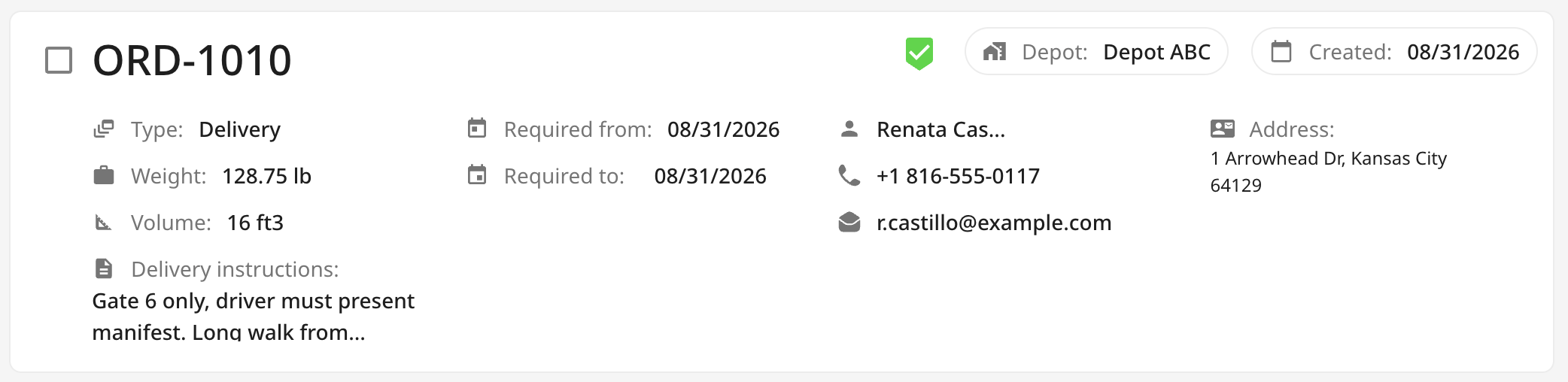
A successful POD is shown green:
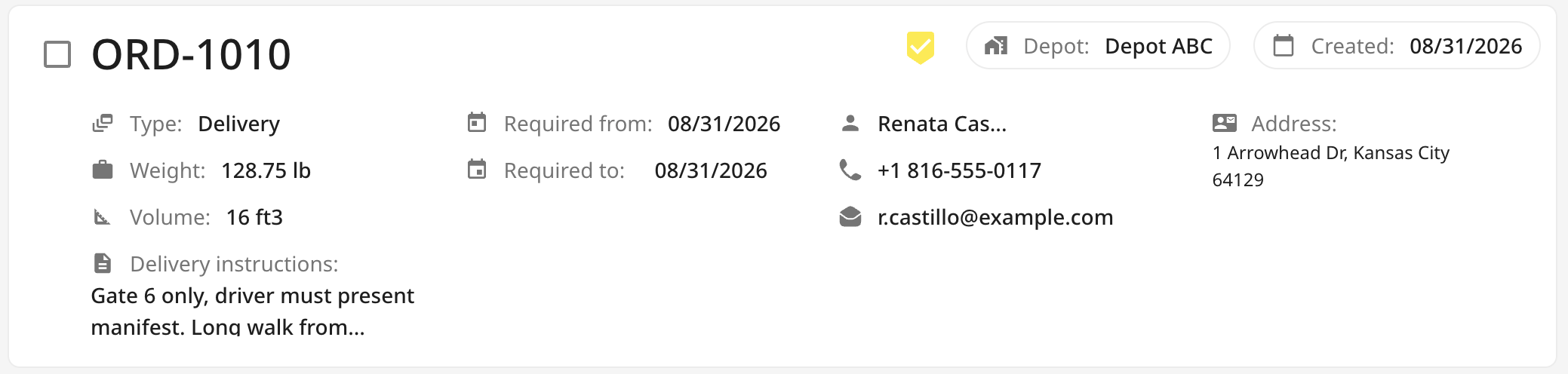
A partially successful POD is orange:
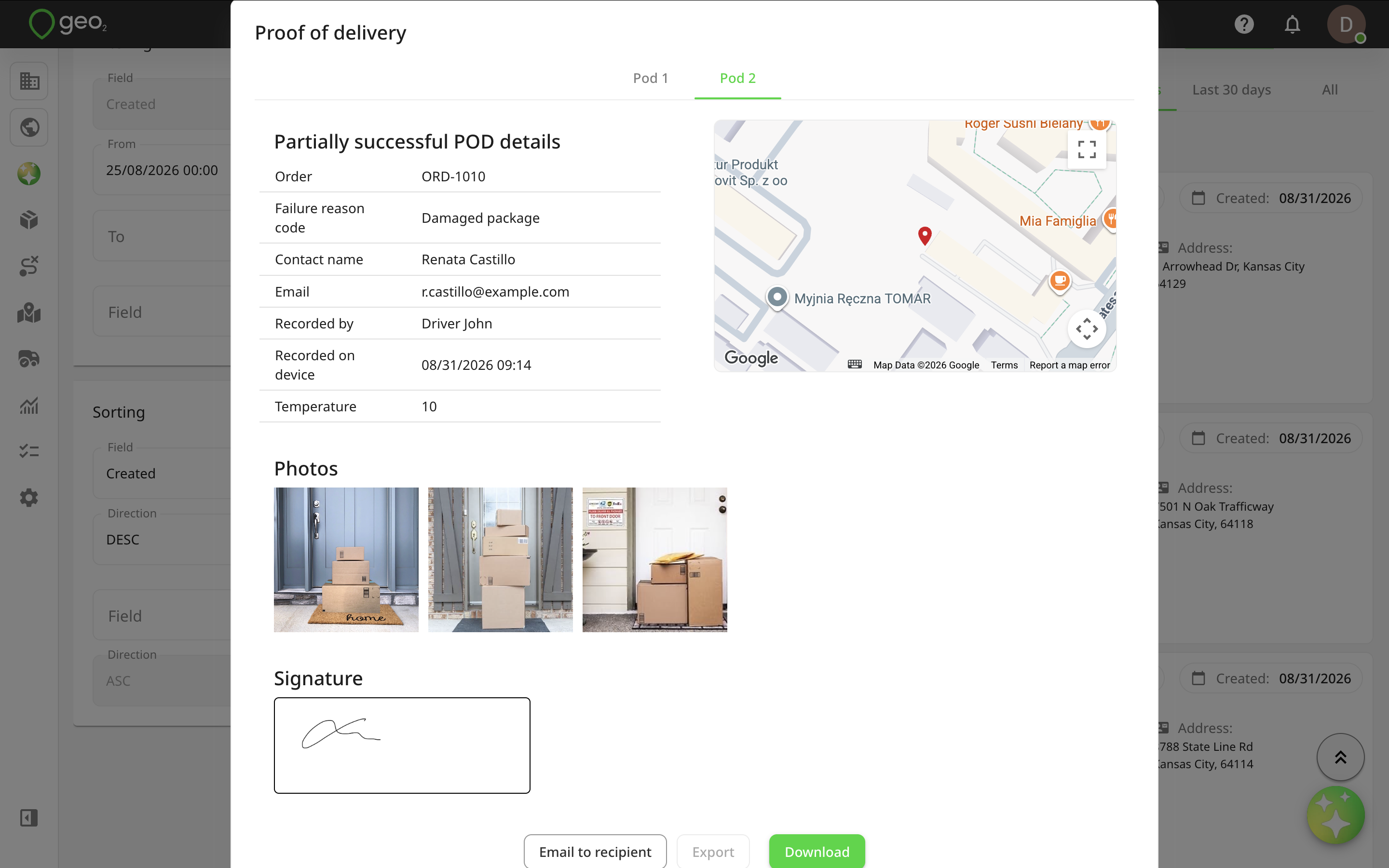
You can press the POD icon on an order card to open the recorded POD. If an order has several recorded POD's, they will be displayed in separate tabs as Pod 1, Pod 2, etc.
Read more about: