Hub: Register
Introduction
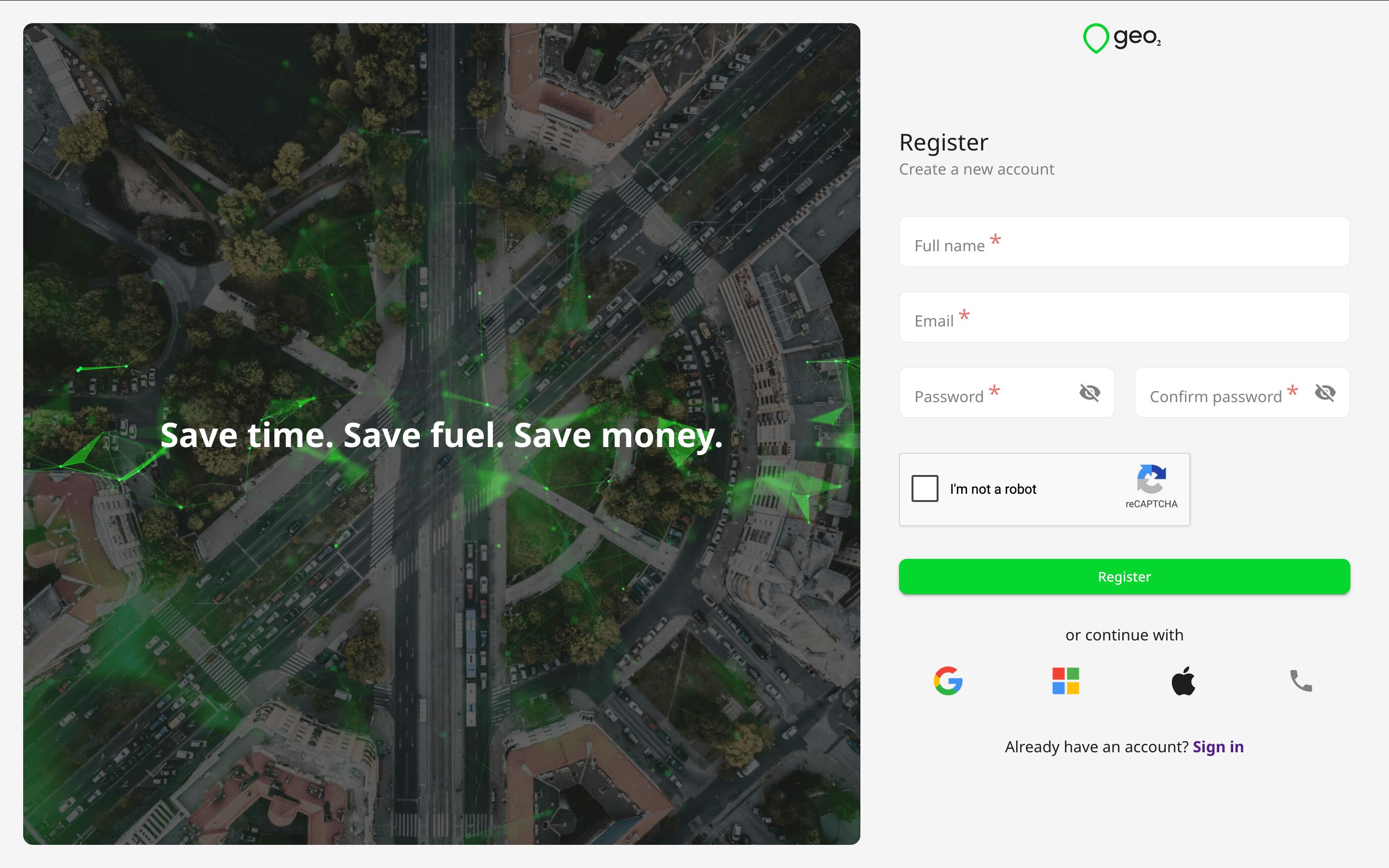
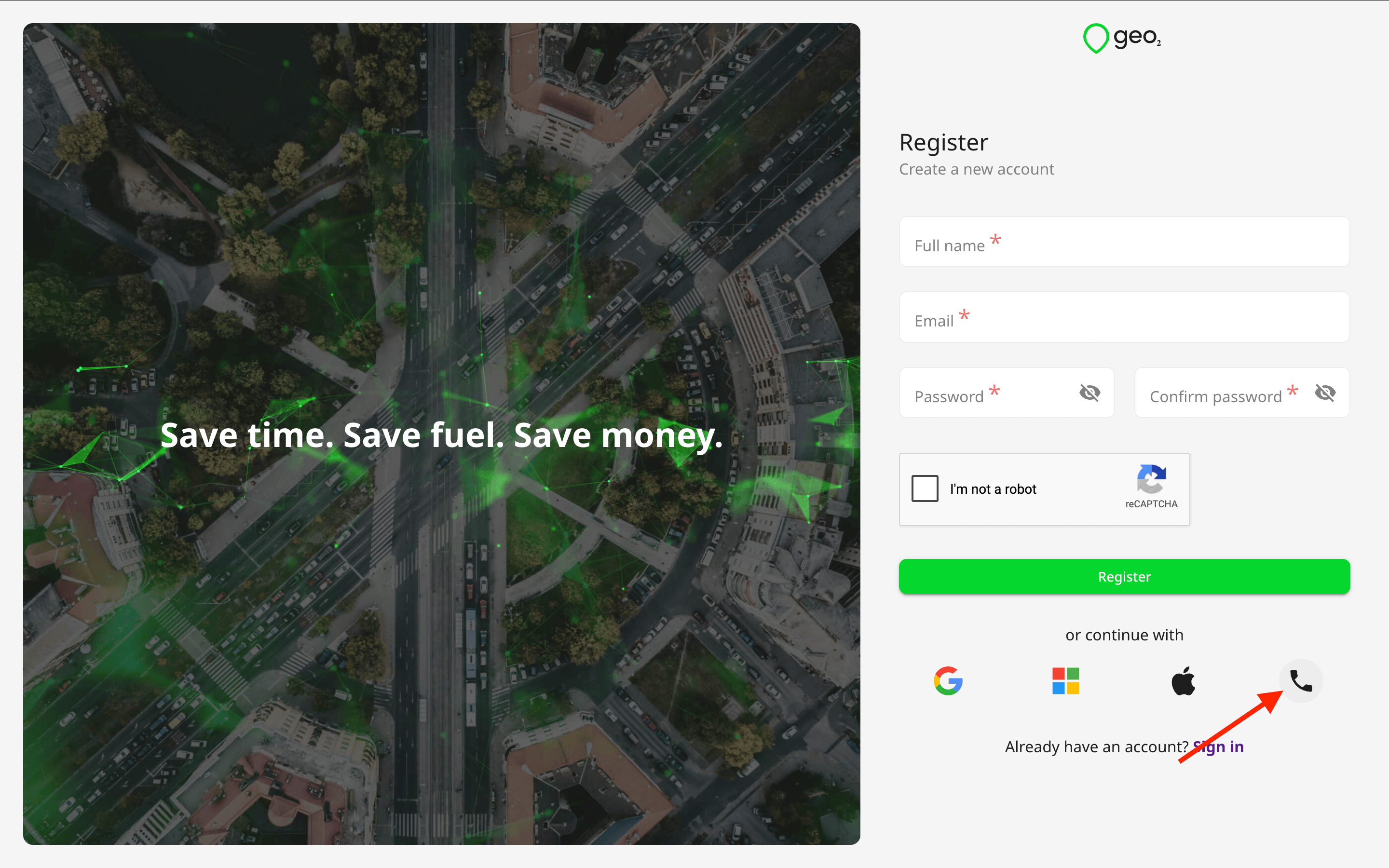
You need to register to become a user in Geo2 Hub. You have the option to authenticate either with an email address and password, mobile phone number or via an identity provider - Apple, Google, or Microsoft.
If you are joining an existing organization, the admin of that organization needs to add your user account and assign a subscription to you. Learn how to Hub: Accept Invitation.
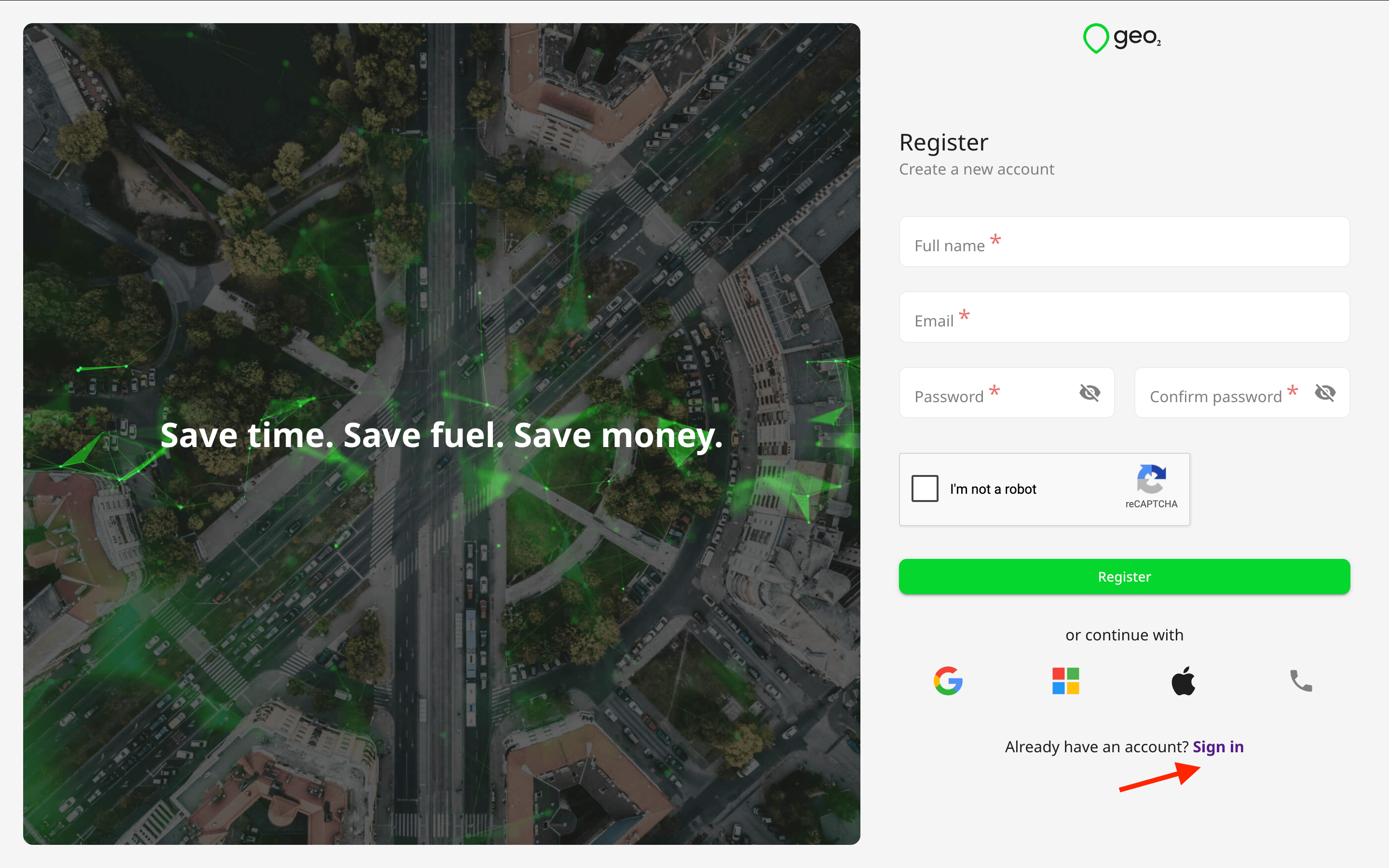
If you have already registered, you can follow either of the Sign in links to proceed to sign in instead.
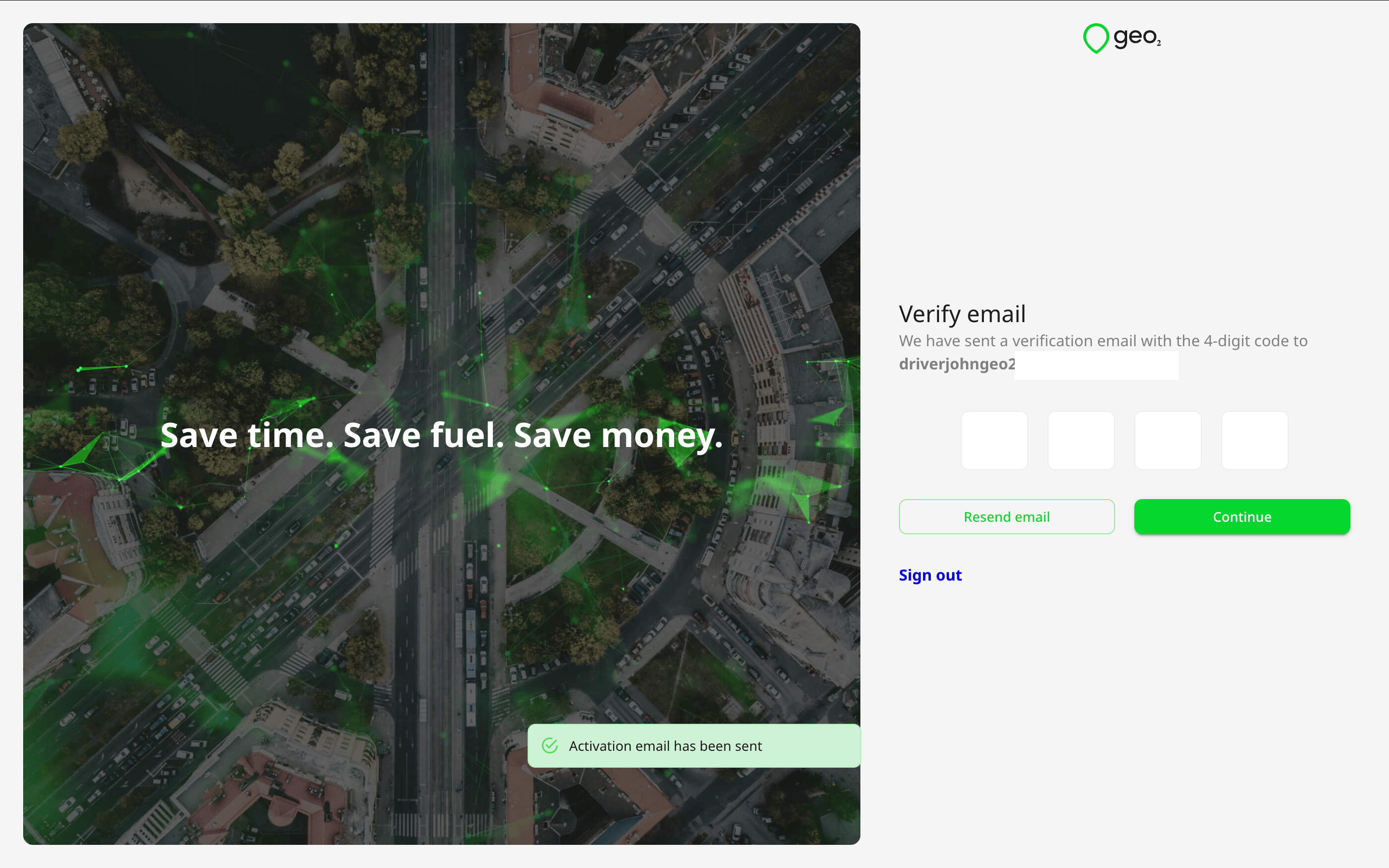
If you have already registered but have not verified your email address, you can sign in, and you will be redirected to Verify your email page.
Register Account Using Email
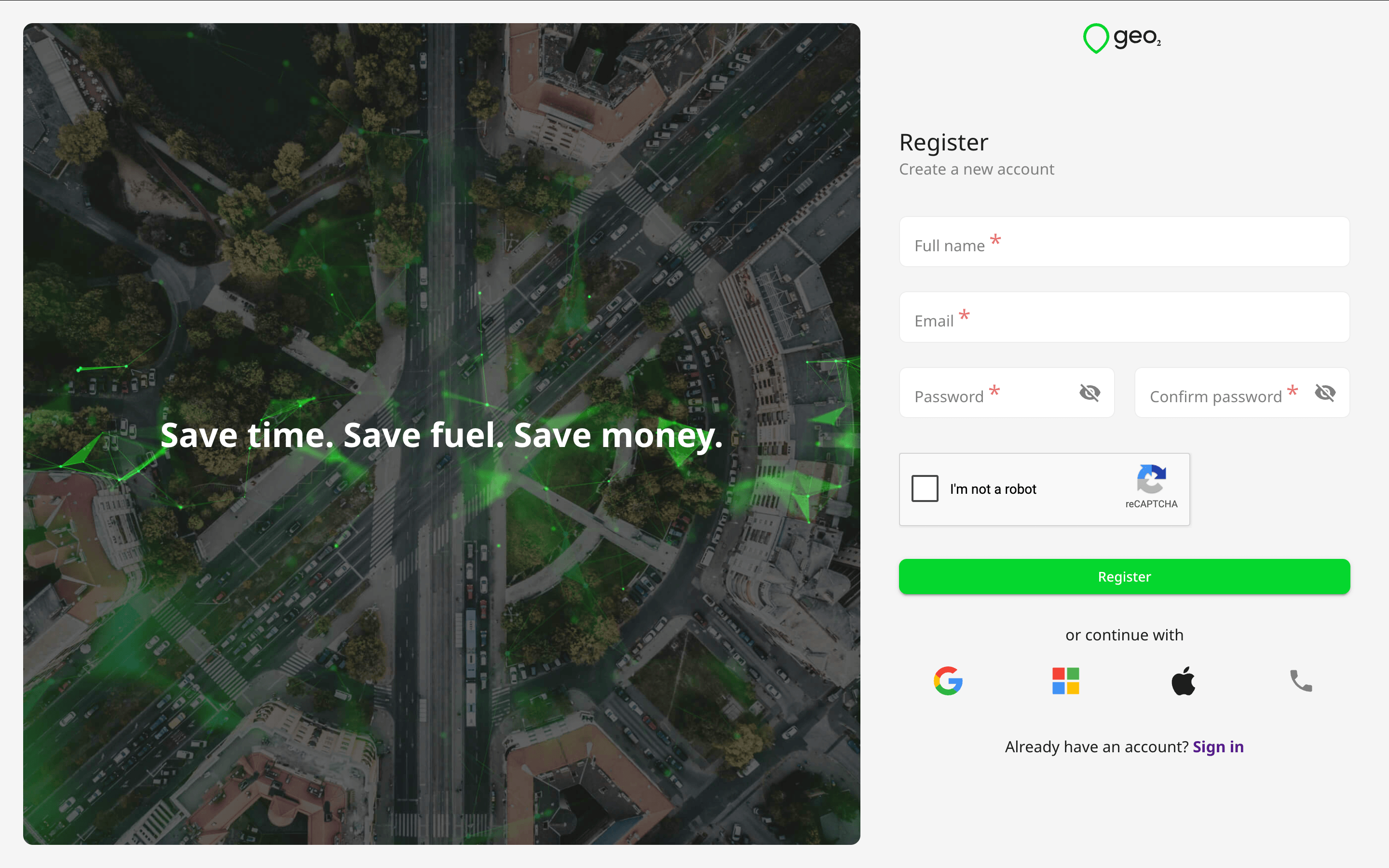
On Registration page, you need to provide your full name. It will be shown to other users within the organization and to recipients on Proof of Delivery (POD) page. If you want to provide your first and last names additionally, you can do it later in the Hub: Profile.
After you have completed the requested details, press Register to create an account authenticated by Geo2, using the password you have specified. The password should contain at least 8 characters, 1 uppercase and lowercase, 1 number and 1 special character ( ^ $ . { } ( ) ? " ! @ # % & / \ , > < ' : ; | ~). Alternatively, you can press the buttons for other authentication providers in order to authenticate with your existing Google, Microsoft, or Apple identity instead. Also, you can register using your mobile phone number.
Verify Email
Next, you will see a prompt for you to check your inbox for a verification code sent to the provided email address. You need to copy the code and paste it to the form in Hub:
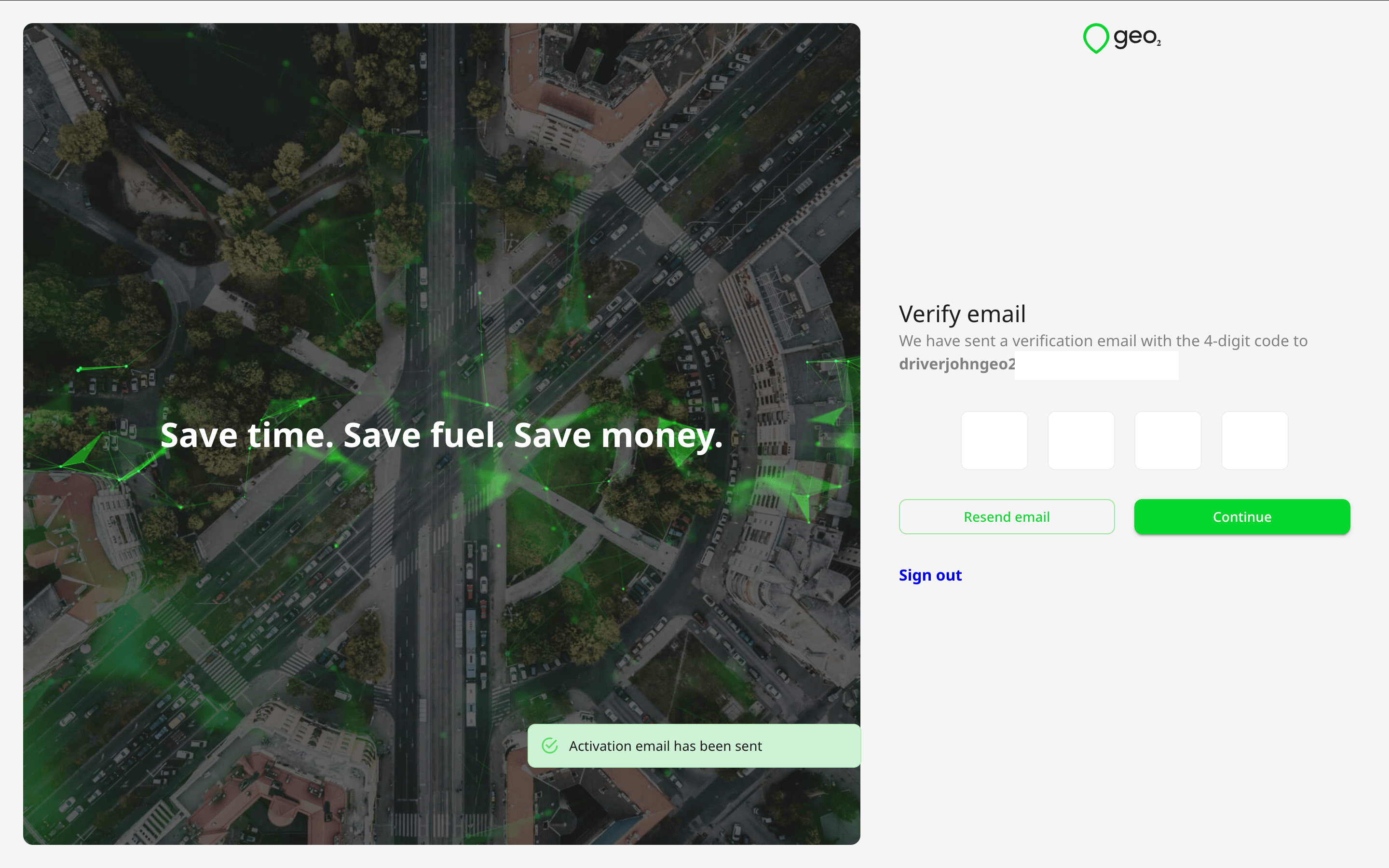
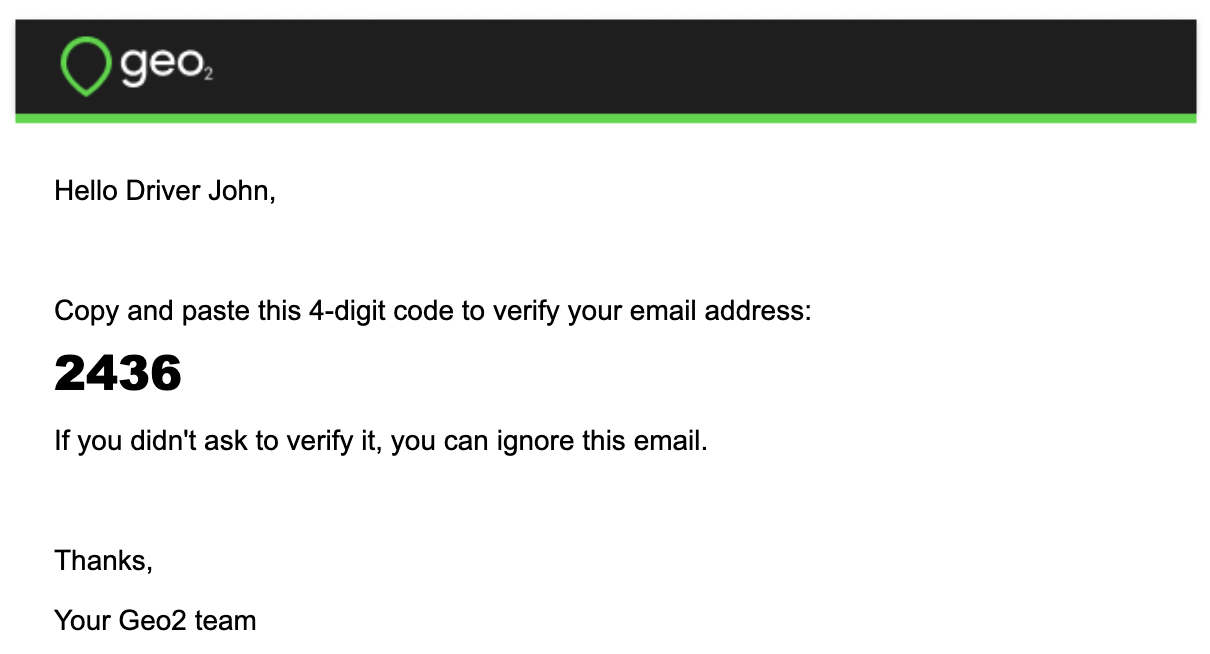
If you have not received an email with a verification code, press the Resend email button on Verify email page, and a new code will be sent.
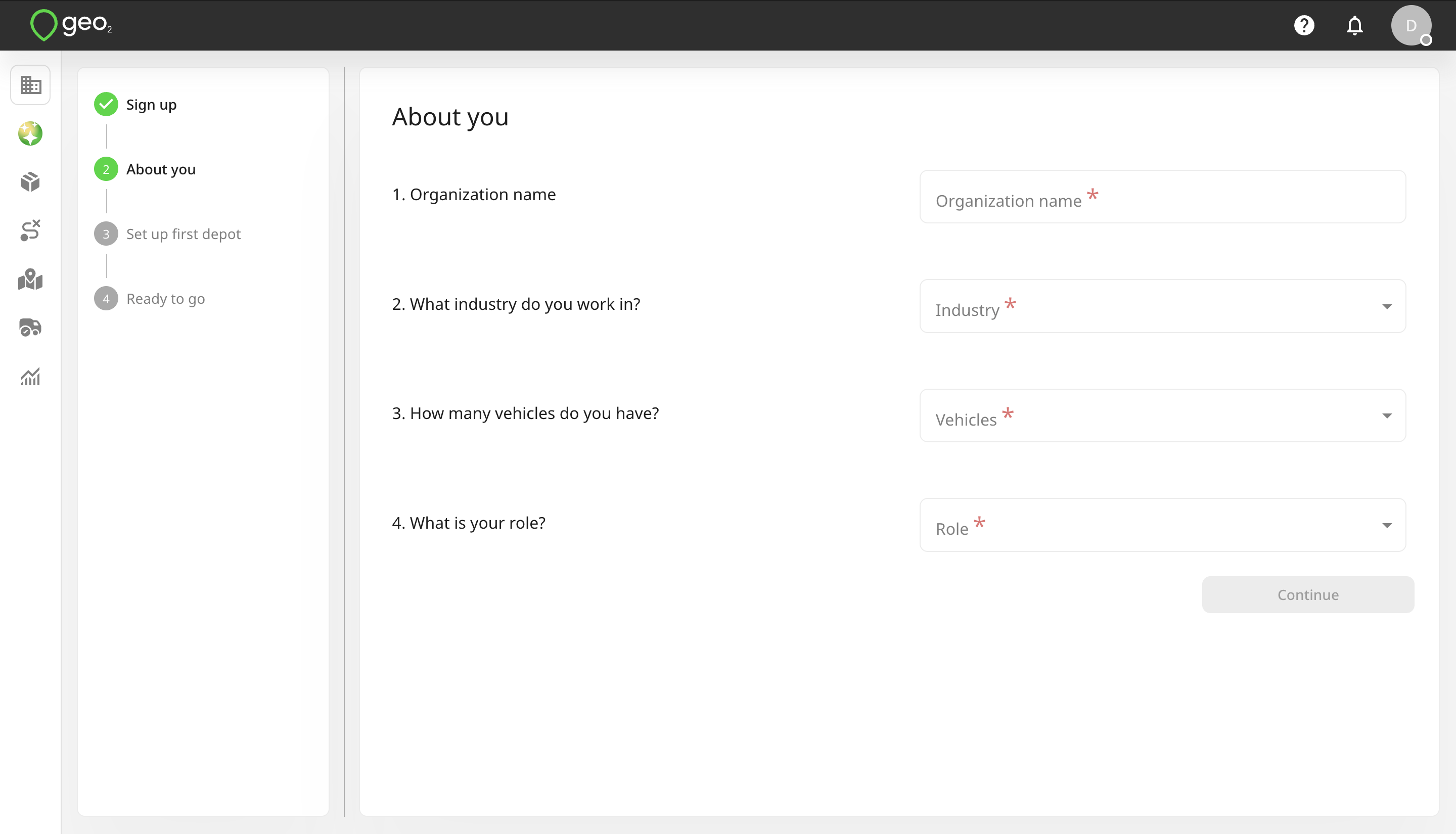
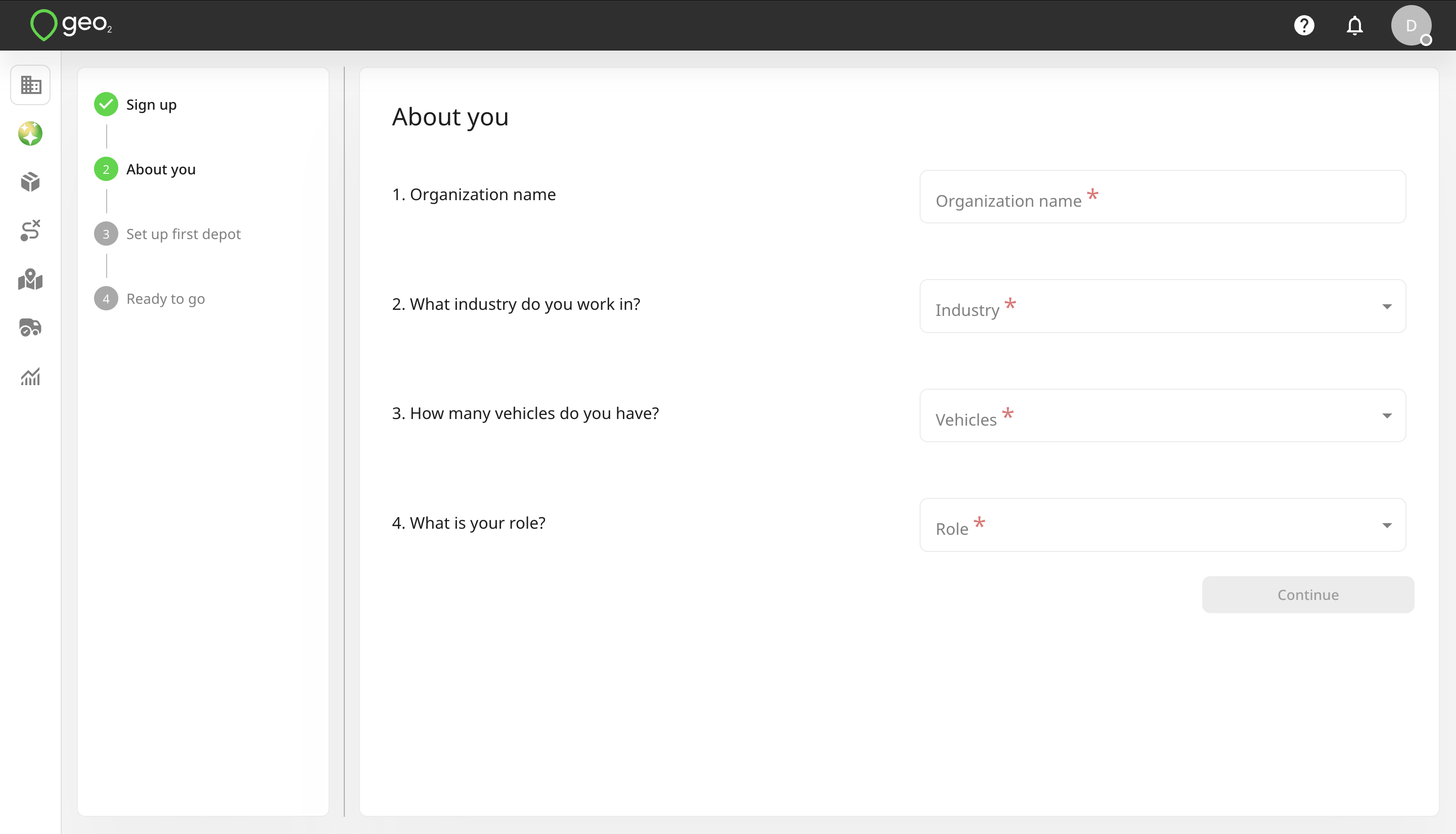
By pressing the Continue button, if the code provided is valid and you are not invited to any organization, you will be redirected to Hub: Set Up Organization page. Free level subscription will be assigned to you - no payment details are required.
You do not need to verify your email if you registered using Google, Microsoft, or Apple identity.
Register Account Using Mobile Number
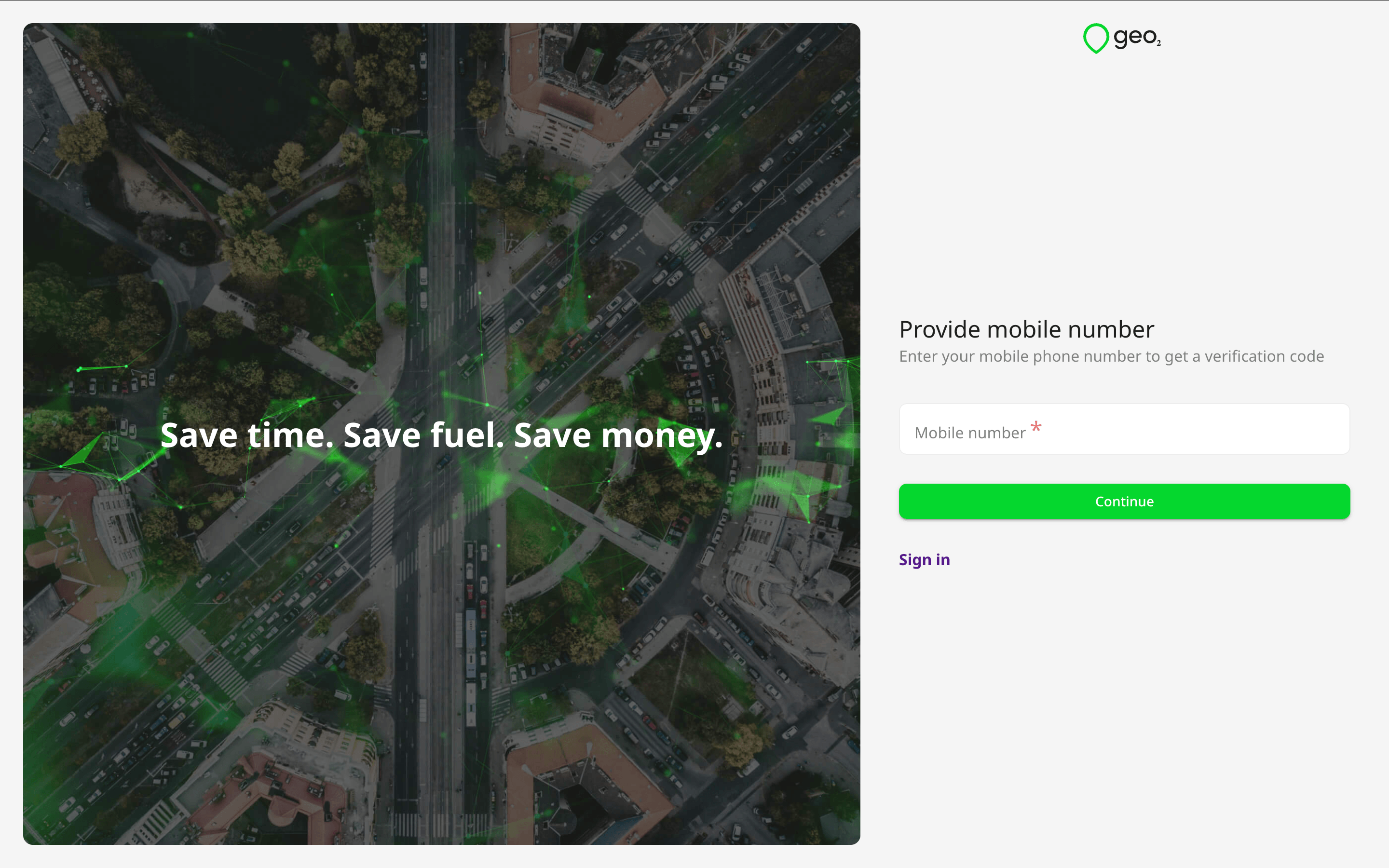
To create your account, press the Continue with phone button at the bottom of Registration page and provide your mobile phone number.
Once your mobile number is provided, press Continue. You will be asked to set your full name. It will be shown to other users within your organization and to recipients on Proof of Delivery (POD) page.
Verify Mobile Number
By pressing the Continue button, you will be required to confirm your mobile phone number before you can fully use Geo2 Hub and the mobile app. You will see a prompt to type the verification code from the SMS sent to the provided mobile number.
If you have not received an SMS with a verification code, press the Resend code button on Verify mobile number page and a new code will be sent. By pressing the Continue button, if the code provided is valid and you are not invited to any organization, you will be redirected to Hub: Set Up Organization page. Free level subscription will be assigned to you - no payment details are required.