Hub: AI Route Building Logs
Introduction
By pressing the AI route building logs option in the menu in Hub, you can access all AI route building sessions ran in your environment.
AI Route Building List
Each route building card includes the following information about selected data and options:
- Orders - number of orders sent for route building.
- Depots - number of depots assigned to selected orders.
- Vehicles - number of vehicles used in route building.
- Run by - display name of a user who ran route building.
- Created - date/time when route building was processed.
- Planned start - date/time selected as a planned start for routes. See Hub: AI Route Building above.
- Maximum driving hours - maximum number of hours allowed for each vehicle’s route. See Hub: AI Route Building above.
- Offload by - option to remove orders if there is insufficient vehicle capacity to accommodate all orders, etc. See Hub: AI Route Building above.
- Minimize vehicles - option to attempt to fit orders on fewer than your full list of vehicles.
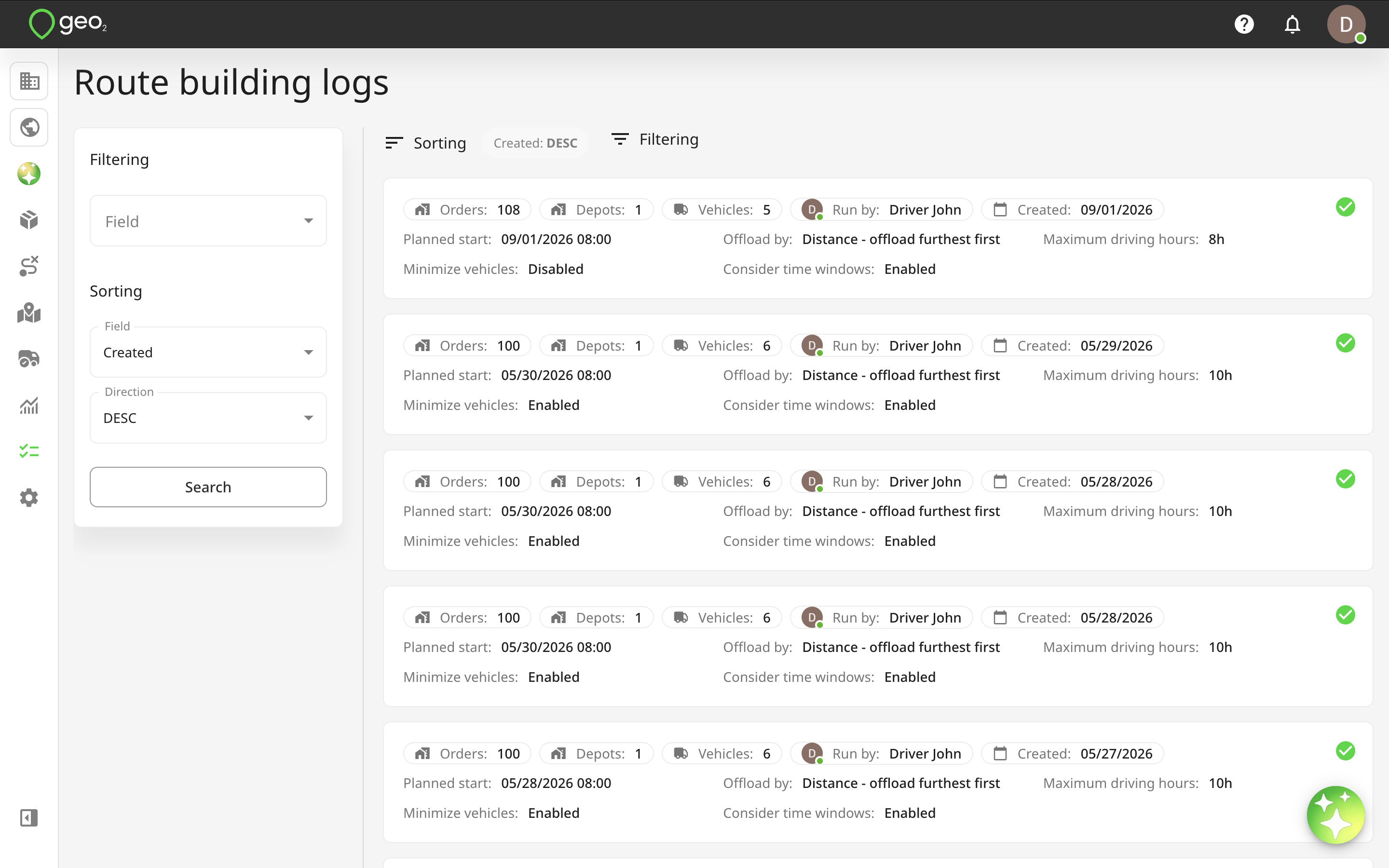
The icon on the right side of a card means a route building status - successful (green done), partially successful (yellow done), or failed (red cross). The partially successful status means that routes have been created but there is some warning message you need to pay attention to.
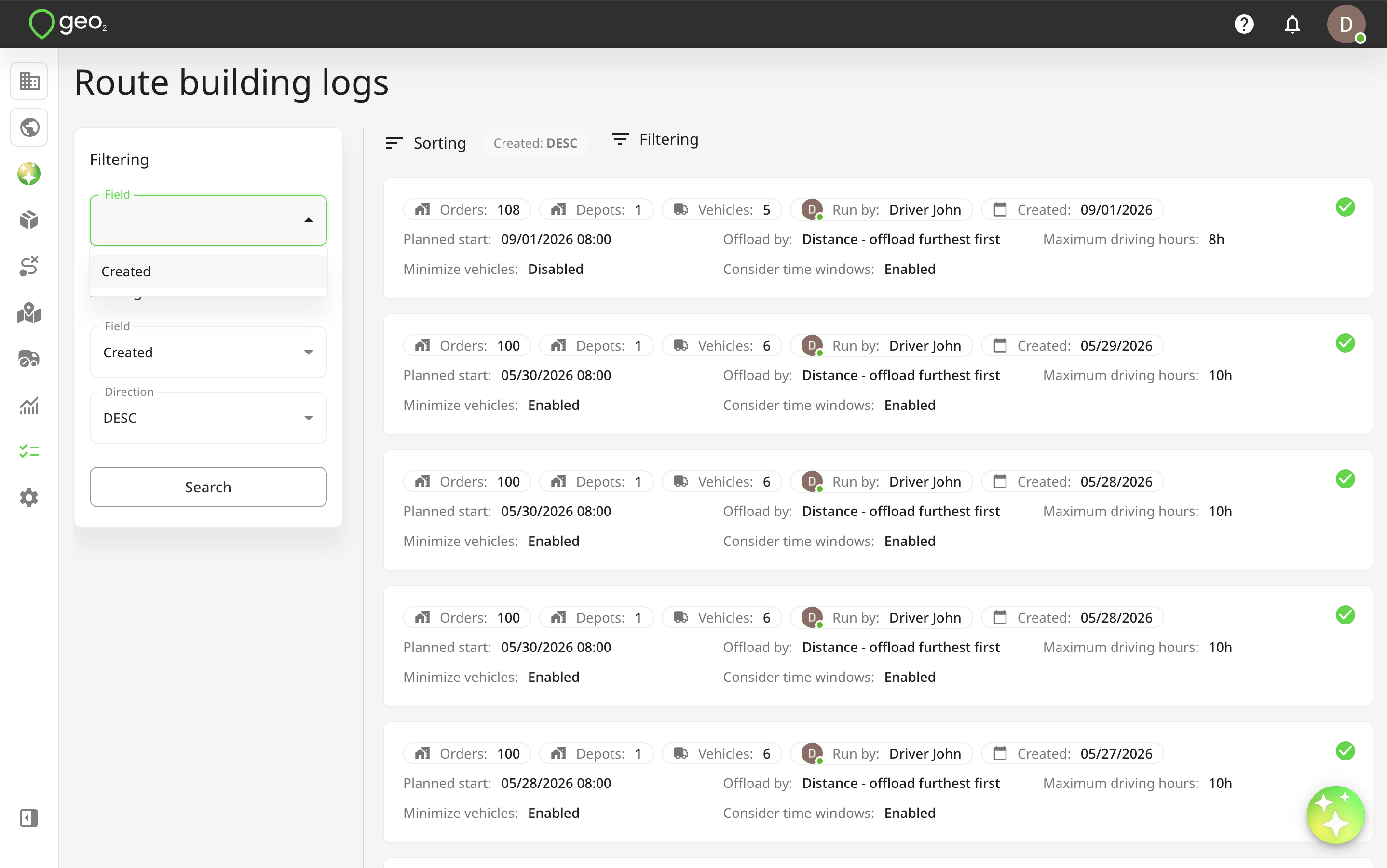
You can filter and sort route building sessions by the “Created” date/time. Remember to press Search to apply filtering/sorting.
AI Route Building Results
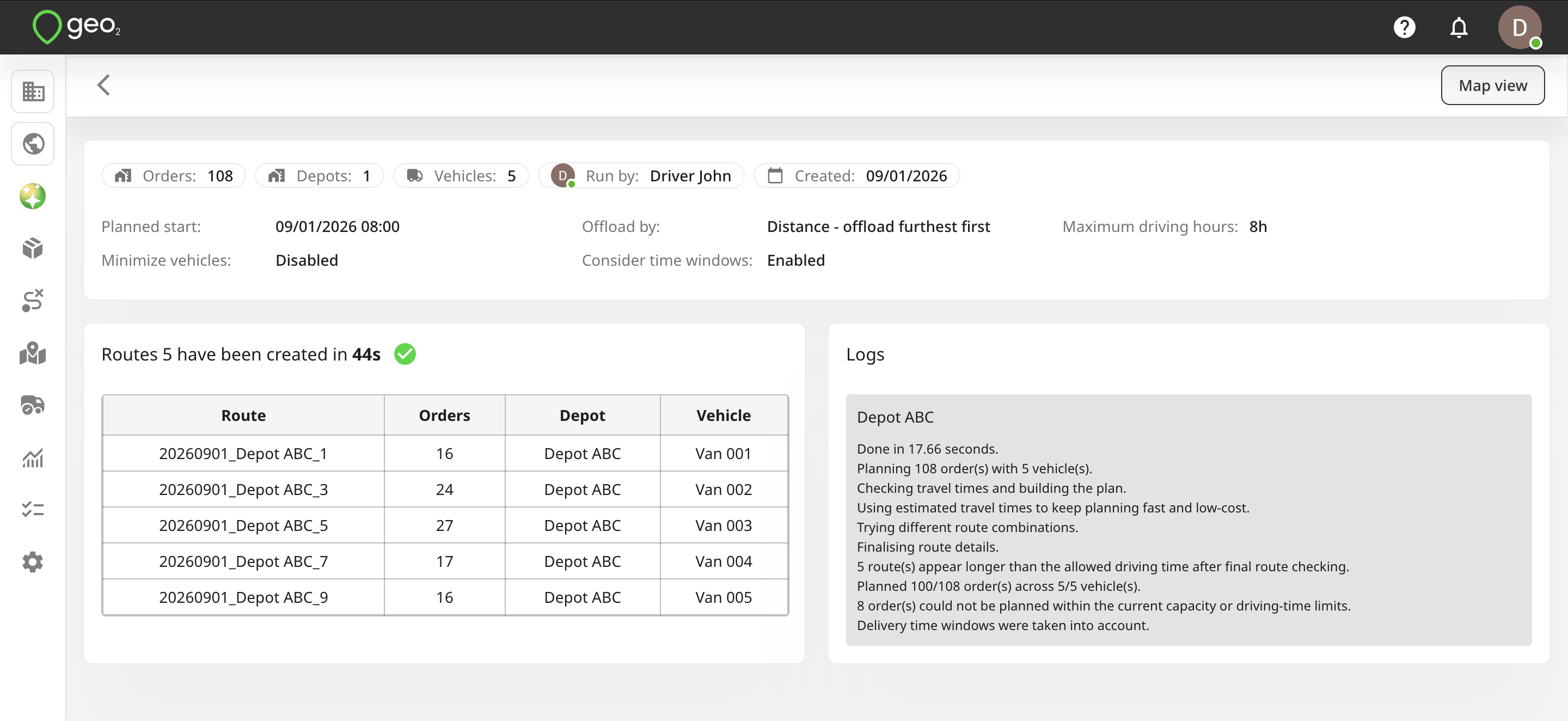
By pressing the card, you can access its details about the created routes and warning messages displayed during the route building process. You will see the results in the table view on the left side of Route building page:
| Name | Description |
|---|---|
| Route | Route key. The name consists of a route planned date, depot, and trip number. |
| Orders | Number of orders in each route. |
| Depot | Depot key. Assigned to a route depot. |
| Vehicle | Vehicle key. Assigned to a route vehicle. |
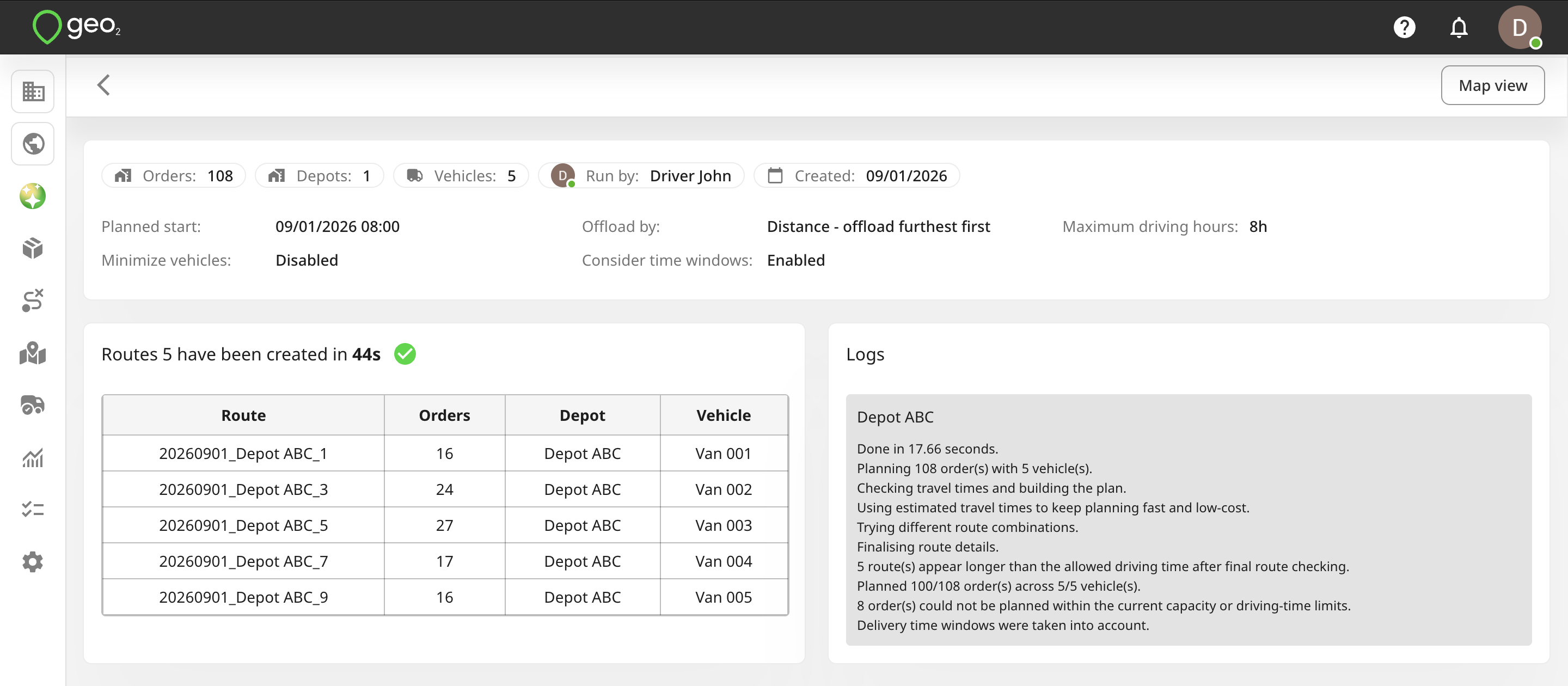
The list of routes could be scrollable to check all created routes. By pressing the route key on one of the created routes, the selected route will be opened in the new tab of the browser.
On the right side of the page, under the Logs title, there are warning/error messages that can give you more details about either what and why went wrong or just notify you about some changes.
Examples:
“Removed 19 orders during vehicle assignment” means that there was not enough vehicle capacity in any of the vehicles so these orders were not considered during the route building.
“Route stops: 2, 2, 5, 7.” means that 4 routes have been generated with 2, 2, 5 and 7 stops in them.
“Minimise vehicles removed 6 vehicles” means that the Minimize vehicles option chosen before running the route building has led to removing 6 vehicles instead of the full list of vehicles you have in the Environment settings.
“Depot address geo-location is not sufficiently accurate” means that you might need to go to Depots settings and check if your depot address was properly geocoded.
You can visualise generated route by pressing the Map view button - see Hub: Map View.