Hub: Environment Settings
Introduction
Environments let you represent teams within a single company or provide separate spaces for testing and productive use. An organization can contain one or more environments. See Concepts for the different uses to which you may want to put environments.
Environment Settings
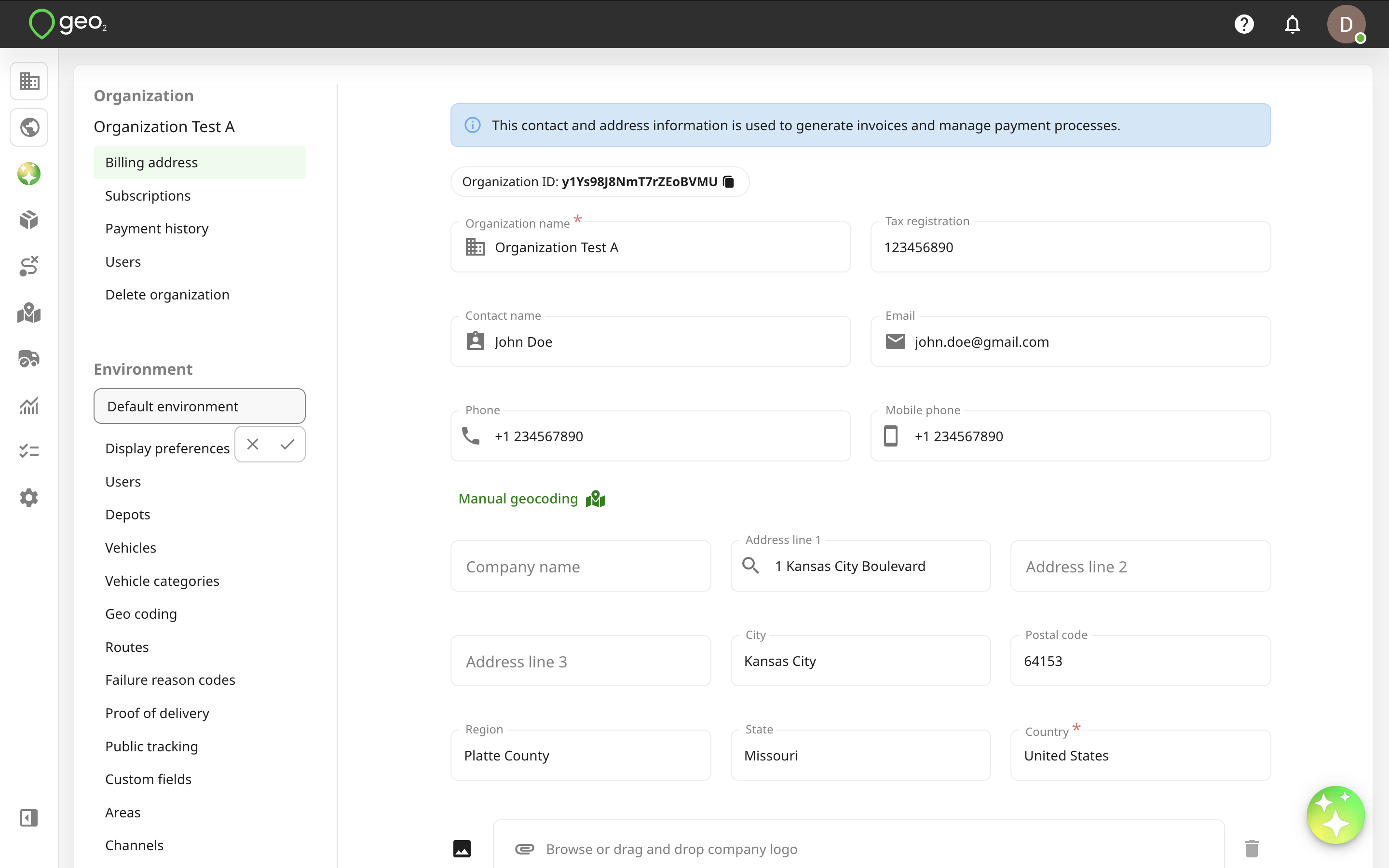
During the registration of a new account in Hub, the address entered will be saved as the environment’s address as well. If you create an organization manually, its first default environment is created automatically. By default, the name of a new environment is Default environment. You can change the name by hovering over the environment name on Settings page and pressing the Edit (pencil) icon.
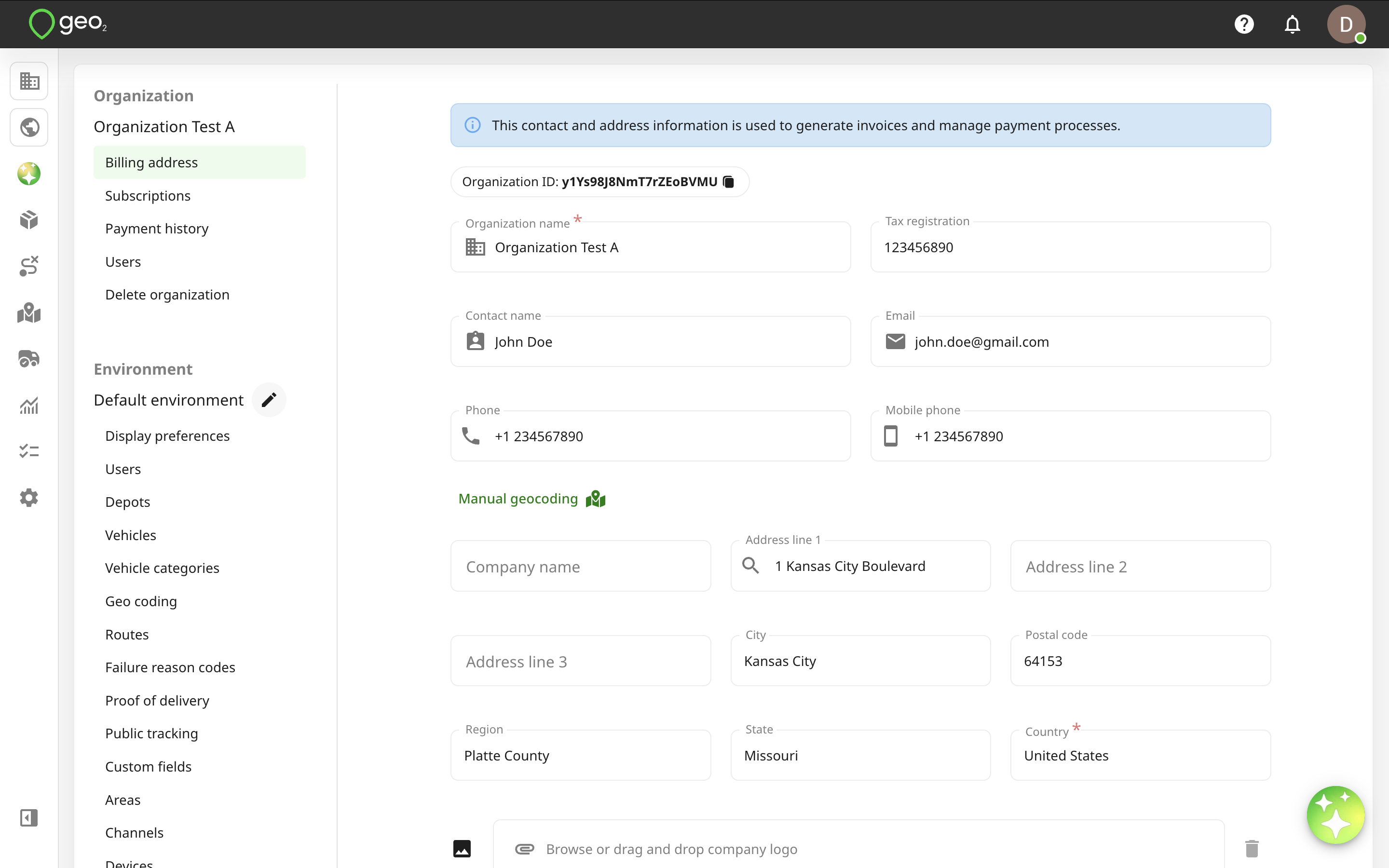
Press the Tick icon to save changes.
If you are invited to the environment and you have Environment Manager or Environment Admin Role, you can reach environment settings by opening the menu and pressing Settings. Environment Manager can only view environment settings, while Environment Admin can edit them.
If you have an Enterprise subscription and the Organization Admin role, you can create a new environment within an existing organization.
Read more about environment settings:
- Hub: Display Preferences Settings
- Hub: Users Settings
- Hub: Depots Settings
- Hub: Vehicles Settings
- Hub: Vehicle Categories Settings
- Hub: Geo Coding Settings
- Hub: Routes Settings
- Hub: Failure Reason Codes Settings
- Hub: Proof of Delivery Settings
- Hub: Public Tracking Settings
- Hub: Custom Fields Settings
- Hub: Areas Settings
- Hub: Channels Settings
- Hub: Devices Settings
- Hub: Reporting Settings
Create Environment
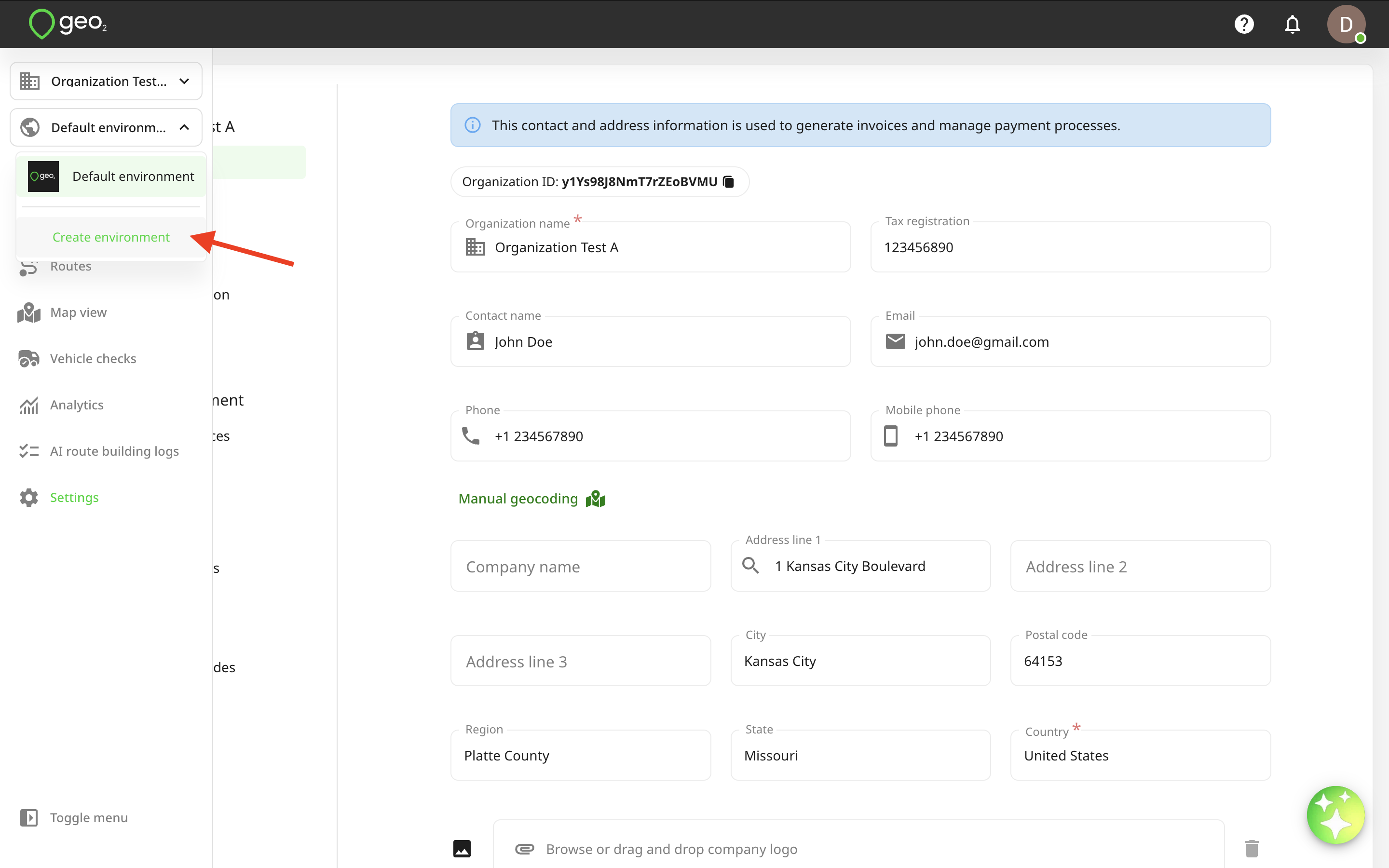
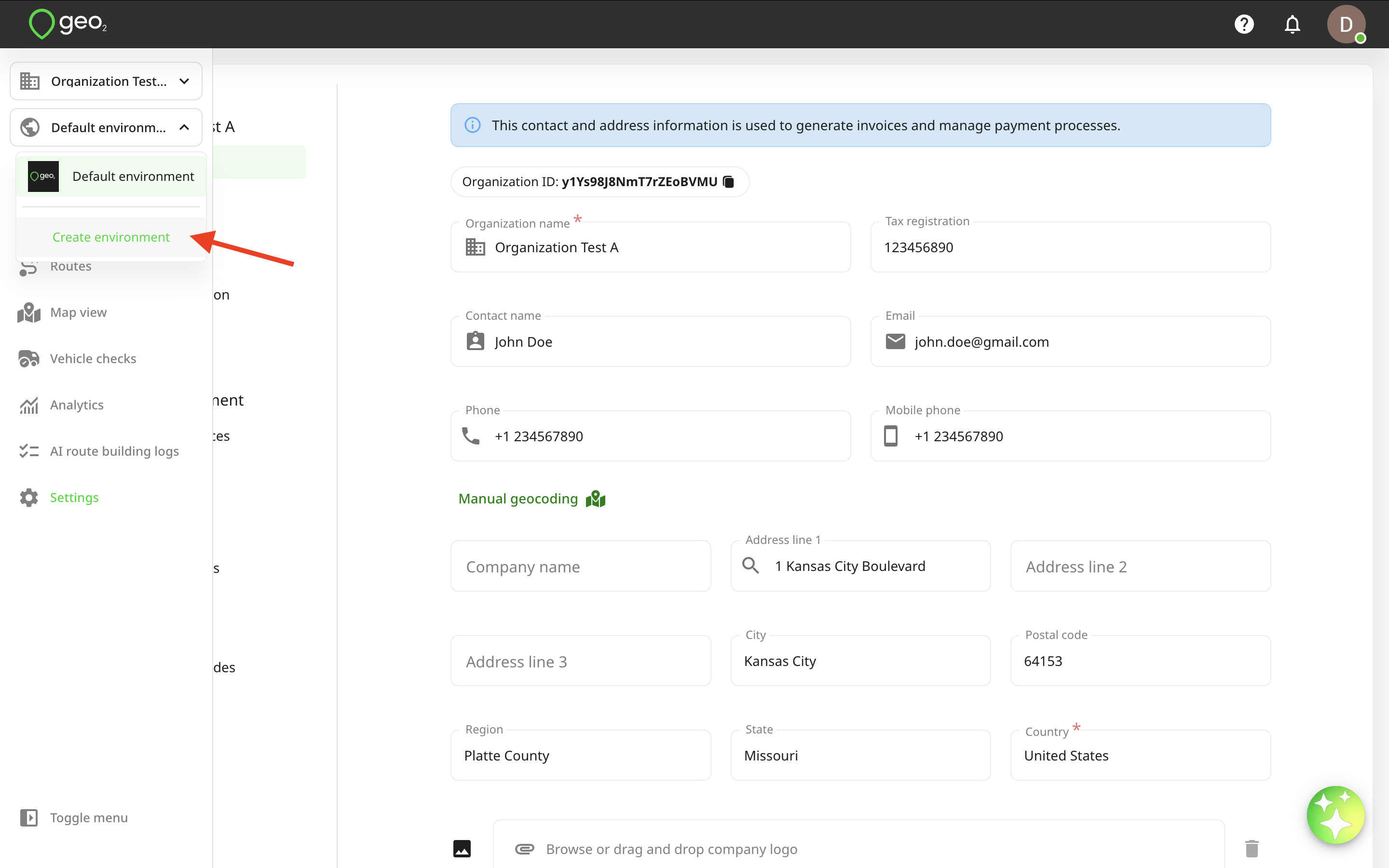
If you want to create one more environment in your organization, press the environment selector in the menu bar and press Create environment. This option is available only with Enterprise subscription level. You will be redirected to Create environment page where you will have the option to clone settings and users from an existing environment.
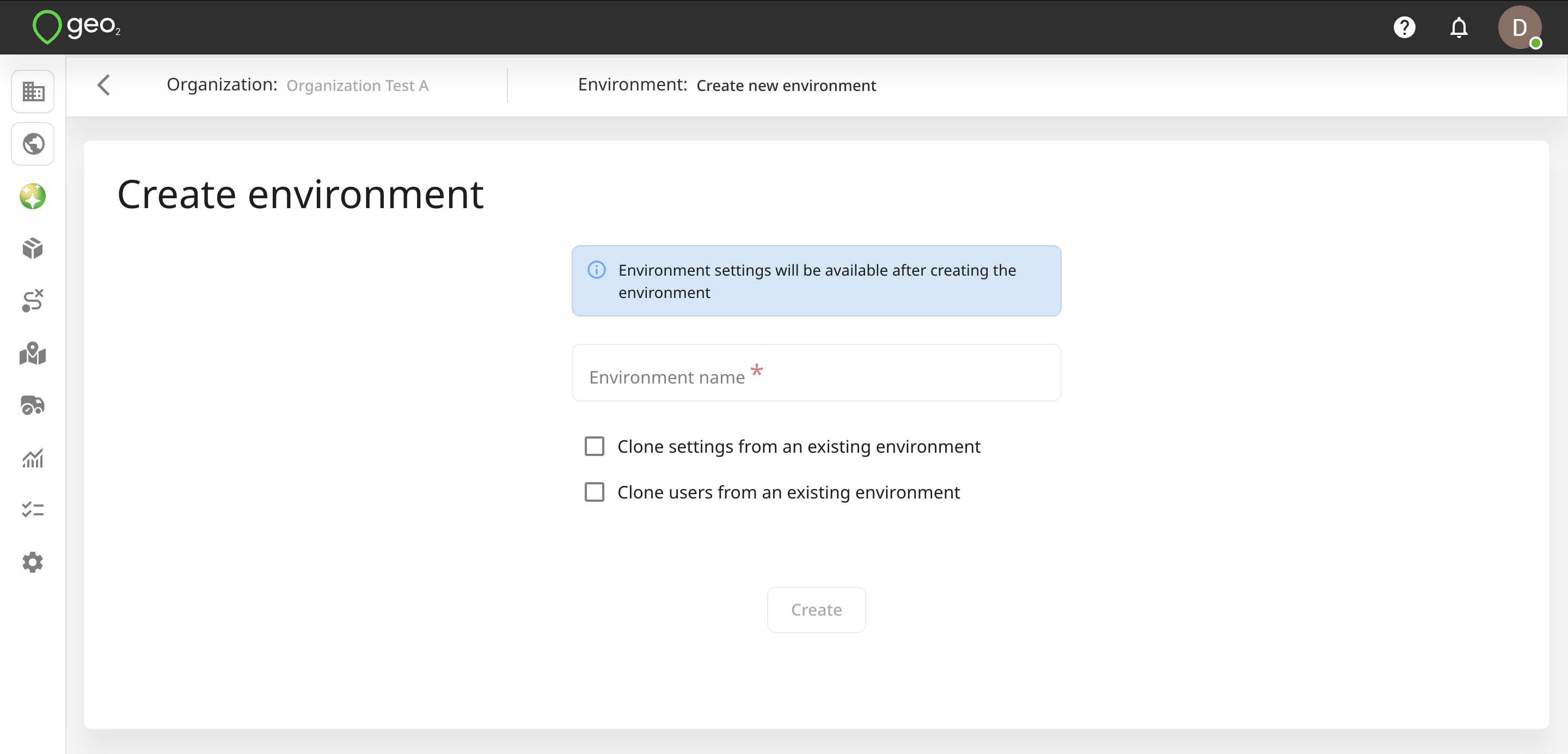
It is up to you whether you decide to clone settings or users or start an entirely fresh environment definition.
If cloning settings and/or users from an existing environment, you will need to select an environment to clone them from.
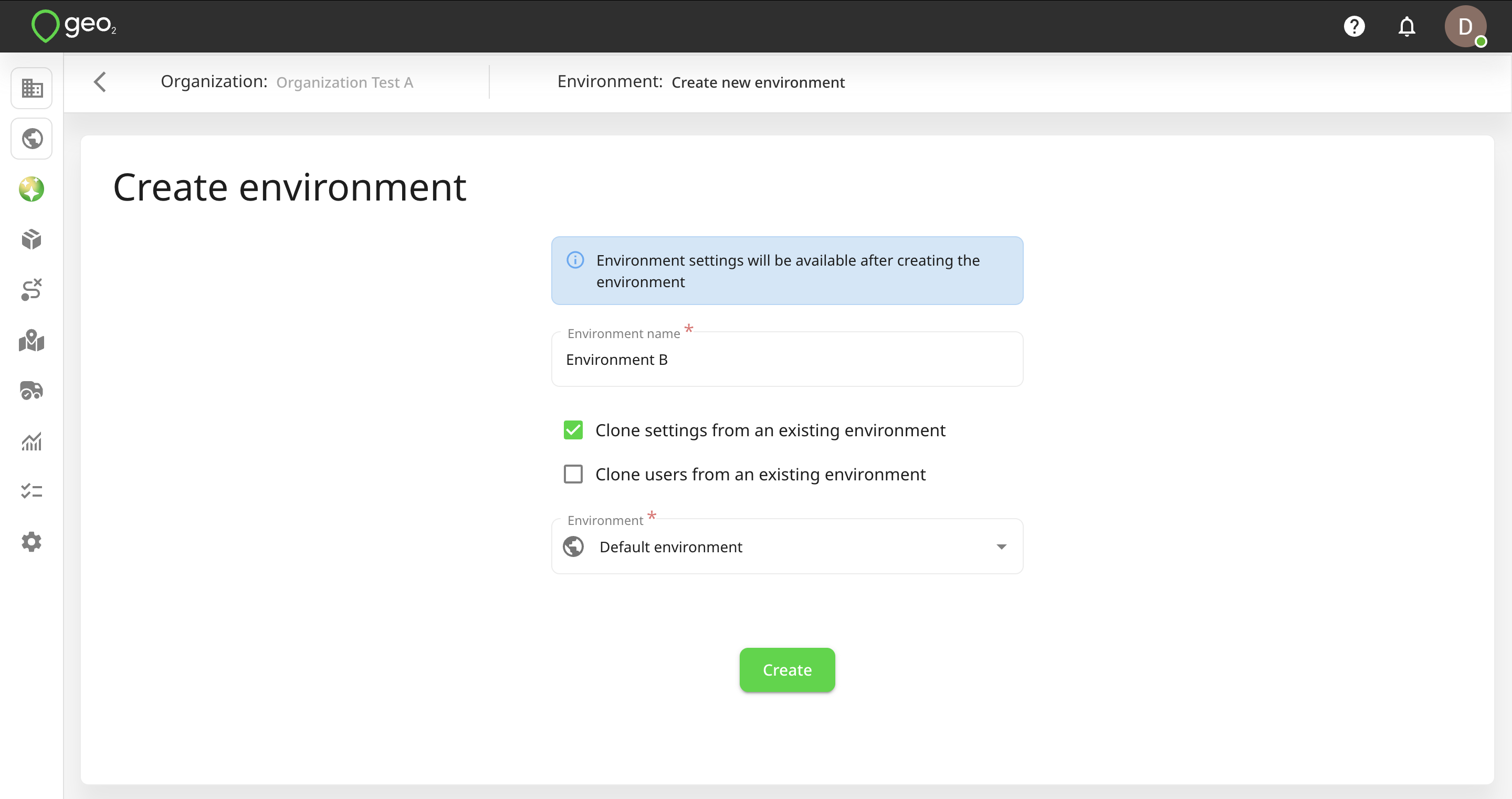
By pressing the Create button, a new environment will be created. You will be redirected to the settings of the newly created environment.
Delete Environment
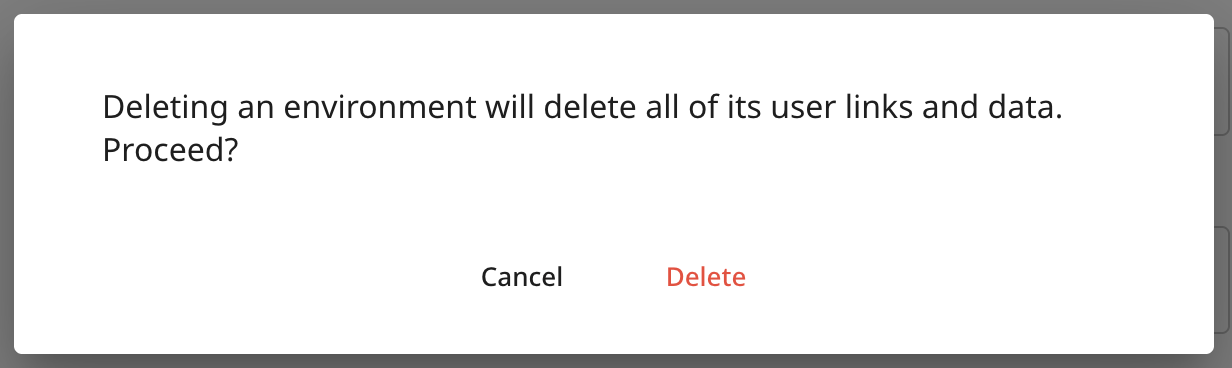
To delete your environment, go to Settings → Environment and press the Delete environment button. You will be asked to confirm the deletion, as all route, order, POD and vehicle check data will be removed. Press Delete to confirm. The environment will be deleted.
Only users with the Environment Admin role can delete environments.