Hub: Accept Invitation
If you have been invited to the organization, you have the following ways to accept it:
- If your invitation was sent using your email address, you can accept it through the activation link in the email, by logging in to Hub, via a notification in Hub, or by logging in to the mobile app.
- If your invitation was sent using your mobile number, you can accept it by logging in to Hub, via a notification in Hub, or by logging in to the mobile app. Please note that an SMS with an activation link will not be sent.
Accept Invitation Using Email
Once you have been invited, the invitation email has been sent to the specified user email address. The confirmation link in the invitation email expires after approximately 6 hours. If you try to use it after expiry or click on it twice, you will receive an error message.
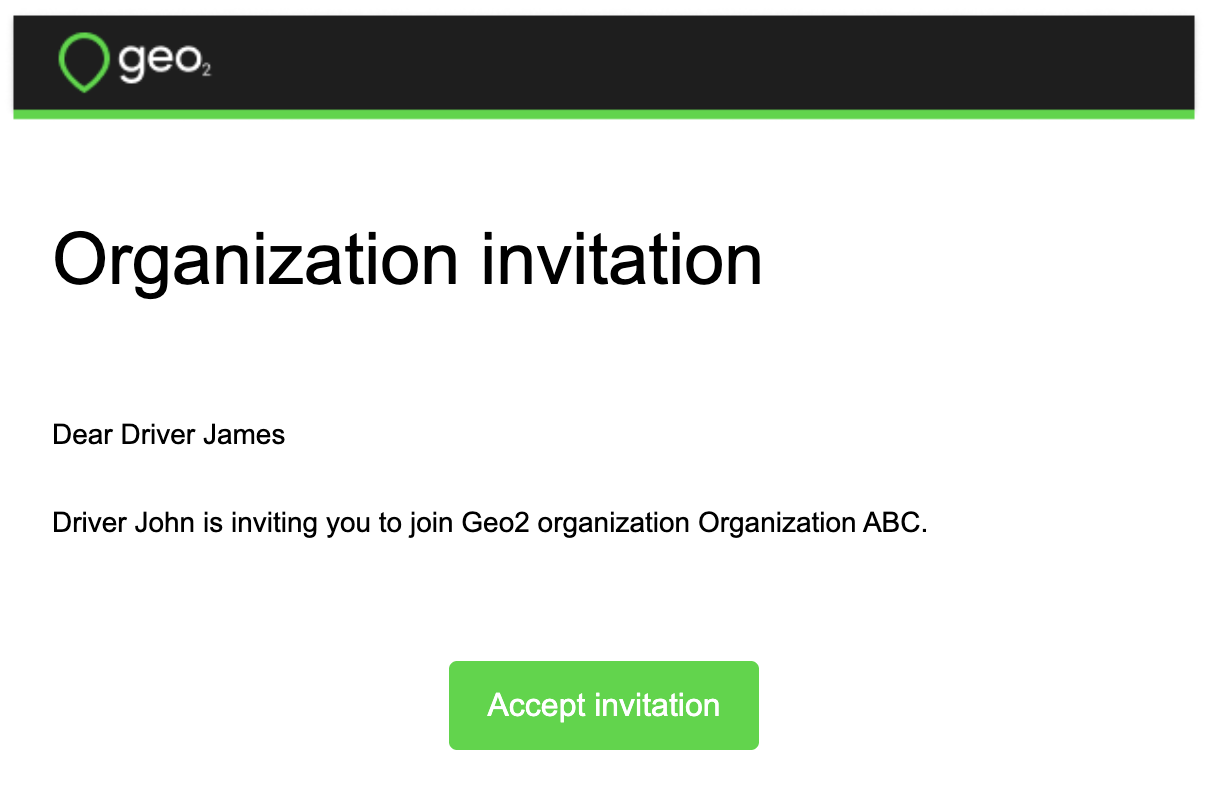
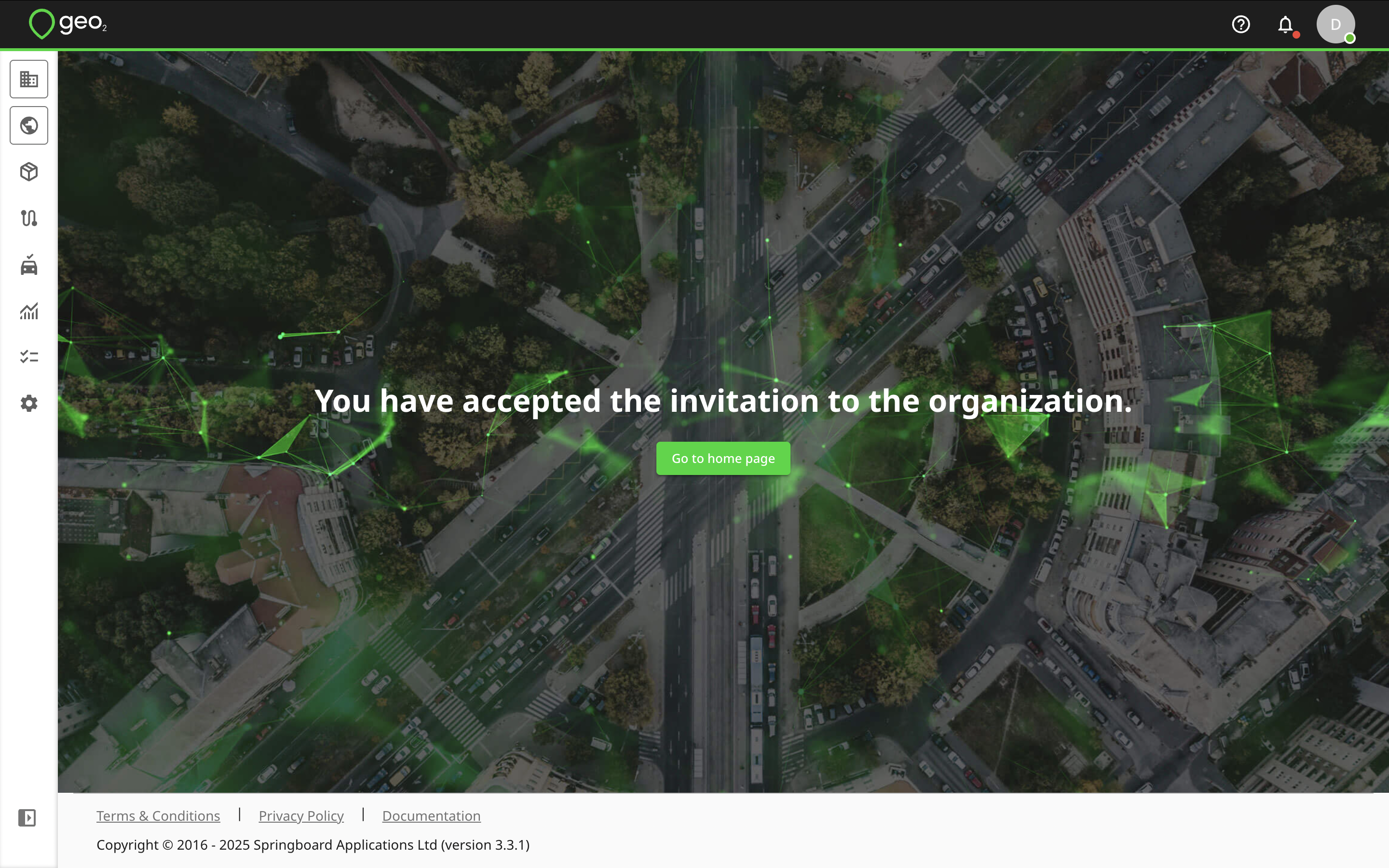
To accept the invitation, you need to click on the Accept invitation button in the email. Once clicked, we consider that you agreed to join the organization/environment. If you were previously logged in to the Hub, you will be redirected to the You have accepted invitation confirmation page.
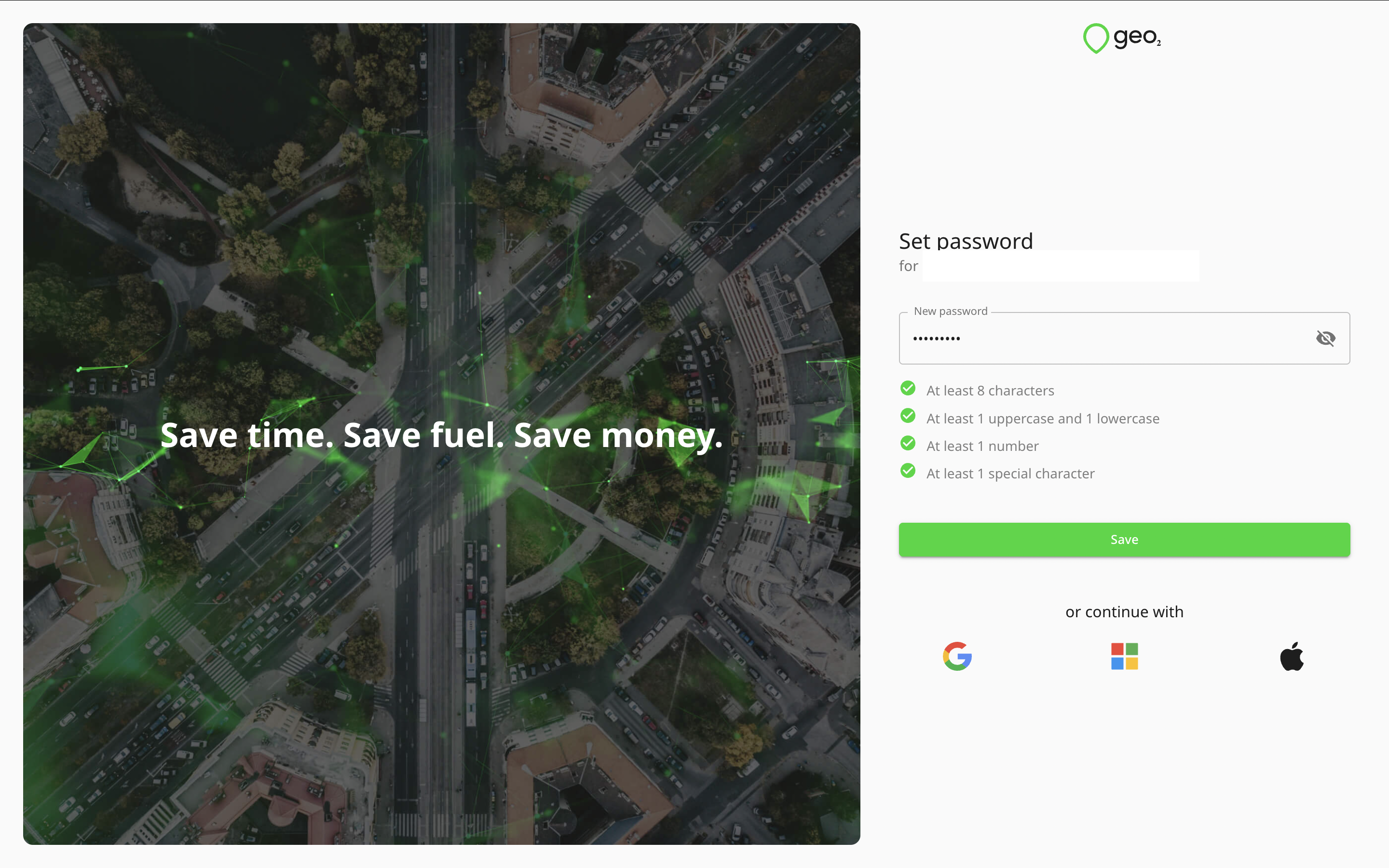
If you are not logged in and you have not set up a password for Geo2 yet, you will be redirected to Set password page where you can either set a password or login with Google, Apple, or Microsoft authorization.
Once logged in, you will be also redirected to You have accepted invitation confirmation page. Press the Go to Home page button to be redirected to Home/Analytics page of the organization to which you have been invited.
Accept Invitation Using Hub
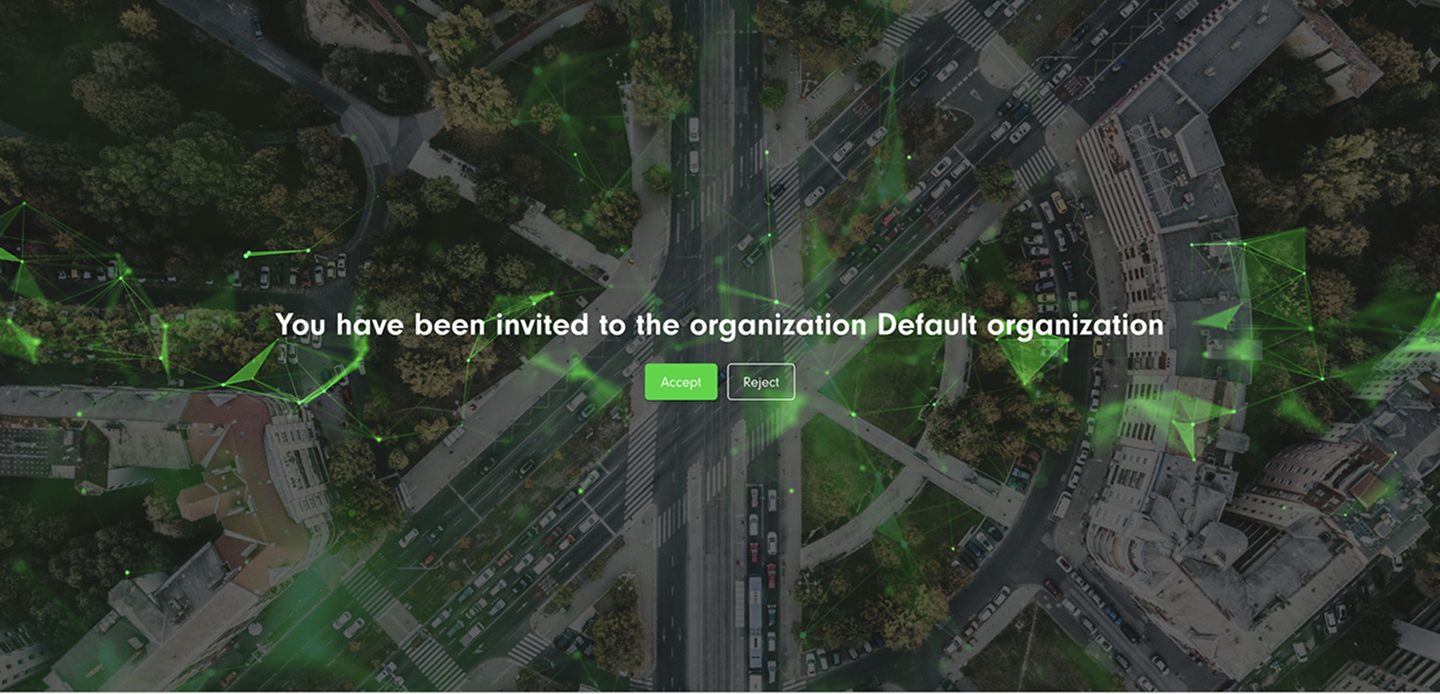
If you ignore the invitation email and just sign in to Hub via the email address or mobile number used for the invitation, you will be redirected to Invitation page. There are two buttons - Accept and Reject. By pressing the Accept button, you will accept the invitation to the organization.
If you want to log in using your email address and a password but have not set up your password yet, click the Forgot password button on Sign in page to get an email with a verification code to set up a password to log in to Hub. See how to set your password Hub: Forgot Password.
You will be redirected to You have accepted invitation confirmation page. Click the Go to Home page button to be redirected to Home/Analytics page of the organization to which you have been invited.
You can also accept the invitation by selecting the organization to which you have been invited in the Organizations selector in the menu. You will be also redirected to Invitation page where you can accept or reject it.
Accept Invitation Using Notification in Hub
When you are already logged in to Hub and someone invites you to an organization, you will get a notification. The unread notification is visible as a red dot near the Notification icon in the header toolbar.
By clicking on it, you will see the invitation notification. There are two buttons - Accept and Reject.

By pressing the Accept button, you will accept the invitation to the organization but will not be redirected to it. You can select this organization later in the Organizations selector in the menu to work in it. You will be only redirected to the organization if you do not have another one yet. By pressing the Reject button, you will reject the invitation to the organization and will stay in the same organization you were working in.

Notifications older than 30 days will be automatically deleted and you will not see them anymore.
Accept Invitation Using Mobile App
You need to open the mobile app and log in with the email address or mobile number that has been used for the invitation. Alternatively, it can be done using Google, Apple, or Microsoft identity. If you want to log in using your email address and a password but have not set up your password yet, click the Forgot password button on Sign in page to get an email with a verification code to set up a password and log in to the app. See how to reset your password Mobile App: Forgot Password.
Once you are logged in, you will see the page where you can accept the invitation to the organization/environment.
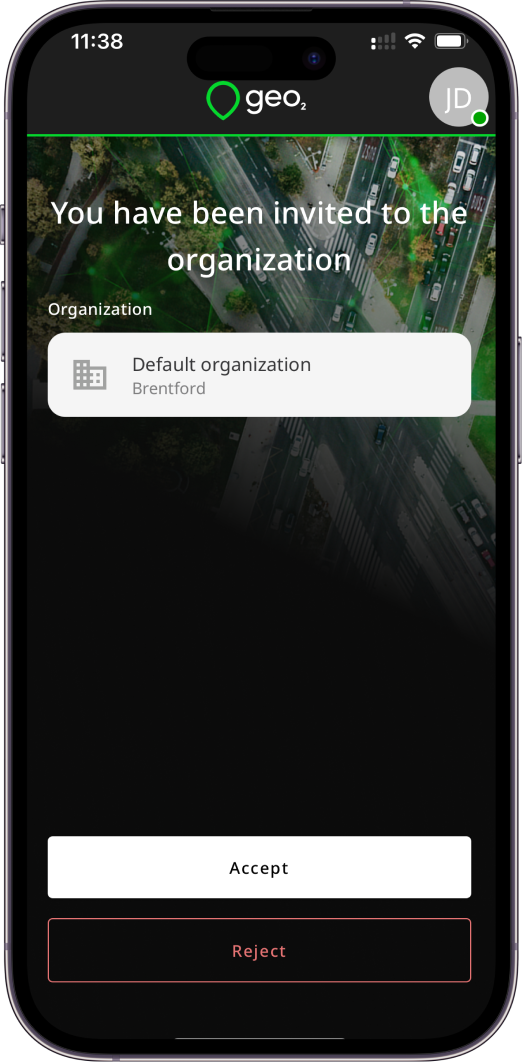
Click on the Accept button to accept the invitation to get access to the organization/environment data.