Hub: Sign In
Introduction
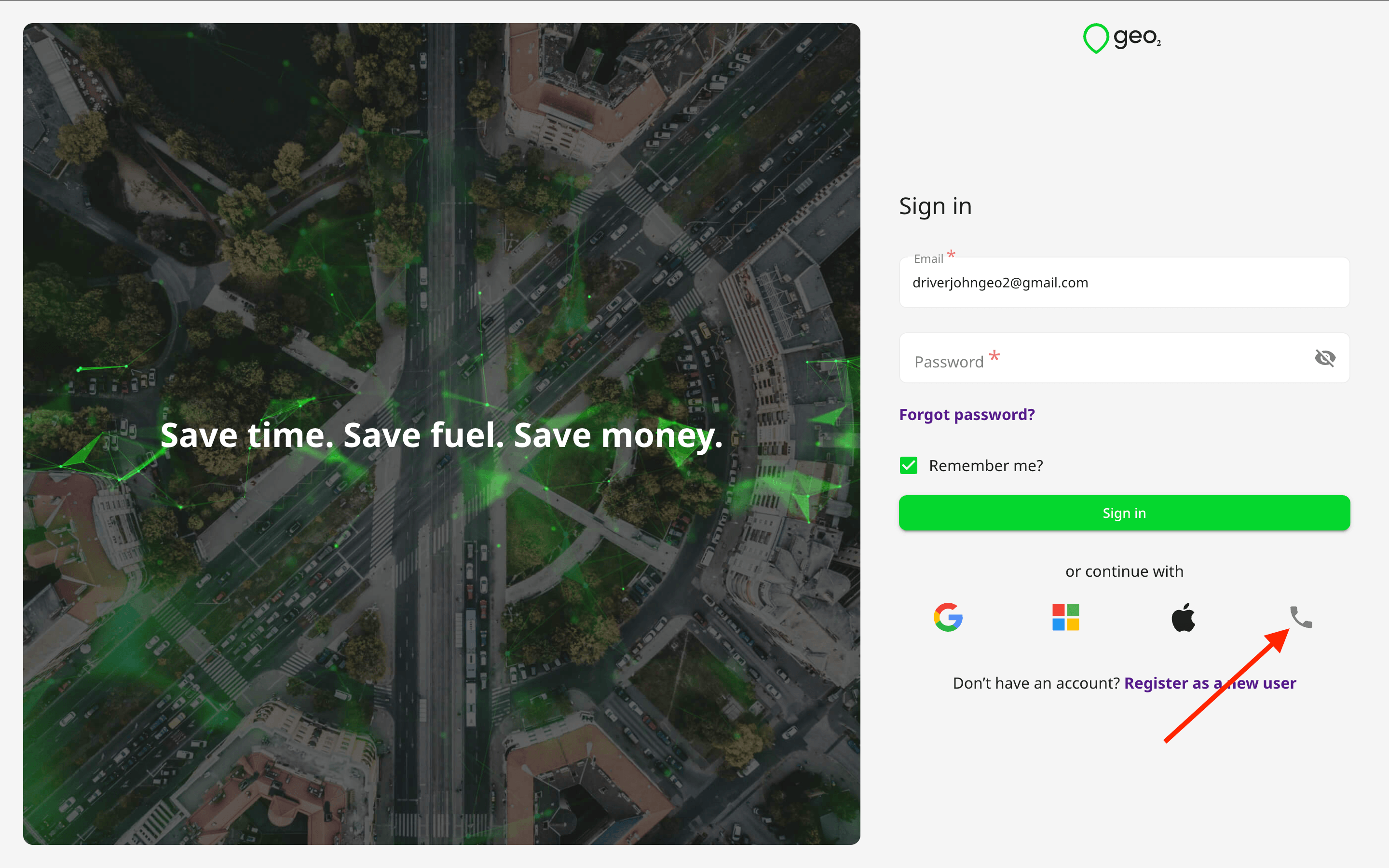
Once you are registered as a Geo2 user, you can sign in. You have the option to authenticate either with an email and password, mobile phone number or via an identity provider - Apple, Google, or Microsoft.
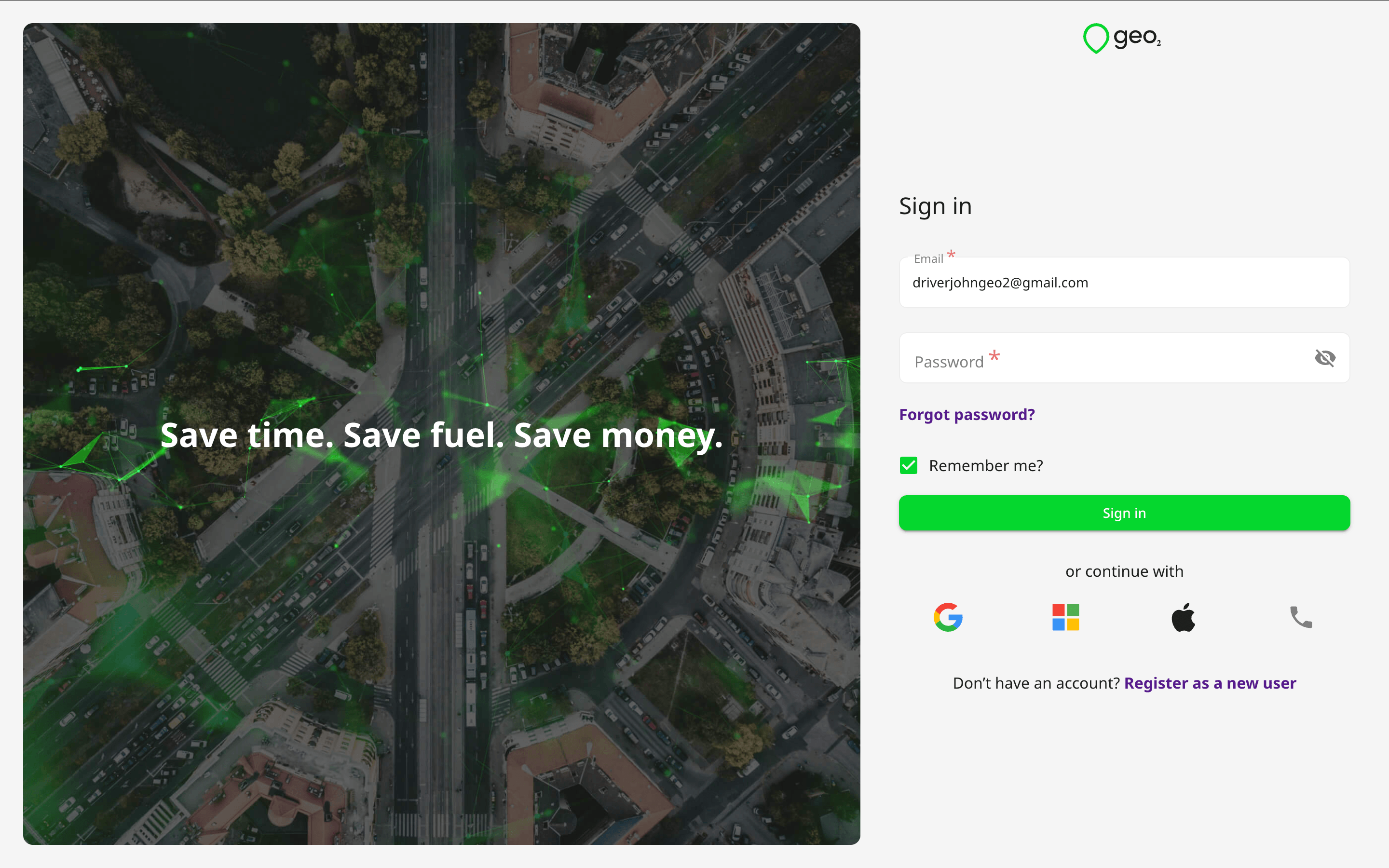
Sign In Using Email
Specify your email and Geo2 password. If you press Sign in, you will be authenticated through a password you have previously set at Geo2. Alternatively, you can sign in with your Google, Microsoft, or Apple identity, by pressing the appropriate button for these authentication providers. Also, you can sign in using your mobile number if you registered your account using this method.
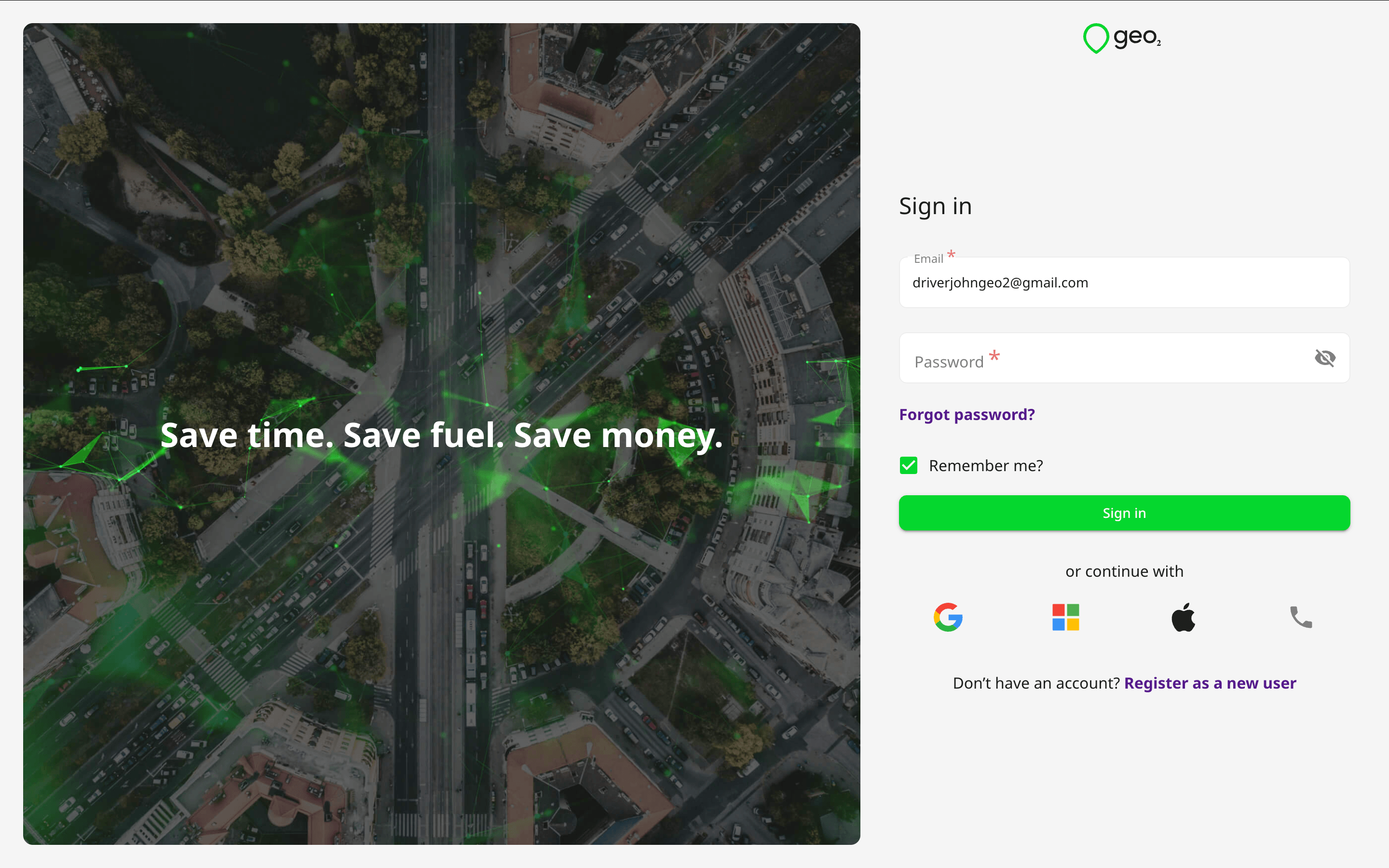
By clicking the Remember me? button, our platform will save your email address for future usage. We do not save your password, it can be done only in your browser.
To create a new Geo2 account, follow the link Hub: Register.
If you have forgotten your password and cannot sign in successfully, follow the link Hub: Forgot Password. This will enable you to reset your Geo2 password.
Verify Email
If you registered but have not verified your email address, once you sign in, you will see a prompt for you to check your inbox for a verification code sent to the provided email address. You need to copy the code and paste it to the form in Hub:
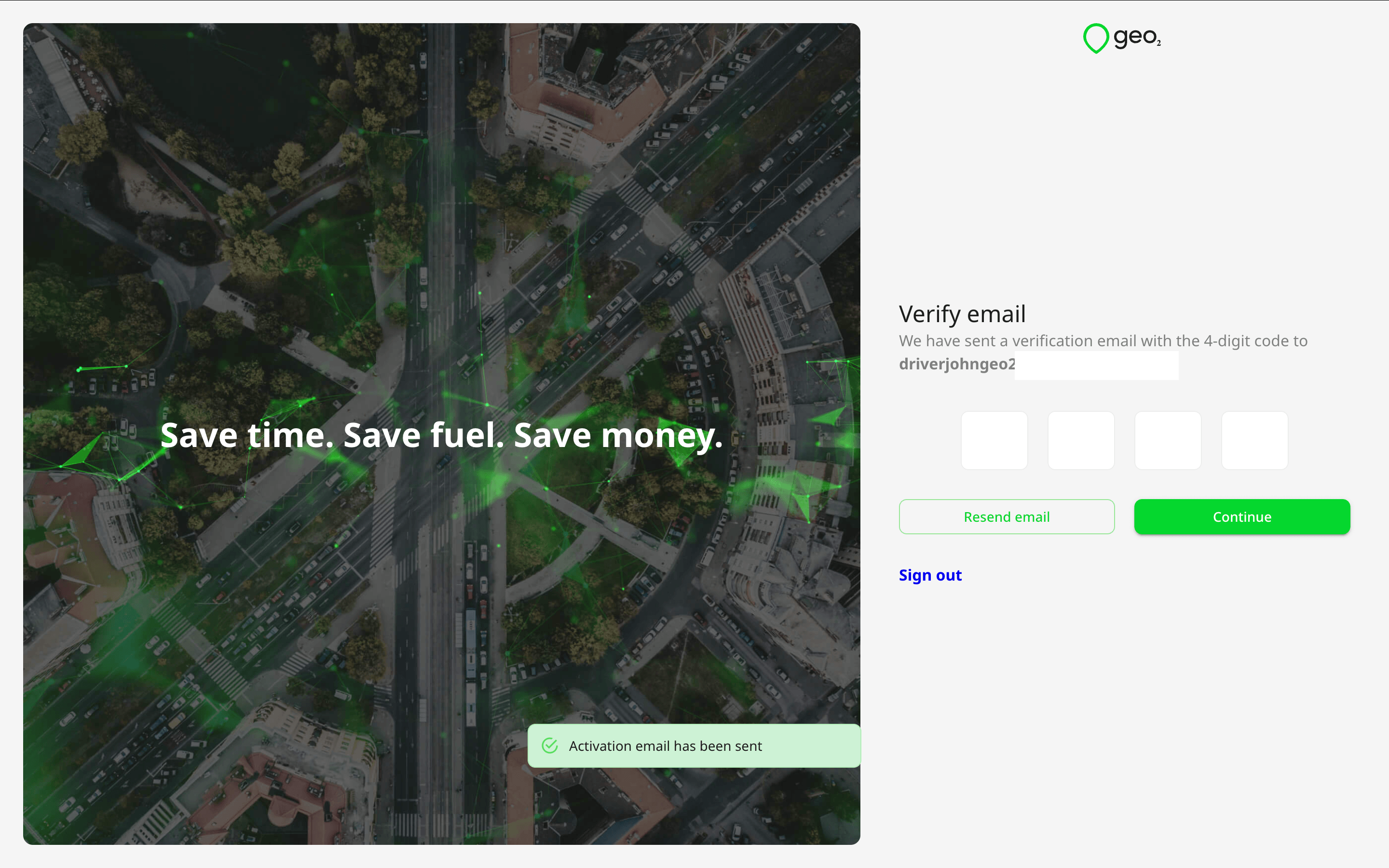
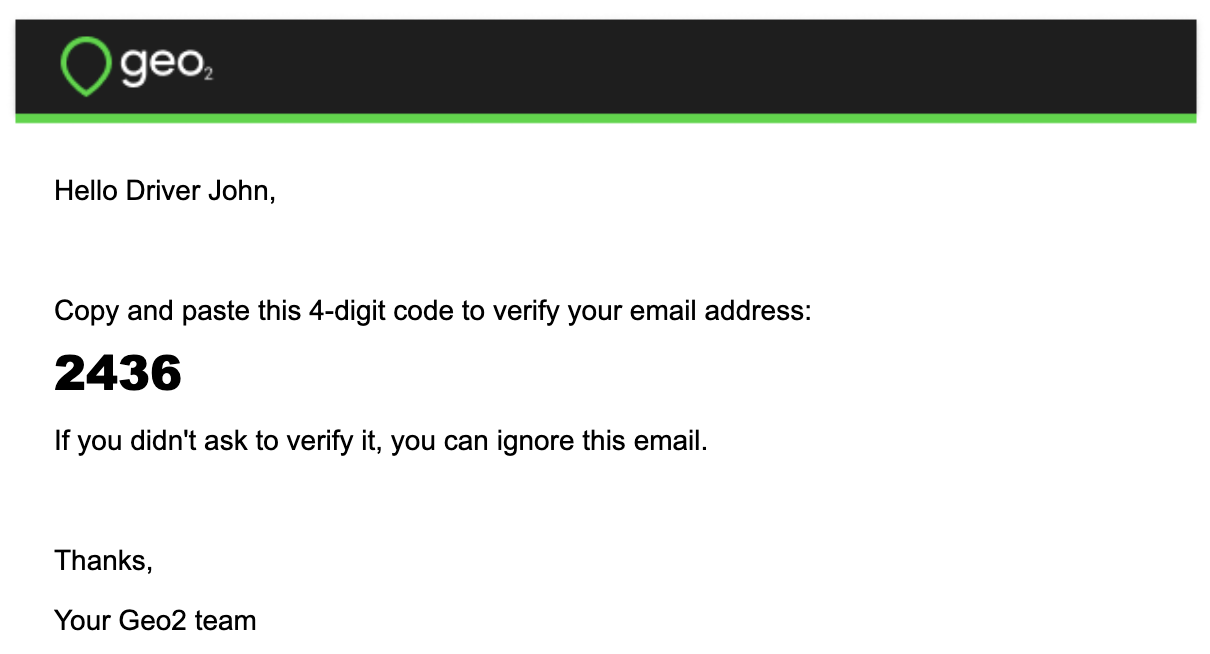
If you have not received an email with a verification code, press the Resend email button on Verify email page, and a new code will be sent.
You do not need to verify your email if you registered using Google, Microsoft, or Apple identity.
Sign In Using Mobile Number
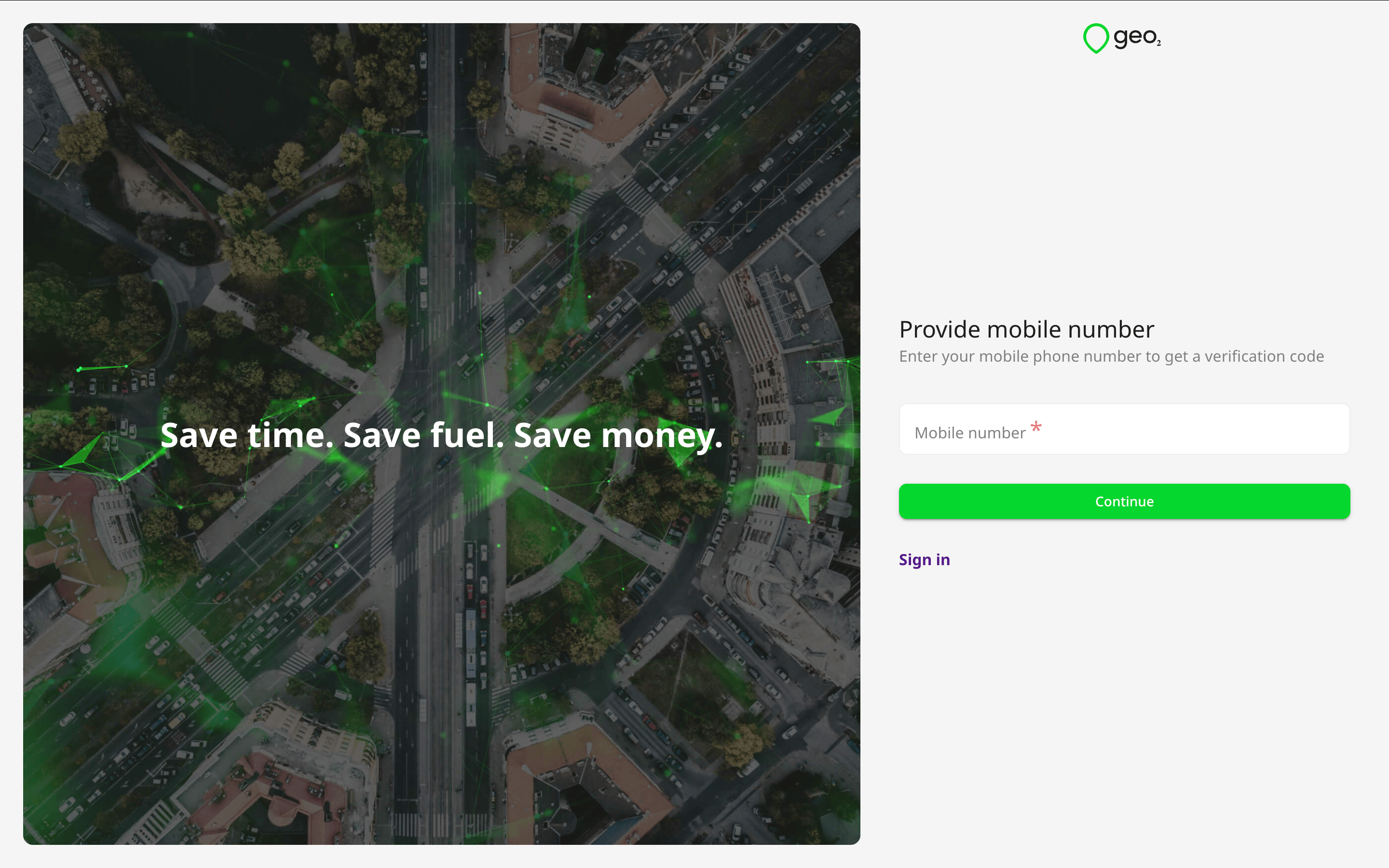
If you press the Continue with phone button, you will be redirected to provide your mobile number used for registration at Geo2.
Verify Mobile Number
By pressing the Continue button, you are required to confirm your mobile phone number to sign in. You will see a prompt to type the verification code from the SMS sent to the provided mobile number.
If you have not received an SMS with a verification code, press the Resend code button on Verify mobile number page, and a new code will be sent. Once your mobile number is verified, you will sign in to Geo2.