Hub: Proof of Delivery Settings
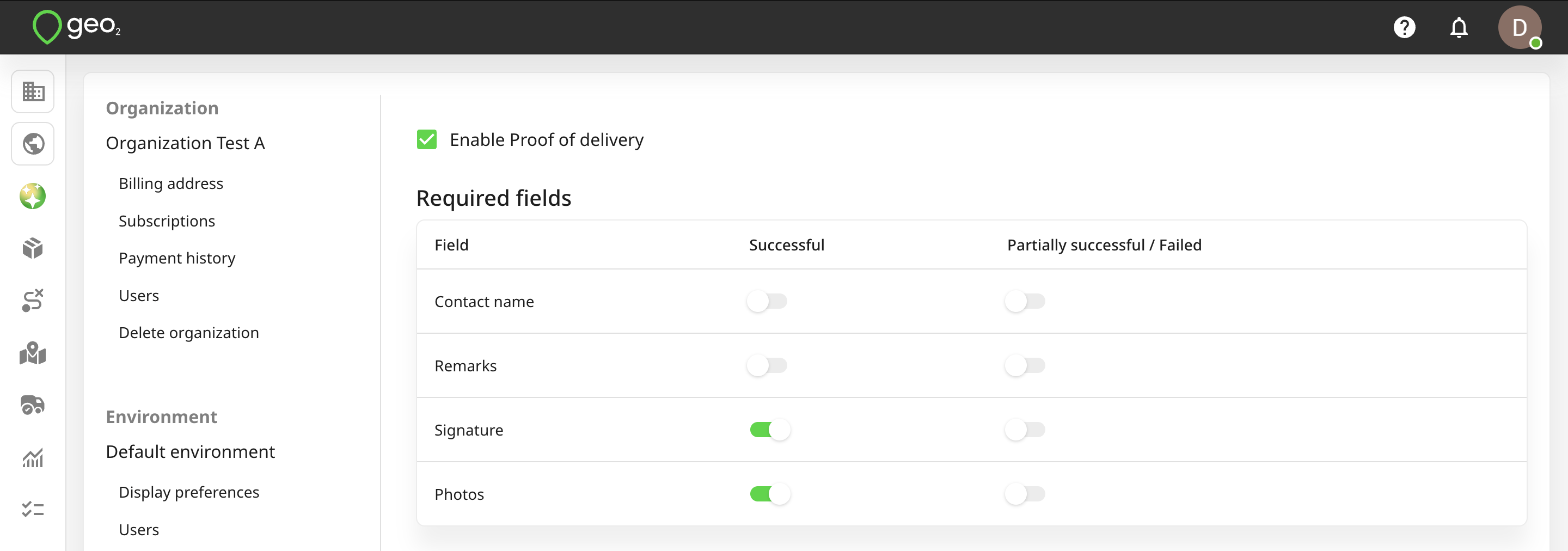
By default, a proof of delivery (POD) recording is enabled in every newly created environment. If you don’t need this feature, you can easily disable it in Hub under Settings → Environment → Proof of Delivery. In addition to enabling or disabling POD capture, you can also configure which details are required — such as contact name, remarks, signature, and photos — for each delivery outcome: successful, partially successful, or failed.
If POD recording is turned off, the mobile app hides the Create POD button for drivers.
A recipient can be sent an email with an order POD (proof of delivery) - both automatically when the POD is recorded and manually at any time from Geo2 Hub. While recording a POD is available for all level users, POD notifications are available only with Advanced or Enterprise subscription level.
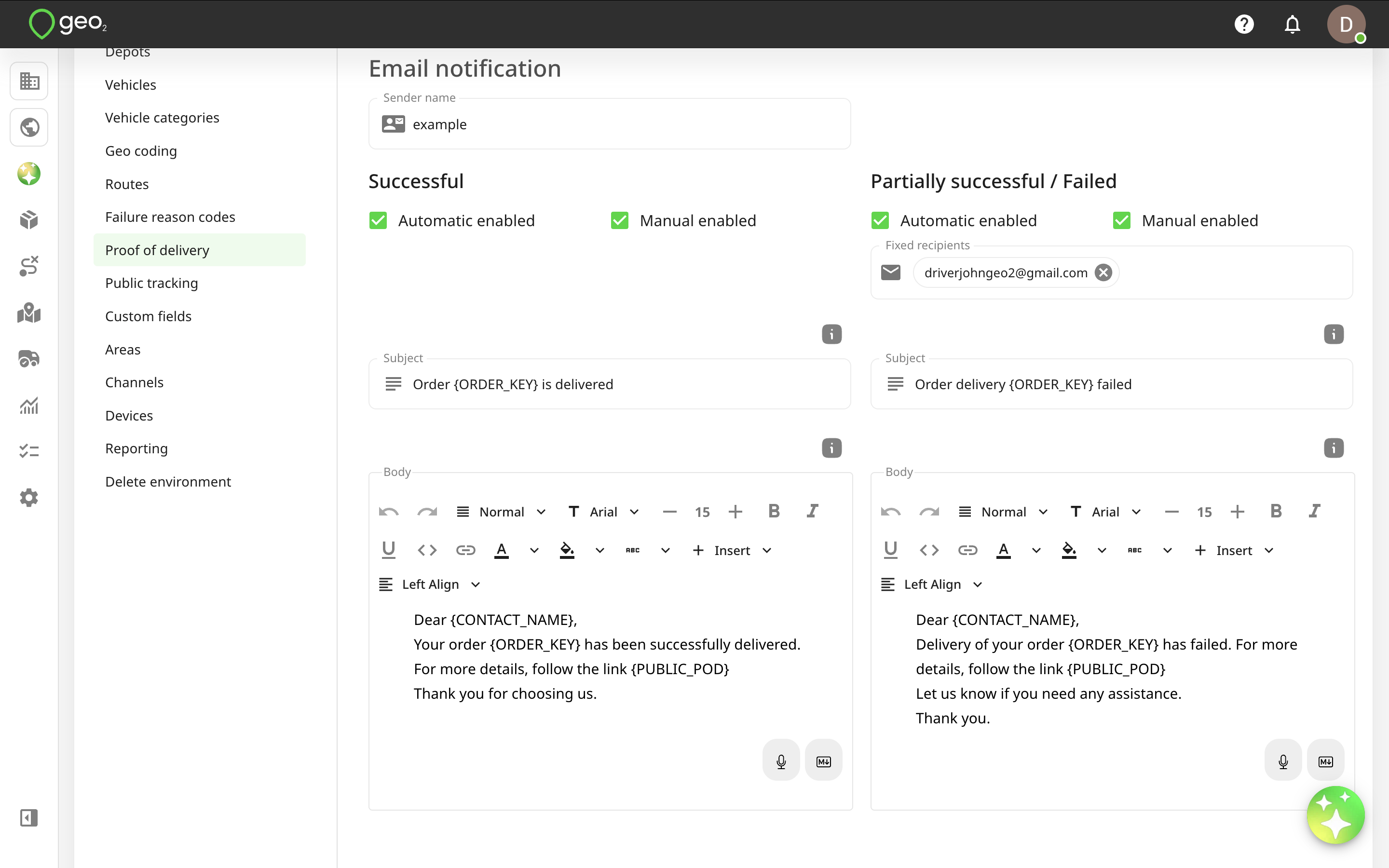
The sender address of email notifications is noreply@geo2.com if there is no indicated Sender name. Here are the configurable settings in Settings → Environment → POD notification in Hub:
| Setting | Description |
|---|---|
| Sender name | The display name that will accompany the sender address, for example, your company name. |
| Successful and Partially successful/Failed | Settings from the relevant section will be used in the event of a successful and partially successful/failed delivery/collection. |
| Automatic enabled | If selected, POD messages will be sent automatically to a recipient email address and fixed emails (for partially successful/failed POD emails) when a POD is registered in Hub. |
| Manual enabled | If selected, Hub users have the option to trigger the sending of the POD manually. Press the Email to recipient button on the Proof of Delivery page inside of an order in Hub or on the POD dialog when clicking on the POD icon on an order card or stop card on the Route view page in Hub. |
| Fixed recipient | For failure notifications only, a fixed email recipient for the notifications. Partially successful/failed delivery emails can be sent to multiple fixed recipients, for example, to managers who are responsible for failed deliveries. Multiple email addresses can be entered, separated by a semi-colon (;) or by pressing Enter. To edit the entered email address, press it. |
| Subject | Subject line of notifications. You can use these tokens for POD emails: **{CONTACT_NAME}** - recipient name **{ORDER_KEY}** - order key **{COMPANY_NAME}** - сompany name **{ENVIRONMENT_NAME}** - environment name |
| Body | Body of notifications. You can use these tokens for POD emails: **{CONTACT_NAME}** - recipient name **{ORDER_KEY}** - order key **{PUBLIC_POD}** - POD tracking link **{COMPANY_NAME}** - сompany name **{ENVIRONMENT_NAME}** - environment name |
Once all information is provided, click the Update button to save changes.
When the POD is created and an order has a recipient email address, the POD notification email will be sent (if it was enabled in settings). Example:
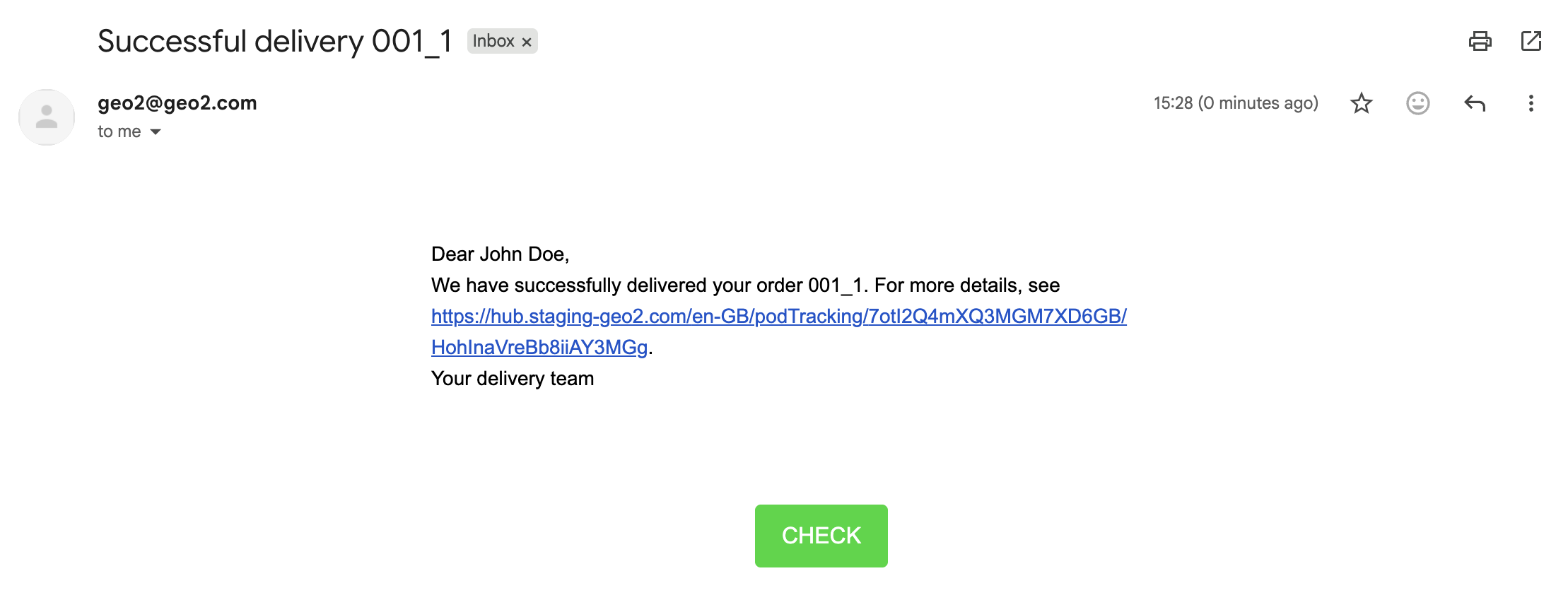
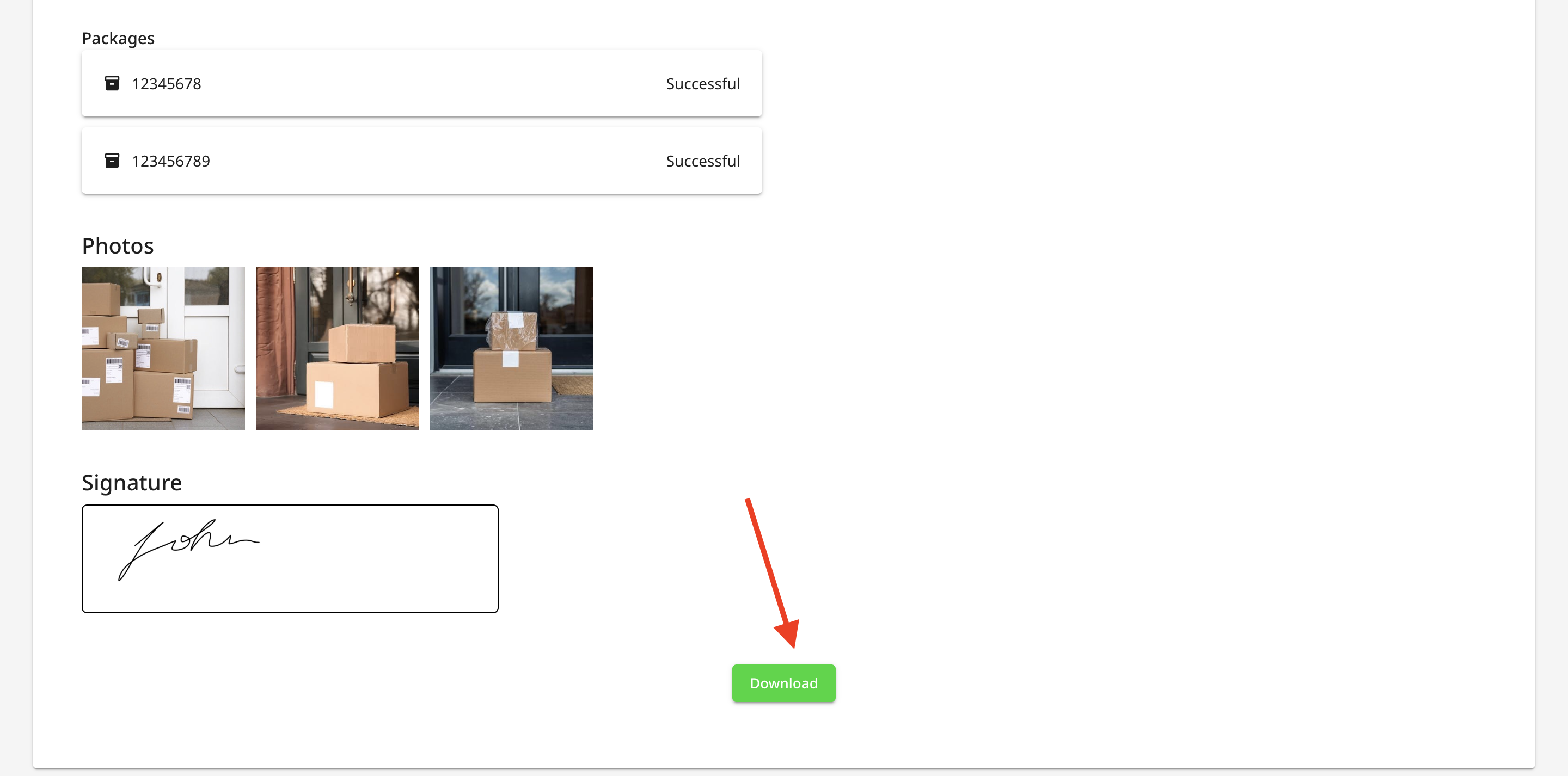
By pressing the Check button or following the pasted link, a recipient will see POD details.
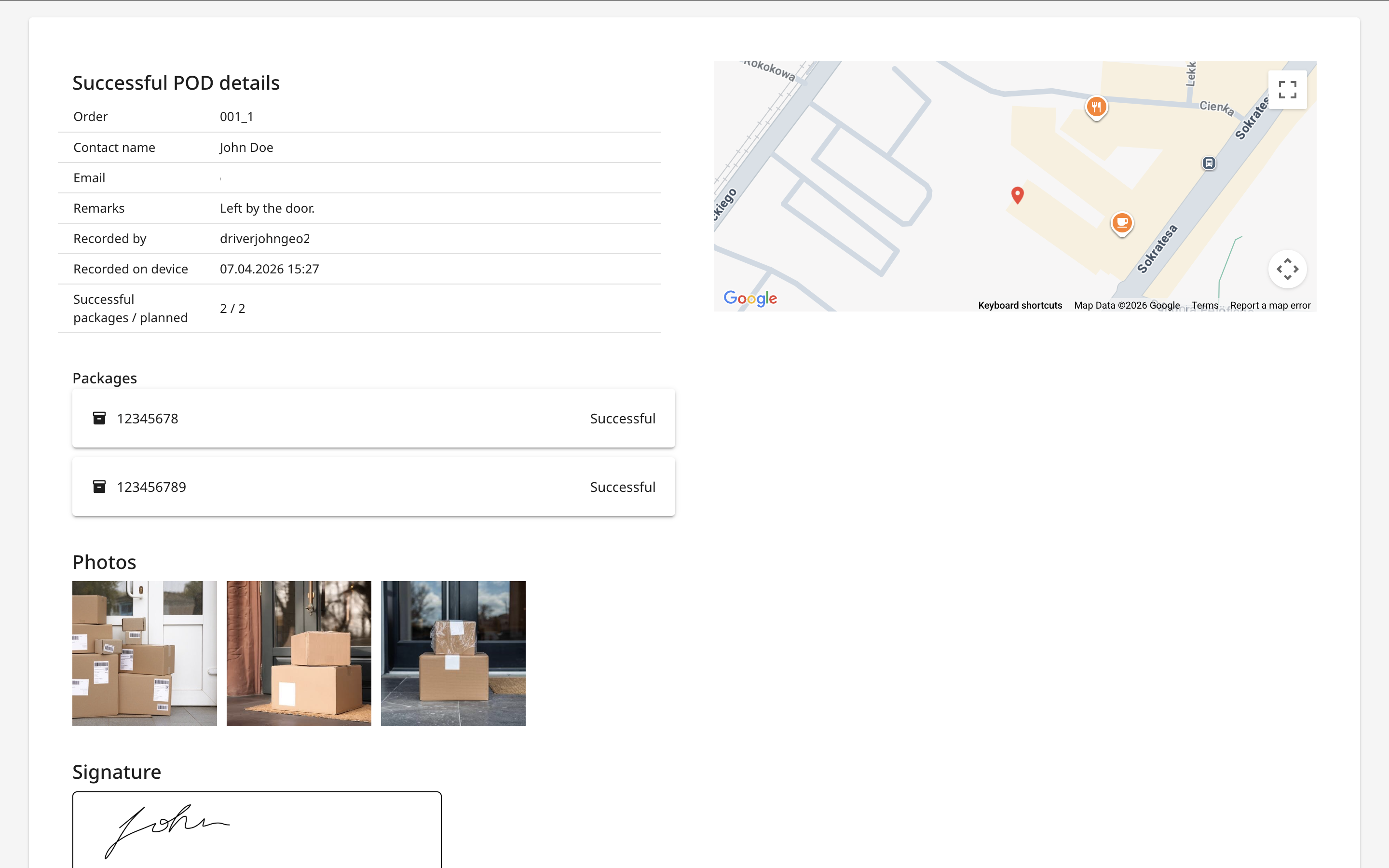
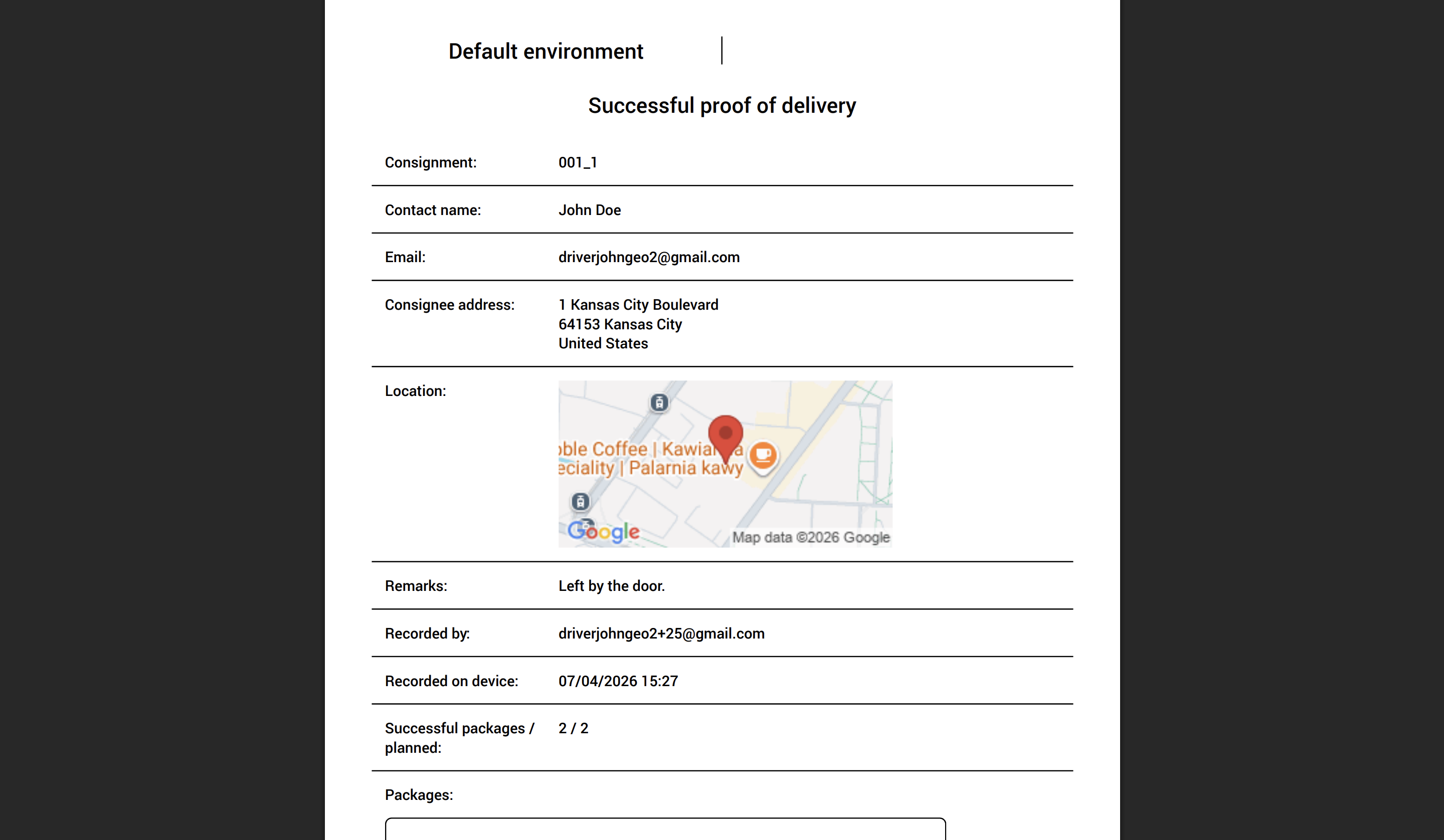
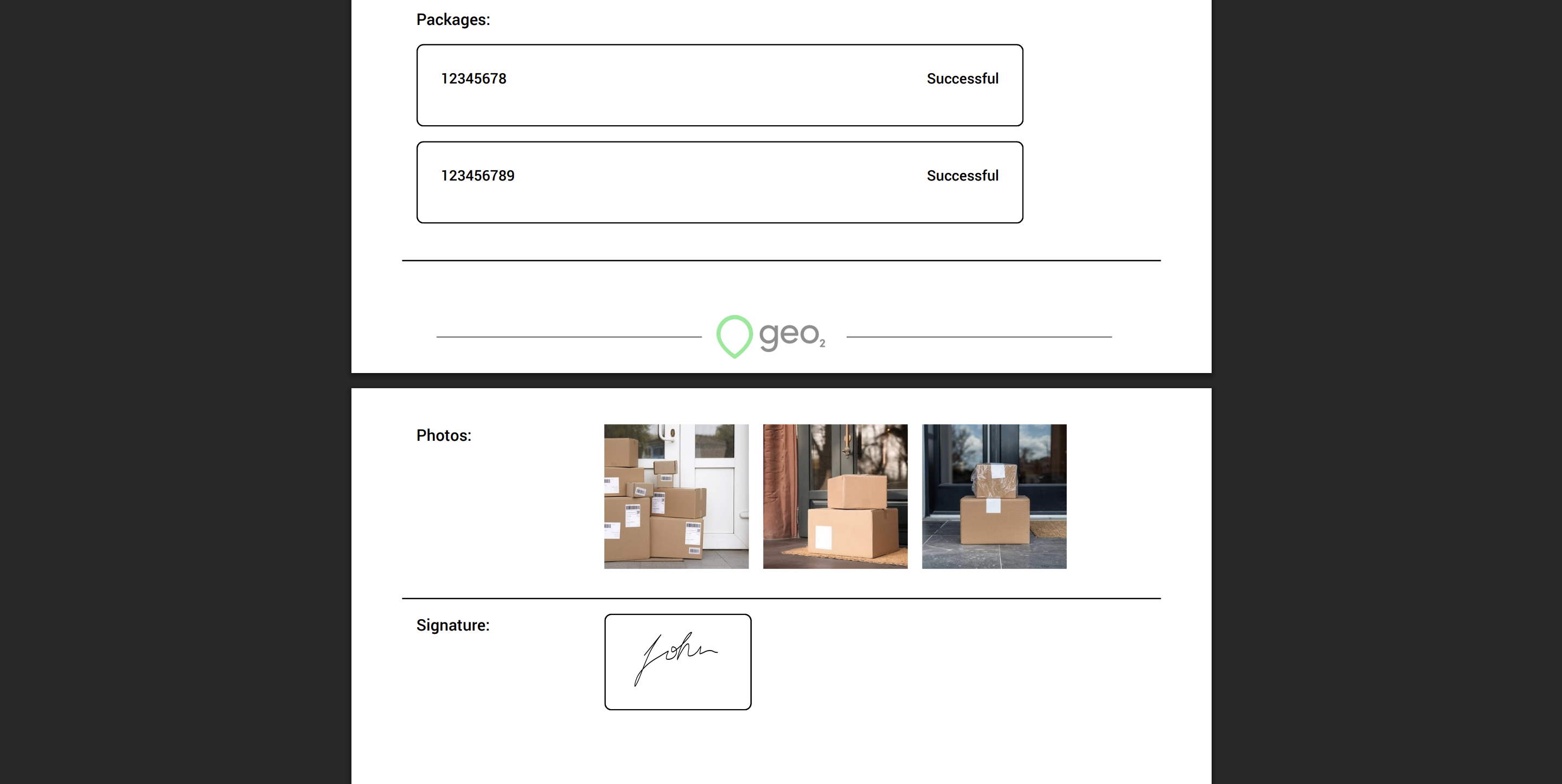
By pressing the Download button on public POD page, a recipient can download a POD PDF.