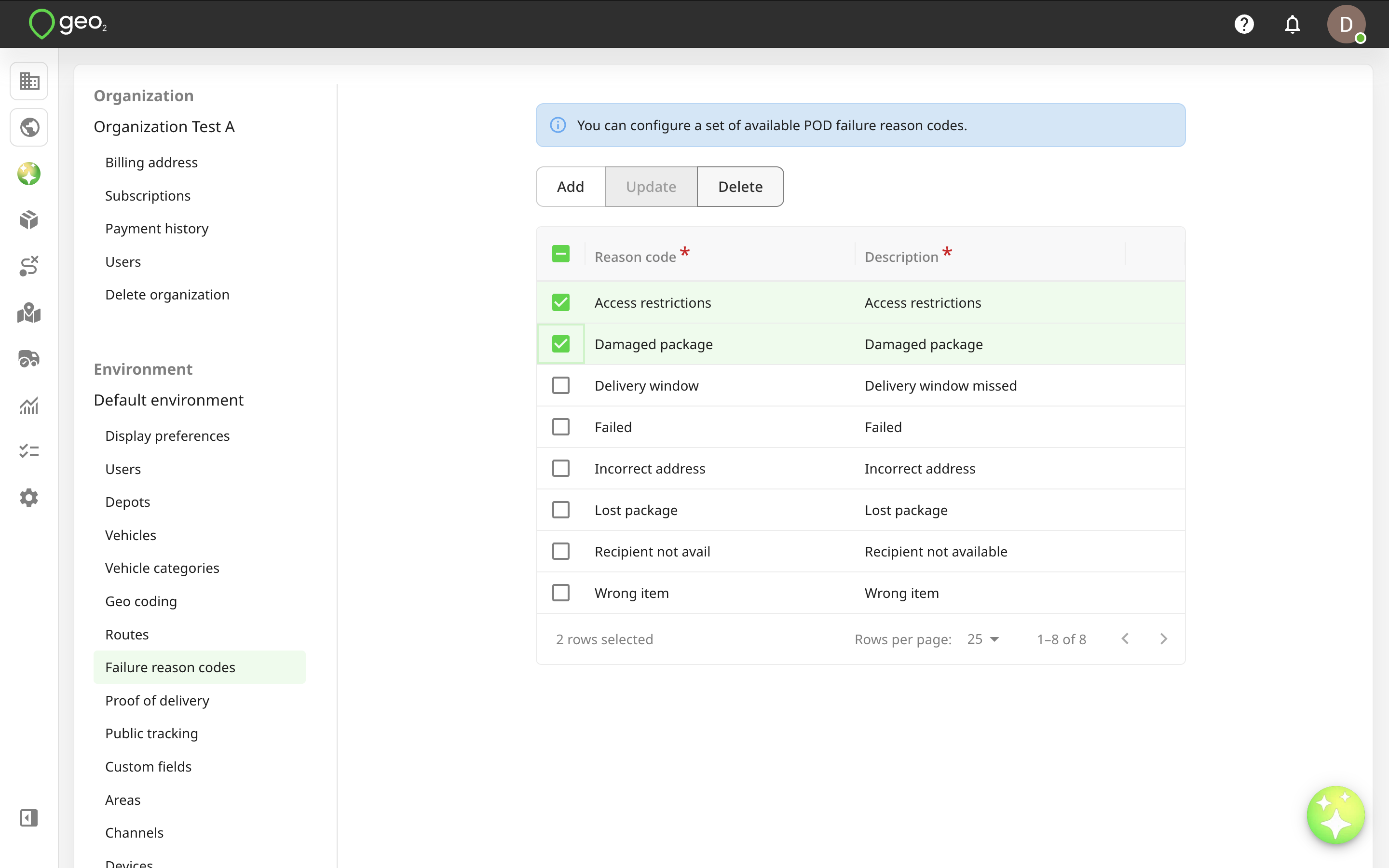
Hub: Failure Reason Codes Settings
Failure reason codes in Settings → Environment in Hub let you classify reasons for failed deliveries/collections and are available to drivers in the mobile app when recording a POD. Once an environment is created, the first 8 default failure reason codes are added automatically. Thus, you can create a proof of delivery in the mobile app in a failed or partially successful status.
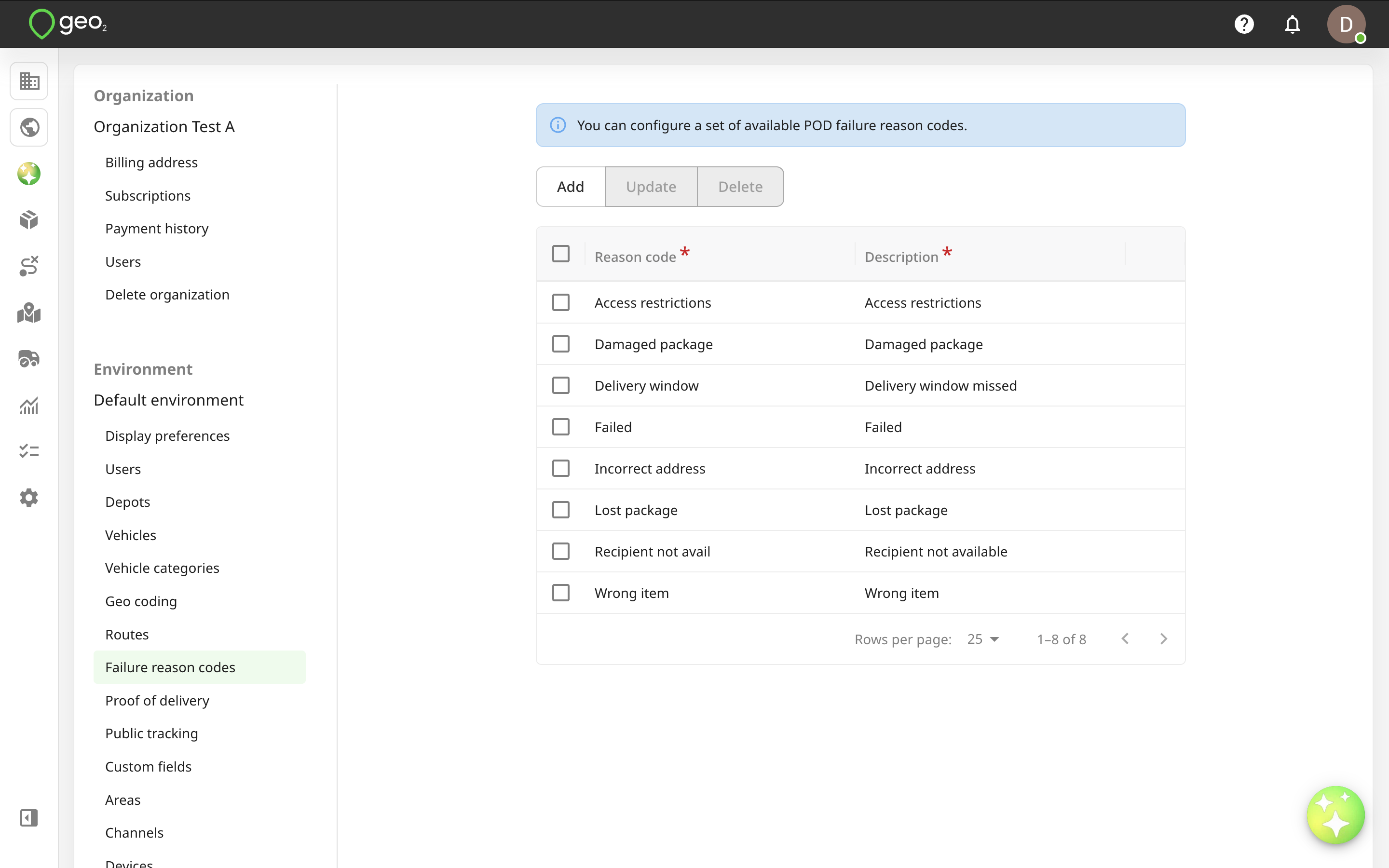
To add a failure reason code, press the Add button in Settings → Environment → Failure reason codes tab in Hub. A new row will be shown in the table for you to specify the details of the new failure reason code. Both fields are required. To save changes, press the Update button.
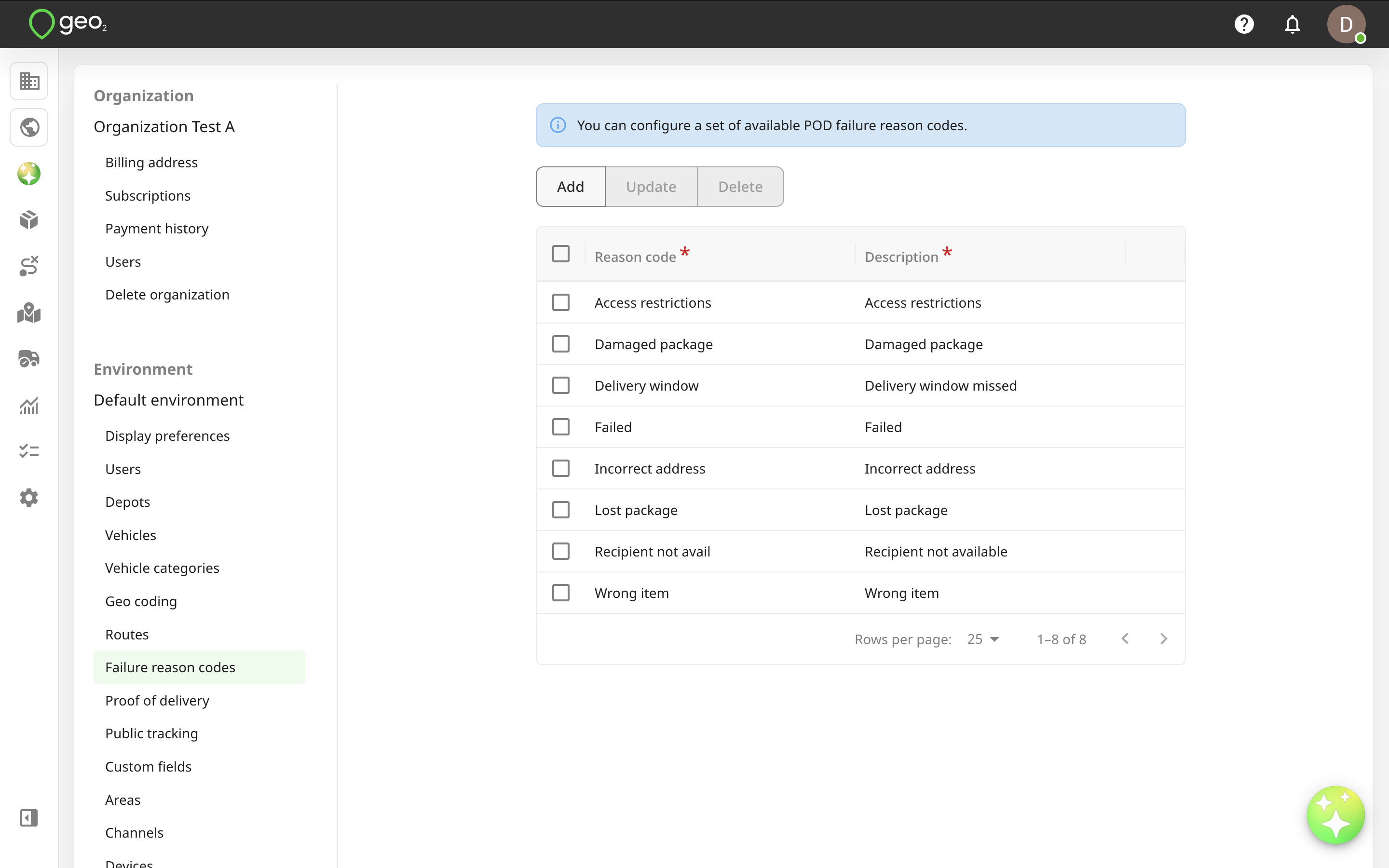
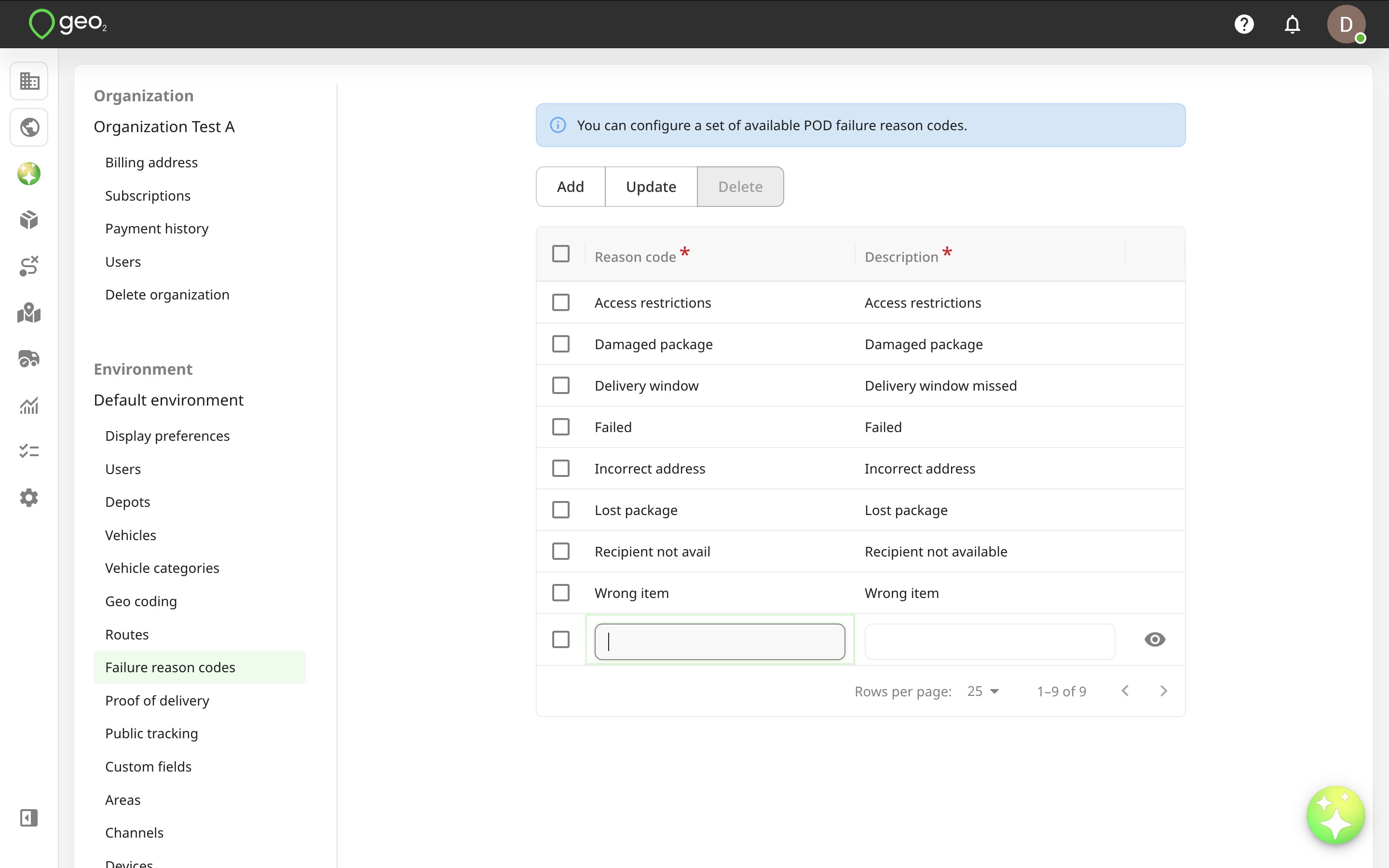
To edit a reason code, click the Edit (pencil) icon. Remember to press the Update button to save any changes.
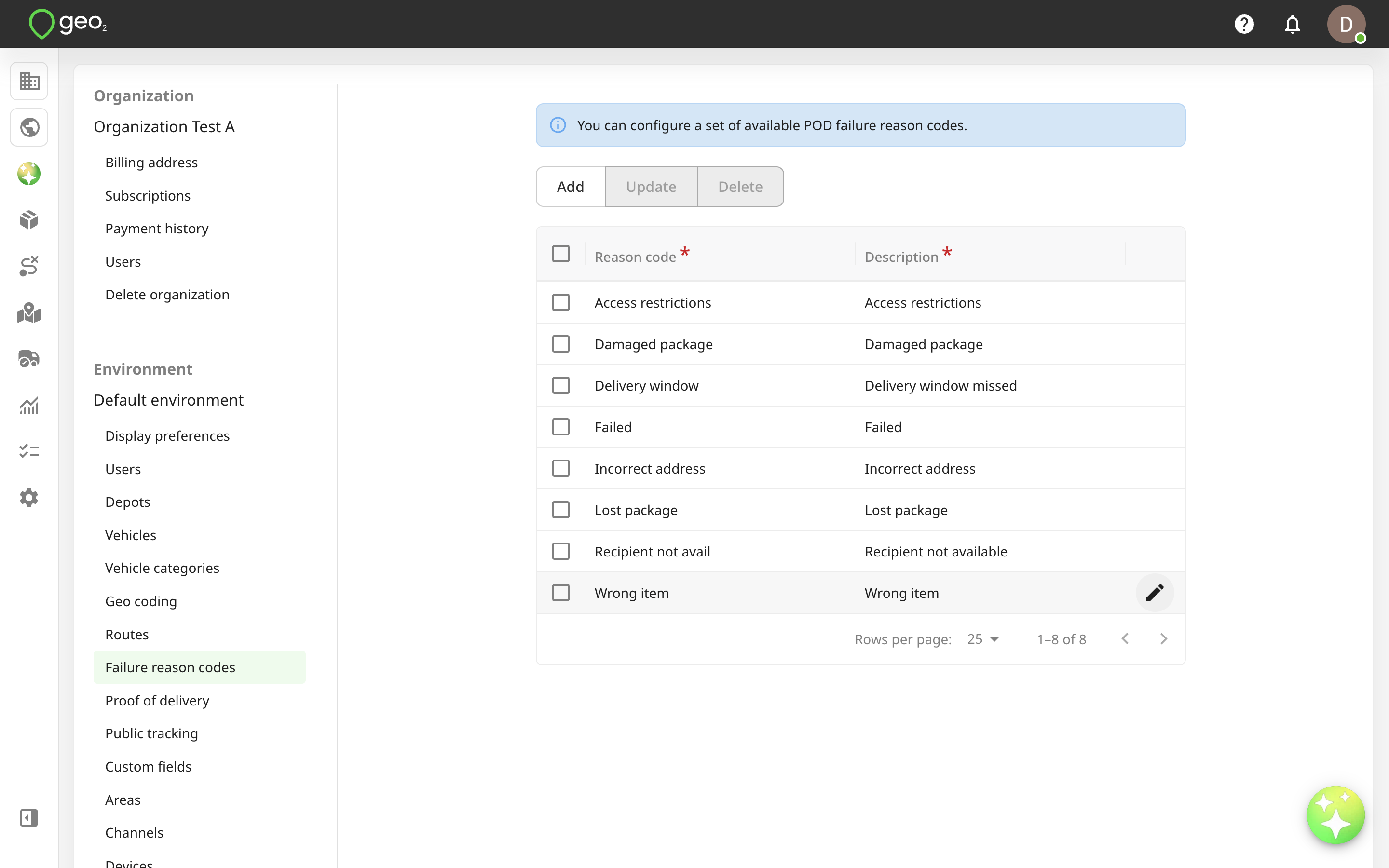
You can select a reason code to Delete it. For data integrity, it is best to not delete a reason code once it has started to be used. It is not possible to delete all reason codes as it will impact a POD creation. Your environment needs at least 1 added failure reason code.