Hub: Route Copying with Stops
Use route duplication to quickly create new routes based on an existing route. You can recreate the same route for future dates, create several copies at once, or move undelivered stops to a new route.
Route duplication can be useful when:
- Repeating regular delivery routes — for example, recreating the same route every Monday for stores or customers that receive recurring deliveries.
- Creating several similar routes for the same day — for example, when multiple drivers need to follow the same route structure or serve the same set of locations.
- Preparing routes for future dates — for example, copying a route for the next few days or weeks instead of rebuilding it manually.
- Rolling over unfinished deliveries — if some stops were not completed, you can move only the undelivered stops to a new route for the next day.
- Reusing a route structure without stops — create a new empty route with the same driver, vehicle, depot, area, and other route settings, then add different stops.
- Replanning after a partially completed route — keep completed deliveries on the original route and move failed, partially successful, or uncompleted stops to a fresh route.
Duplicate Route
The Duplicate action is available from Route view page in Hub for users with permission to create routes.
- Open the route you want to duplicate.
- Click
Duplicatein the Route view toolbar. - Configure the new route using the available options:
- Planned — select the planned date and start time for the new route. The default time is taken from your route settings.
- Number of copies — specify how many copies of the route should be created. The default value is 1.
- Repeat — choose whether the route should be duplicated repeatedly:
- None
- Daily
- Weekly
- Monthly
- Repeat until — when a repeat option is selected, specify the last date on which copies should be created. Routes can be scheduled up to one month ahead.
Geo2 displays a summary showing how many routes will be created and on which dates.
For example, if you select:
- Planned: Aug 10, 09:00
- Number of copies: 4
- Repeat: Weekly
- Repeat until: Aug 31
Geo2 will create 16 routes across 4 dates: Aug 10, Aug 17, Aug 24, and Aug 31. Four route copies will be created for each date.
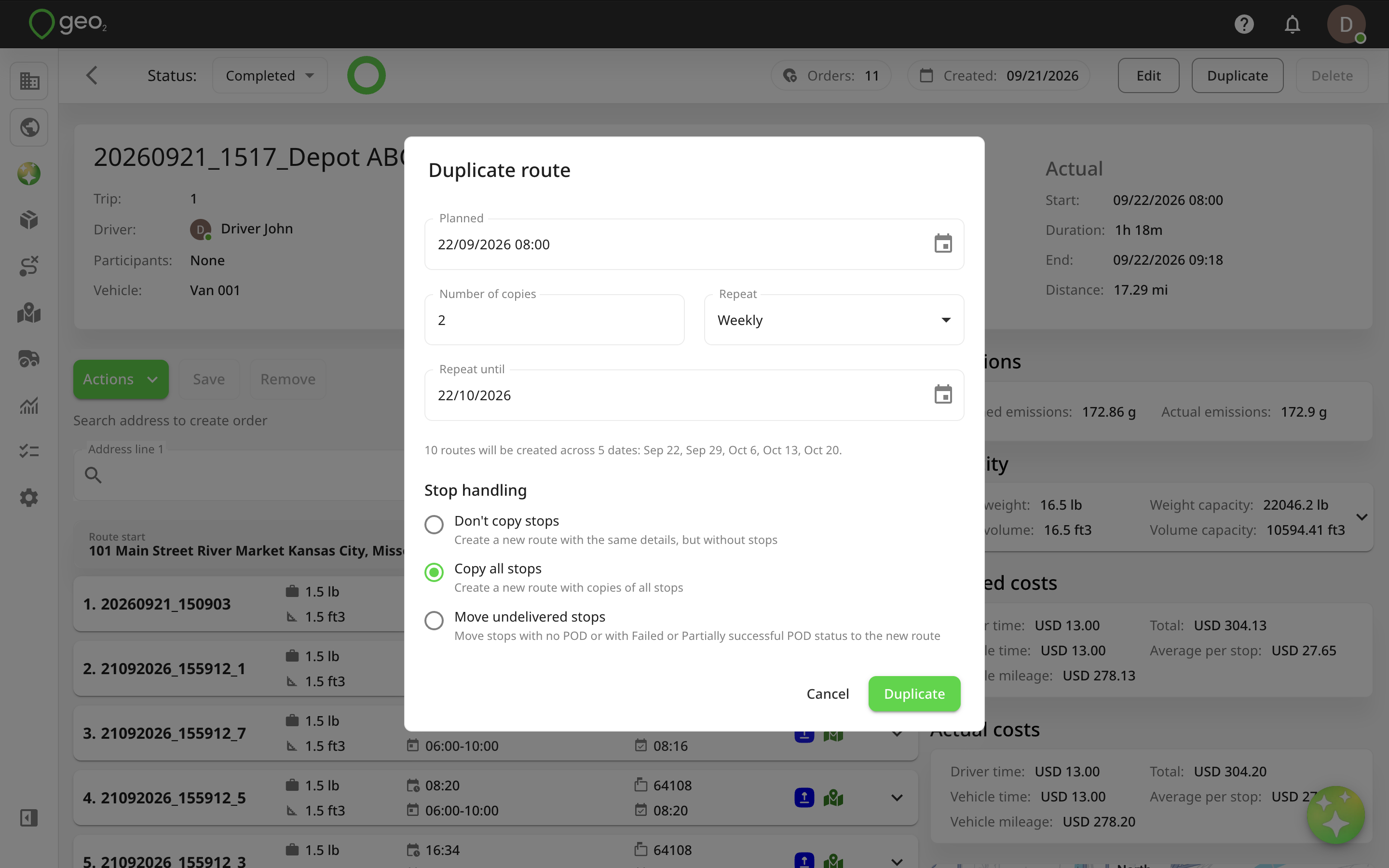
Choose How Stops Are Handled
Under Stop handling, select one of the following options:
- Don’t copy stops — creates a new route with the same route details but without any stops.
- Copy all stops — creates copies of all stops from the original route and adds them to the new route.
- Move undelivered stops — moves unfinished stops from the original route to a new route.
A stop is considered undelivered when it has no POD or has a Failed or Partially successful POD status.
Move Undelivered Stops to New Route
Use Move undelivered stops when delivery work was not completed and needs to continue on another day. When this option is selected:
- Only one new route can be created.
- Repeat options are unavailable.
- Undelivered stops are moved to the new route in the same order as on the original route.
- The moved stops are removed from the original route.
This is useful, for example, when a driver finishes a route with several unsuccessful or incomplete deliveries and you want to move them to a fresh route for the next day without recreating the stops manually.
What Is Copied to New Route
New routes are created in Planning status.
The following route information is carried over where applicable:
- Vehicle
- Driver
- Participants
- Area
- Depot
- Vehicle checks
- Planned route details
The planned start and end times are shifted to the selected date while preserving their original time of day.
Execution data from the original route is not copied. Actual times, actual distances, POD information, and other execution results are reset.
When stops are copied, their delivery details such as addresses, contacts, packages, and products are preserved, while execution information and PODs are cleared.
The duplicated route is not automatically optimized. Review the route and run Optimize when you are ready.