Mobile App: Map
Introduction
After signing in successfully, you will see the Map page. You may receive invitations to join other organizations. To Hub: Accept Invitation, Mobile App: Sign In to the app using the email address that received the invitation. If you have no invitations, the default organization will be created. The Free level subscription will be assigned, with no card required. You can start working with the app immediately:
- Plan routes
- Add stops using address typing, multi-address scanning with automatic address detection, address search on the map, voice search, bulk address pasting (Paste list feature), import addresses and delivery details from photos, screenshots and PDFs
- Optimize routes with and without required stop time windows
- Load vehicle with photos
- Start and complete routes
- Navigate to stops using your preferred navigation app (Waze, Google Maps, Apple Maps, etc.)
- Create PODs and vehicle checks with signatures and photos
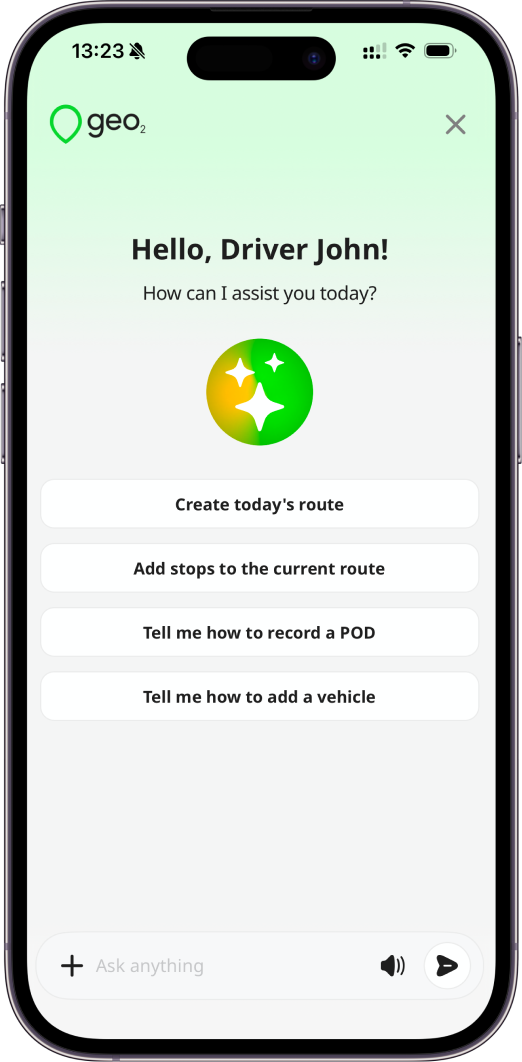
With the AI assistant, you can also:
- Create and update routes
- Add stops to your current route using text or voice input
- Import stops from photos, screenshots and PDFs
- Move stops between routes
- Optimize routes with or without required stop time windows
- Add, edit, and delete breaks
- Start and complete routes
- Navigate seamlessly within the app
- Get the list of routes planned for today
- Get step-by-step guidance on using different features
Plan Route
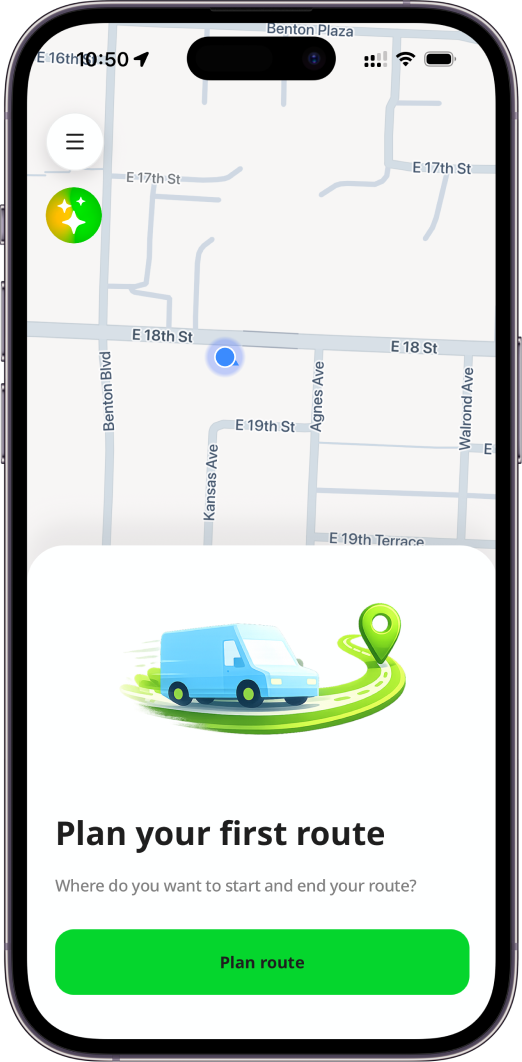
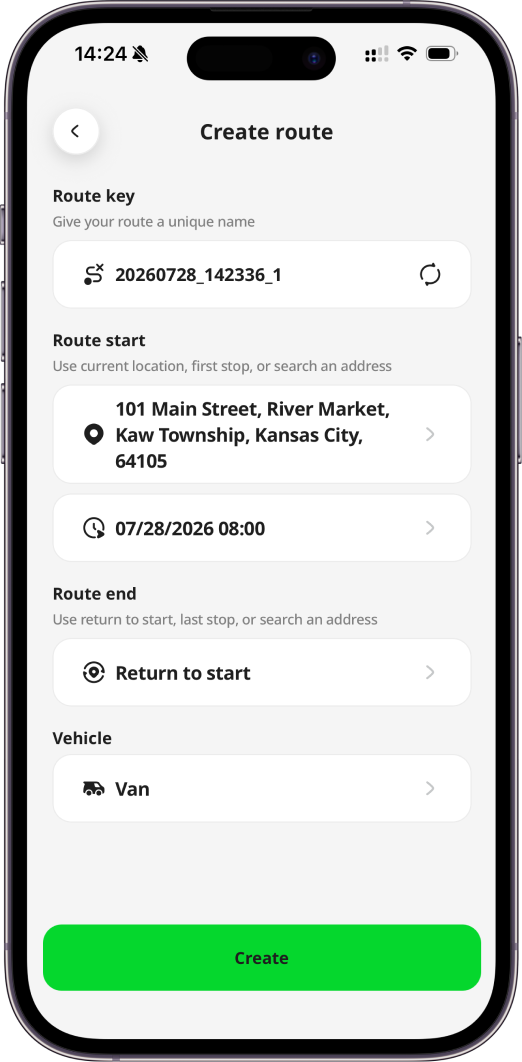
On Map page, by clicking the Plan route button, you can choose to create a route if you have permission to do it. Check more details about Mobile App: Routes and Stops.
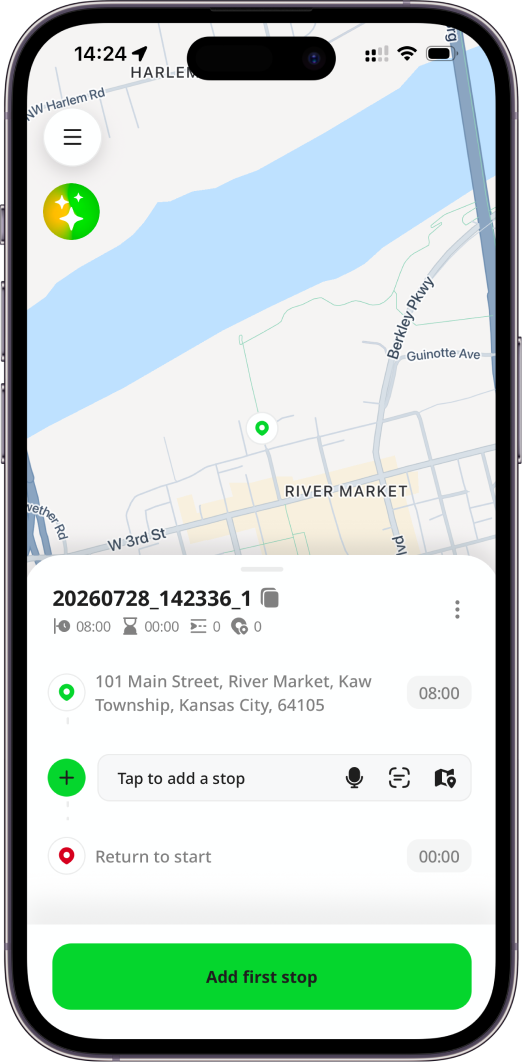
Assigned Routes
Routes assigned to you display automatically based on priority when you launch the app or complete a route. First, if you previously selected a route that is incomplete, the app reopens it. If not, and you have routes released for today, the app opens the earliest route unless you explicitly selected another route earlier today. You can start it, create vehicle check, navigate to stops, create PODs, and complete a route.
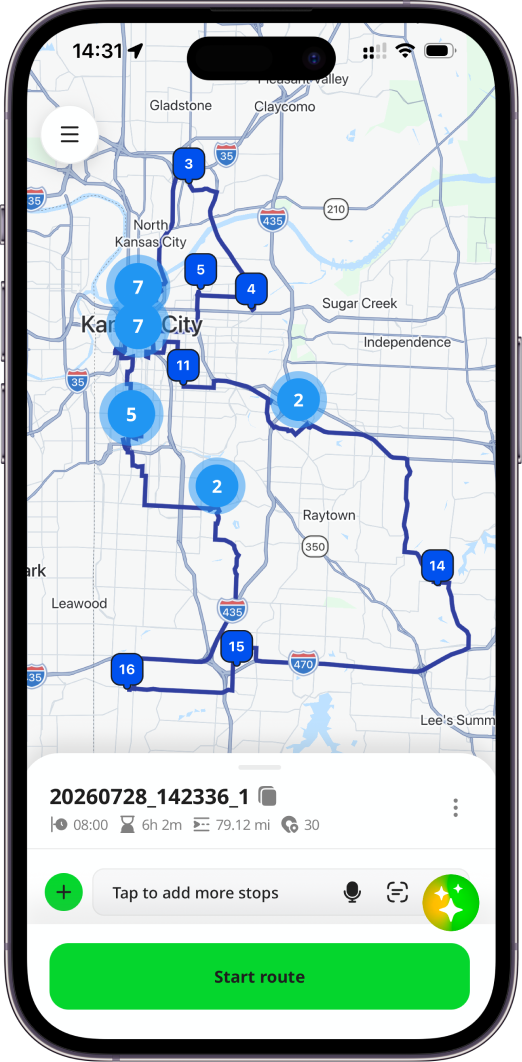
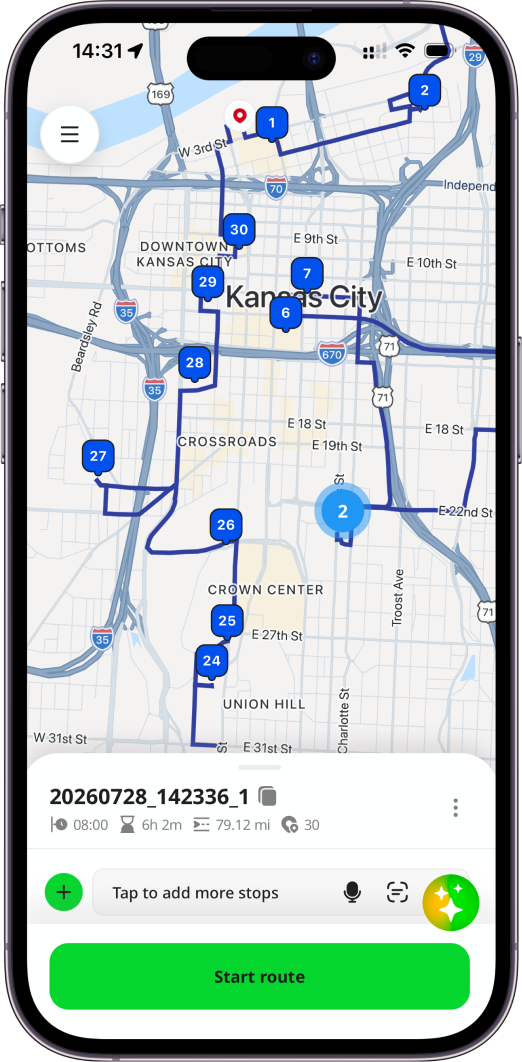
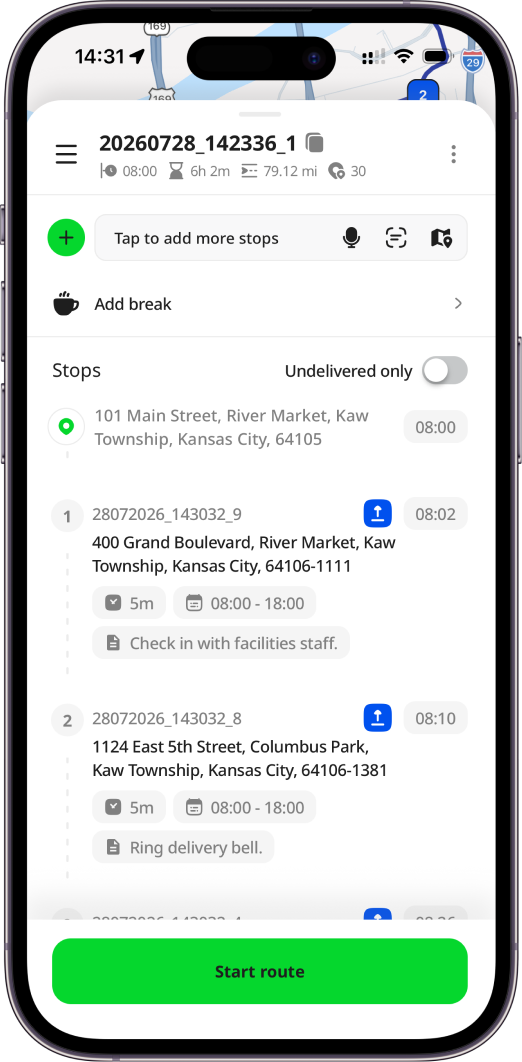
If neither applies, you will see an empty map with a relevant call to action.
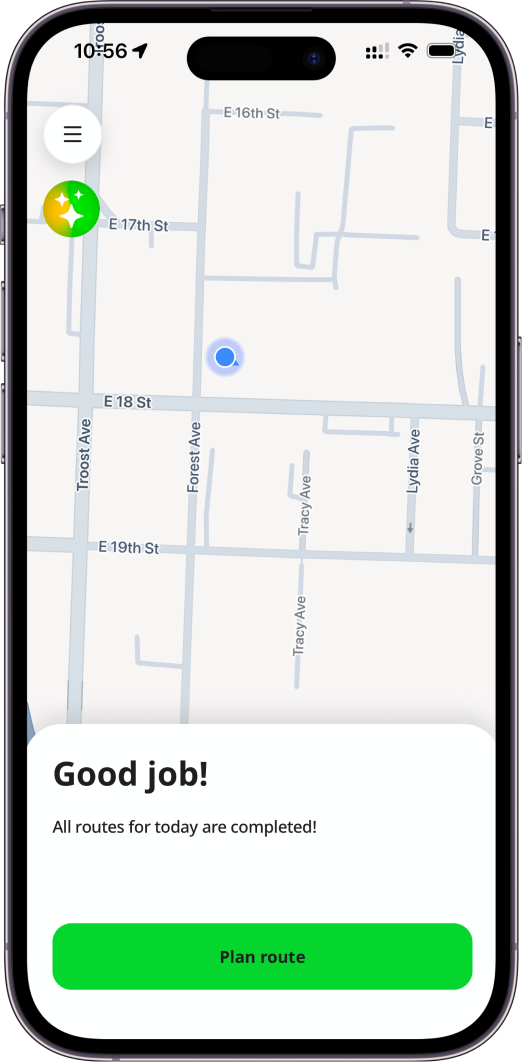
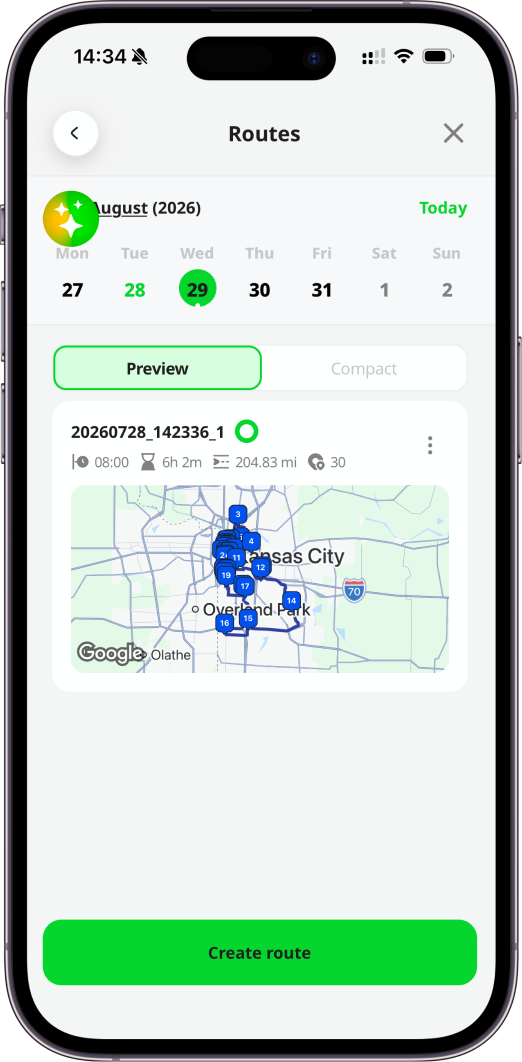
After completing a route, if other routes remain today, a “Good job” bottom sheet appears with a Go to next route button that opens the next earliest incomplete route. If all today's routes are complete, the next step depends on your permissions: if you can create routes, you see a Plan route button; otherwise, you are directed to the Routes screen. When no routes exist for today, the empty state adjusts accordingly: if you can create routes, you are prompted to plan one. If you cannot create routes, you are redirected to the Routes screen, where you can view upcoming routes, each displayed with a small map preview.
Menu
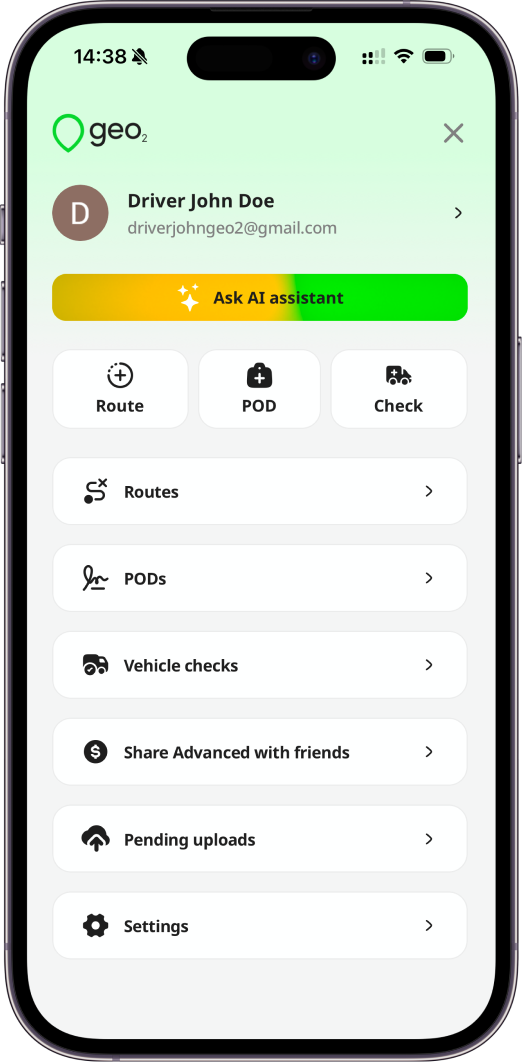
Press the menu icon at the top-left corner to open the menu. If you have permissions, the menu includes the following options:
- Ask AI assistant
- Plan a route
- Create a POD
- Create a vehicle check
- Check routes list
- Check PODs history
- Check vehicle checks history
- Share Advanced with friends
- Review pending uploads for your PODs and vehicle checks
- Configure settings
- Change organization and environment if you have multiple
- Access your profile information
Check more details about Mobile App: Menu.