Mobile app: AI Assistant
Introduction
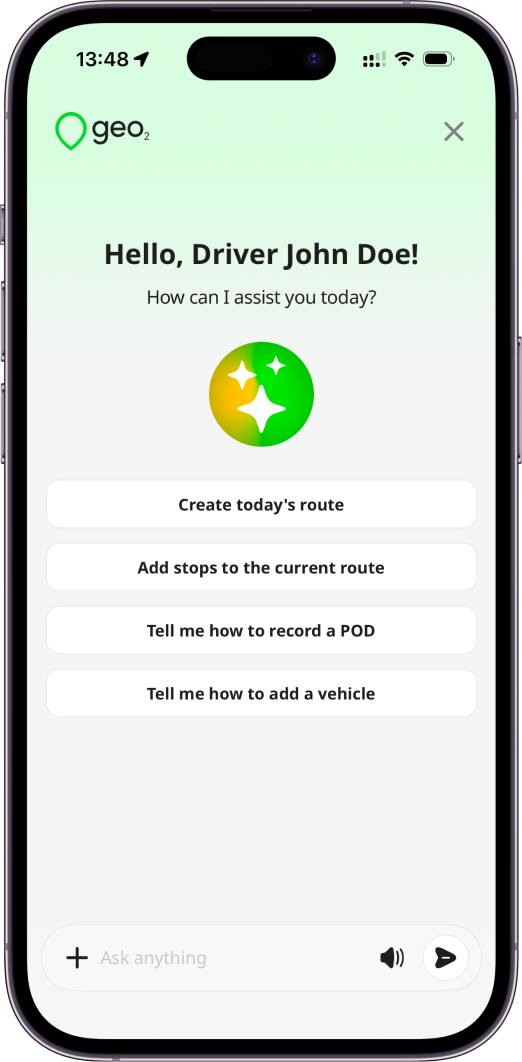
Geo AI Assistant helps you manage routes, stops, and daily delivery work directly from the Geo2 mobile app.
Instead of navigating through multiple screens or entering information manually, you can ask Geo AI Assistant what you need using text or voice. The Assistant can help you plan your day, update routes, add stops, find information, navigate through the app, and explain how different Geo2 features work.
This is especially useful when you are on the road and want to complete common actions with fewer taps.
What You Can Do with AI Assistant
You can use Geo AI Assistant to:
- Create new routes and update existing ones
- Add stops to your current route using an address, place name, or spoken request
- Import stops from photos, screenshots, and PDFs
- Move stops between routes
- Optimize routes with or without required stop time windows
- Add, edit, and delete breaks
- Start and complete routes
- Get information about routes, orders, stops, and deliveries
- Check what your next stop is and how many stops remain
- Get delivery instructions and other stop information
- Navigate to stops and different areas of the app
- Get step-by-step guidance on using Geo2 features
You can also ask follow-up questions. Geo AI Assistant keeps the context of your conversation, so you do not need to repeat all the details every time.
If you are completing multiple deliveries throughout the day, you can use AI Assistant to quickly check your route, update it, or find the information you need.
Try asking:
- “What’s my next stop?”
- “How many stops do I have left?”
- “What time am I expected to finish?”
- “Read the delivery instructions for my next stop.”
- “What’s the address of stop 12?”
- “Navigate to my next stop.”
- “Add a 30-minute break after stop 15.”
- “Optimize my route considering required delivery times.”
- “Add 1720 Main Street, Kansas City, MO to my route.”
- “Add Union Station Kansas City as my next stop.”
- “Show me the details for order #5482.”
- “Start my current route.”
- “Complete my route.”
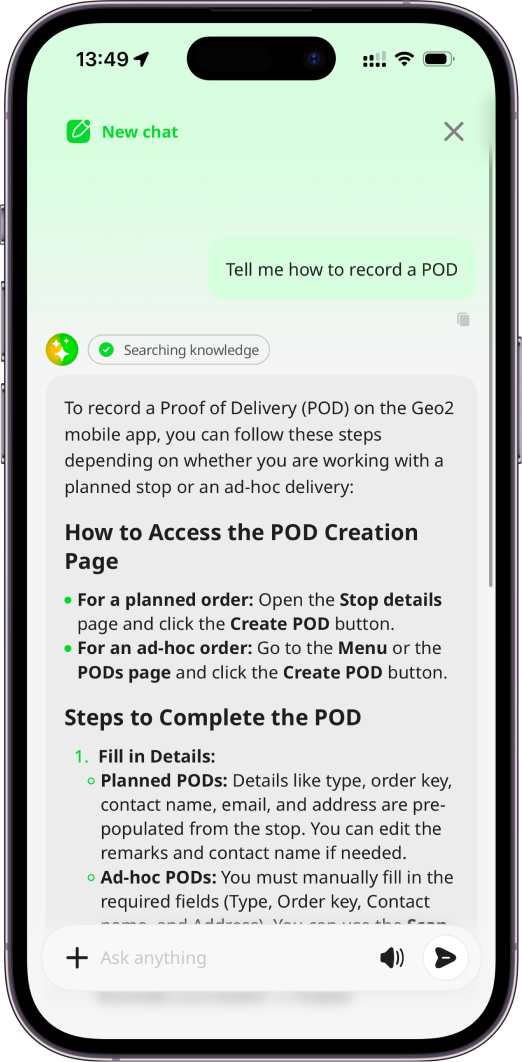
- “How do I record a failed delivery?”
- “How do I scan a package?”
- “How do I add proof of delivery?”
Import Stops Using AI Assistant
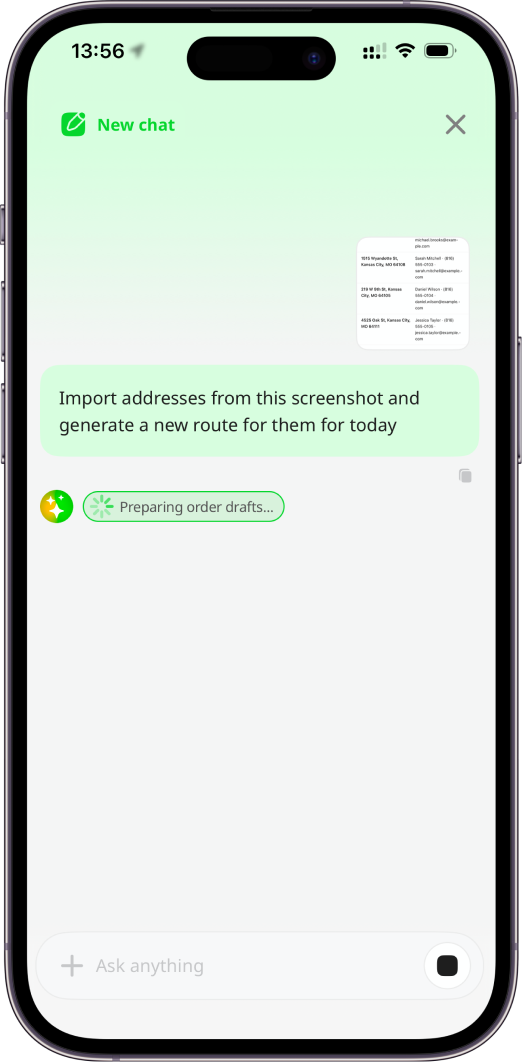
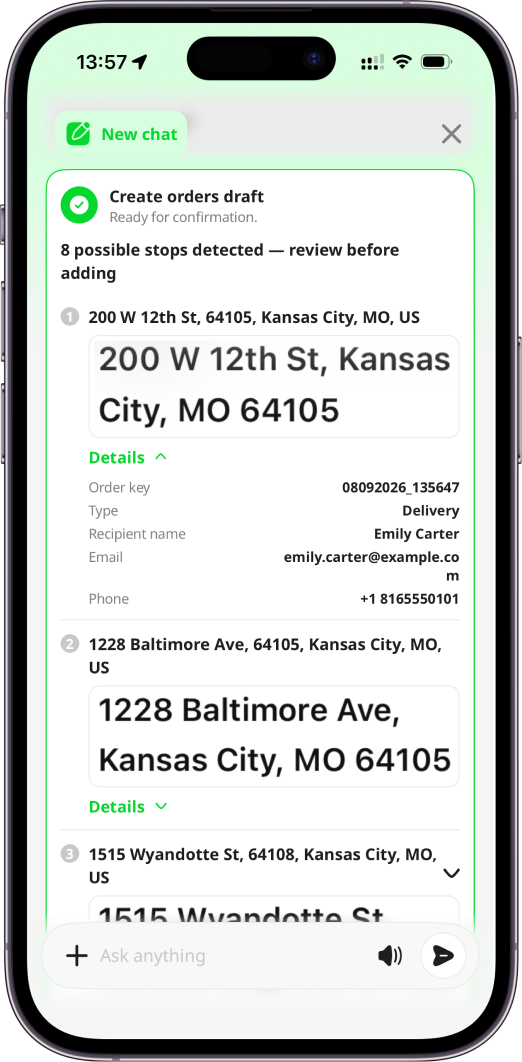
You can use AI Assistant to create stops from information you already have instead of entering each address manually. Upload a photo or screenshot. Then ask, for example:
- “Add these addresses to my current route.”
- “Create stops from this delivery list.”
- “Import all addresses from this screenshot.”
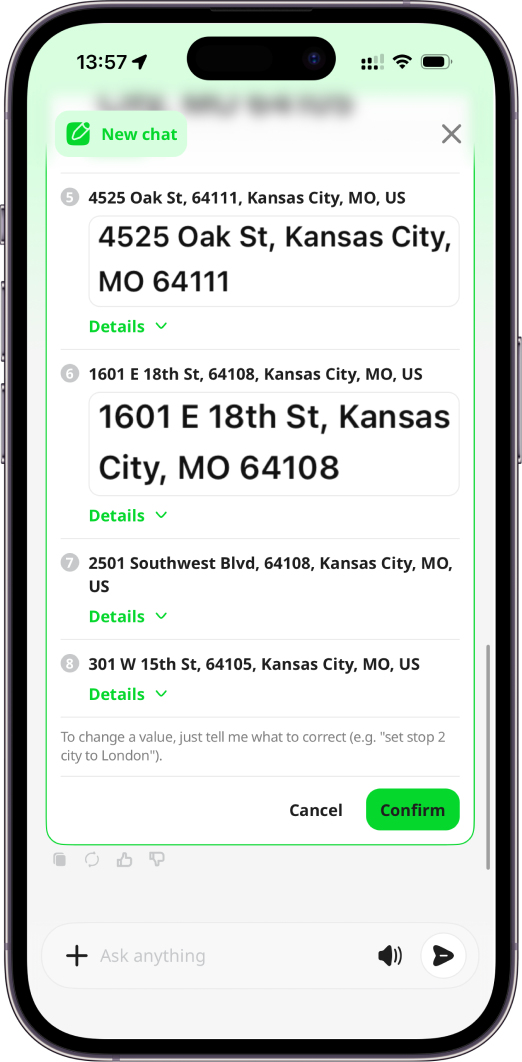
Geo AI Assistant will extract the relevant information and use it to create stops. Press Confirm on the order draft to confirm creating of orders (stops).
AI Assistant Voice Mode
Voice mode lets you speak with Geo AI Assistant instead of typing your requests. This is particularly useful when you are on the road and want to interact with Geo2 with fewer taps.
To start a voice conversation:
- Open AI Assistant.
- Tap the speaker icon next to the Ask anything field.
- The Assistant switches to voice mode.
- Turn on your microphone and start speaking.
In voice mode, the screen displays Ask me anything in voice and provides controls for your microphone.
When voice mode starts, Geo AI Assistant greets you:
“Hi,
! I’m glad you’re here. You can speak your request. I can plan your route for today, add stops, guide you through the app, or explain how things work. How can I help?”
You do not need to use specific commands or memorize exact phrases. For example, you can say:
- “What’s my next delivery?”
- “Take me to my next stop.”
- “Add a 20-minute break after this stop.”
- “I have three addresses to add.”
- “Optimize the rest of my route.”
- “What time should I finish today?”
- “How do I complete this delivery?”
- “Show me tomorrow’s route.”
While you are using voice mode, Geo AI Assistant replies using voice as well. You can continue the conversation naturally and ask follow-up questions.
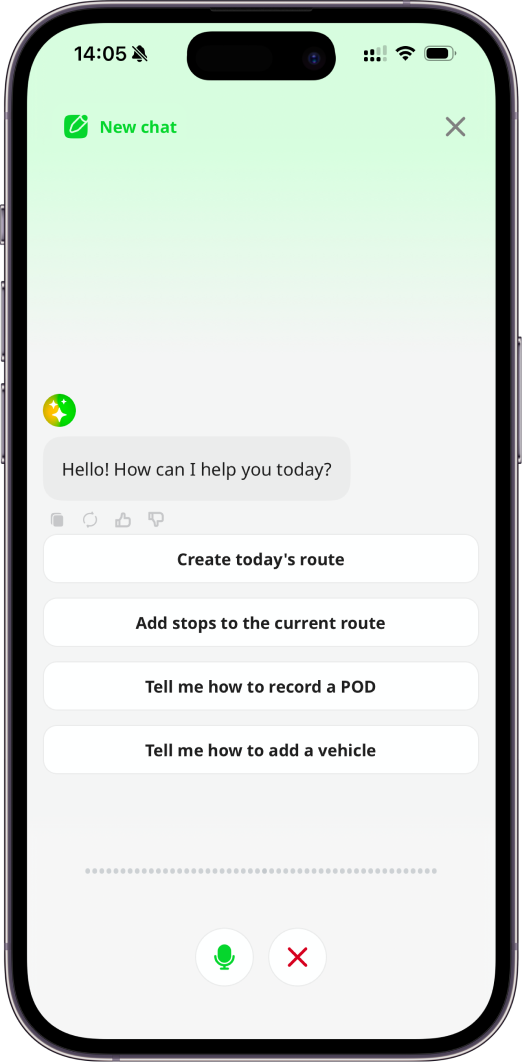
AI Assistant may display example requests based on how you use Geo2. You can tap one of these suggestions instead of speaking it manually. When you select an example while voice mode is active, the request is sent as part of your current voice conversation and Geo AI Assistant responds using voice.
Some requests require Geo AI Assistant to open another screen.
For example, you might ask:
- “Show me my current route.”
- “Open stop 8.”
- “Take me to my next delivery.”
- “Show me the details for order #5482.”
When this happens, the full AI Assistant screen collapses so you can use the relevant part of the app. The AI Assistant remains active as a floating control on the screen. If you are using voice mode, you can continue speaking to the Assistant and hear its responses while using other screens in Geo2.
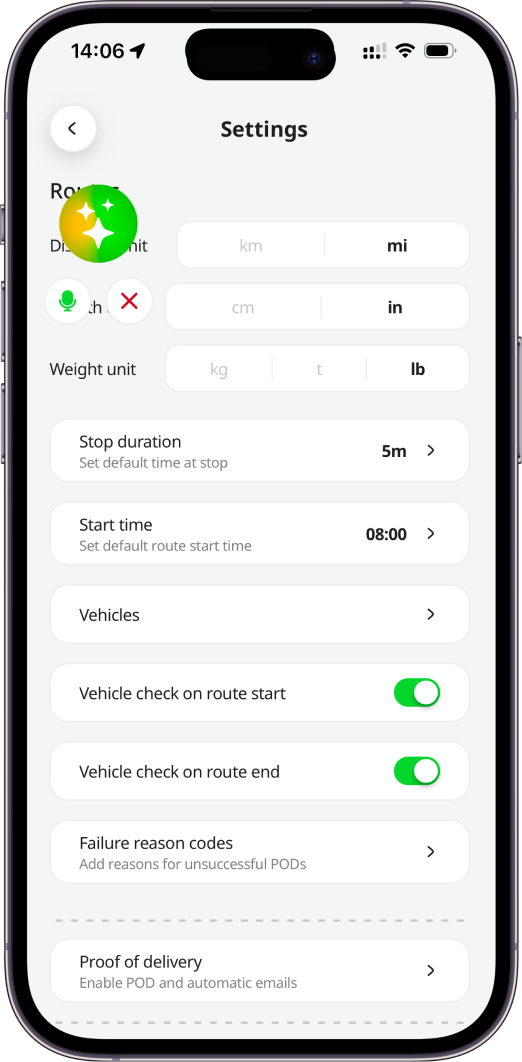
Tap the floating AI Assistant control to return to the full Assistant screen and continue your conversation.
To close the active Assistant completely:
- Swipe it down, or
- Tap the X button.
After you close it, the regular AI Assistant entry point is displayed again.
You can switch between text and voice depending on what is most convenient. Use text mode when you prefer to type or want to review your conversation on screen. Use voice mode when you want to interact with Geo2 more quickly while planning or completing deliveries. Geo AI Assistant listens to your request and responds using voice in the selected language where supported. This lets you use the Assistant in the language that is most convenient for you while working.